
Add and manage your sales reps
- Audience: Admins
Last updated
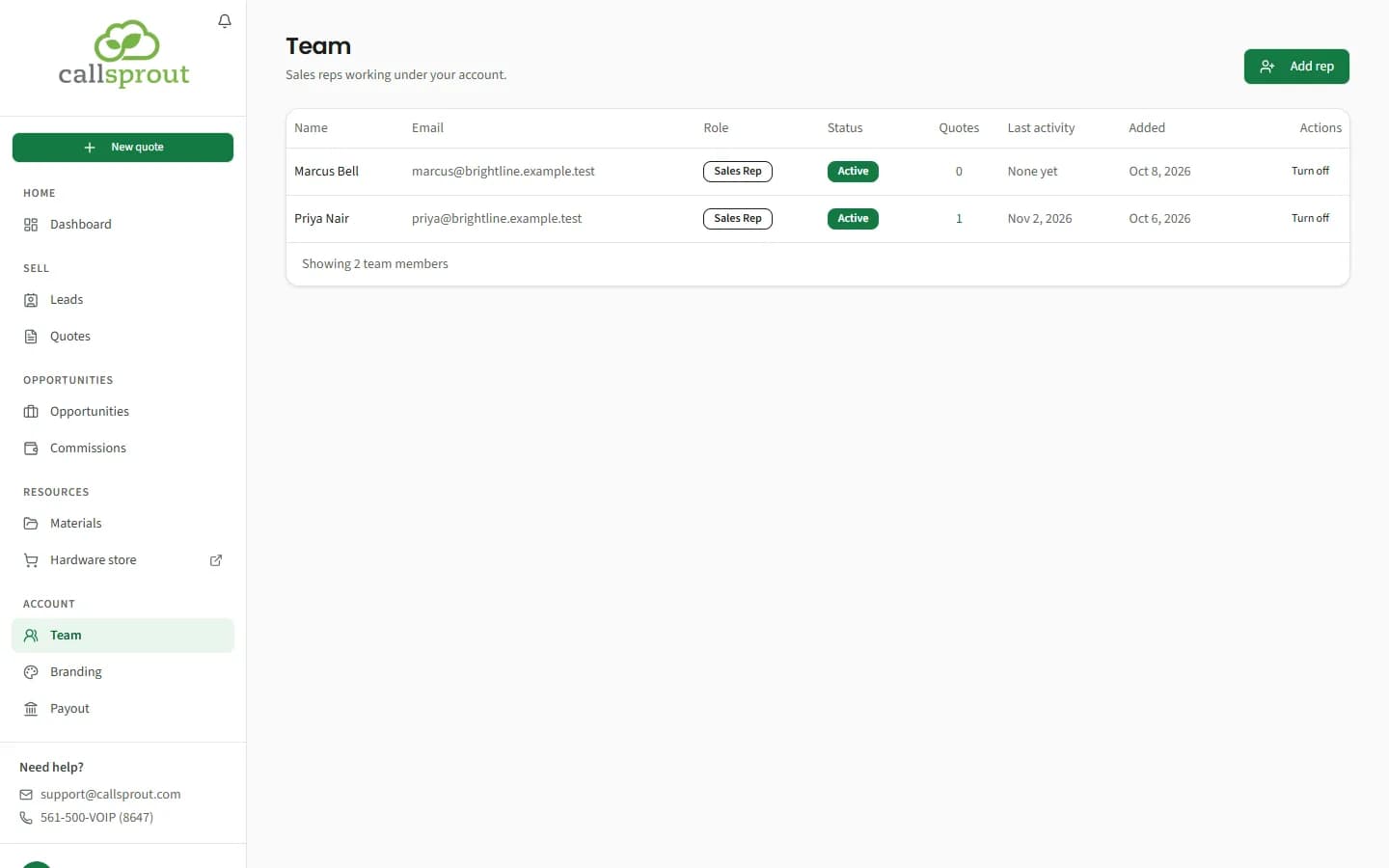
Account › Team, for your company's primary partner contact: "Sales reps working under your account."
The table shows each person's name, email, role (Sales Rep, or Partner for some older rep logins), status (Active or Turned off), number of quotes, last activity (or None yet) and when they were added. Show turned off reveals reps you've turned off.
You can add and turn off reps once CallSprout has approved your partner account. Until then the page says why, and has no Add rep button.
Adding a rep
- Click Add rep.
- Enter their first name, last name and email.
- Click Add rep.
They get their own login under your company and an email with a link to sign in ("We emailed {email} a link to sign in"). If the email doesn't go through, the portal shows you the sign-in link to pass on yourself. They complete a short rep onboarding before they start.
Reps see only their own leads, quotes and opportunities, never commissions. See Partners and reps.
If the email already has a login, you'll see "That email already has a login. If they should be on your team, contact support@callsprout.com."
Turning a rep off
Click Turn off and confirm. Then:
- they can't sign in any more;
- referral links they shared in the past credit your company instead of them;
- their leads, quotes and opportunities stay on your account.
A turned-off rep shows "CallSprout can turn them back on". To turn a rep back on, contact CallSprout.
Related articles
Still stuck? Contact support
Our team in West Palm Beach can walk you through it. Tell us your name, your company and what you were trying to do.