
Partner support tickets
- Audience: Admins
Last updated
Resources › Support: open and follow tickets with CallSprout's partner support team. It shows once your account is approved and CallSprout has turned partner support on.
The list
Columns: Ticket, Status, Opened by (partners only), Opened, and Last reply. A dot means there's a reply you haven't read. Partners see all of the company's tickets; reps see their own.
Opening a ticket
Click New ticket:
- Subject: 3 to 120 characters.
- Details: 10 to 5,000 characters. Please don't include passwords or bank details.
Click Open ticket.
Inside a ticket
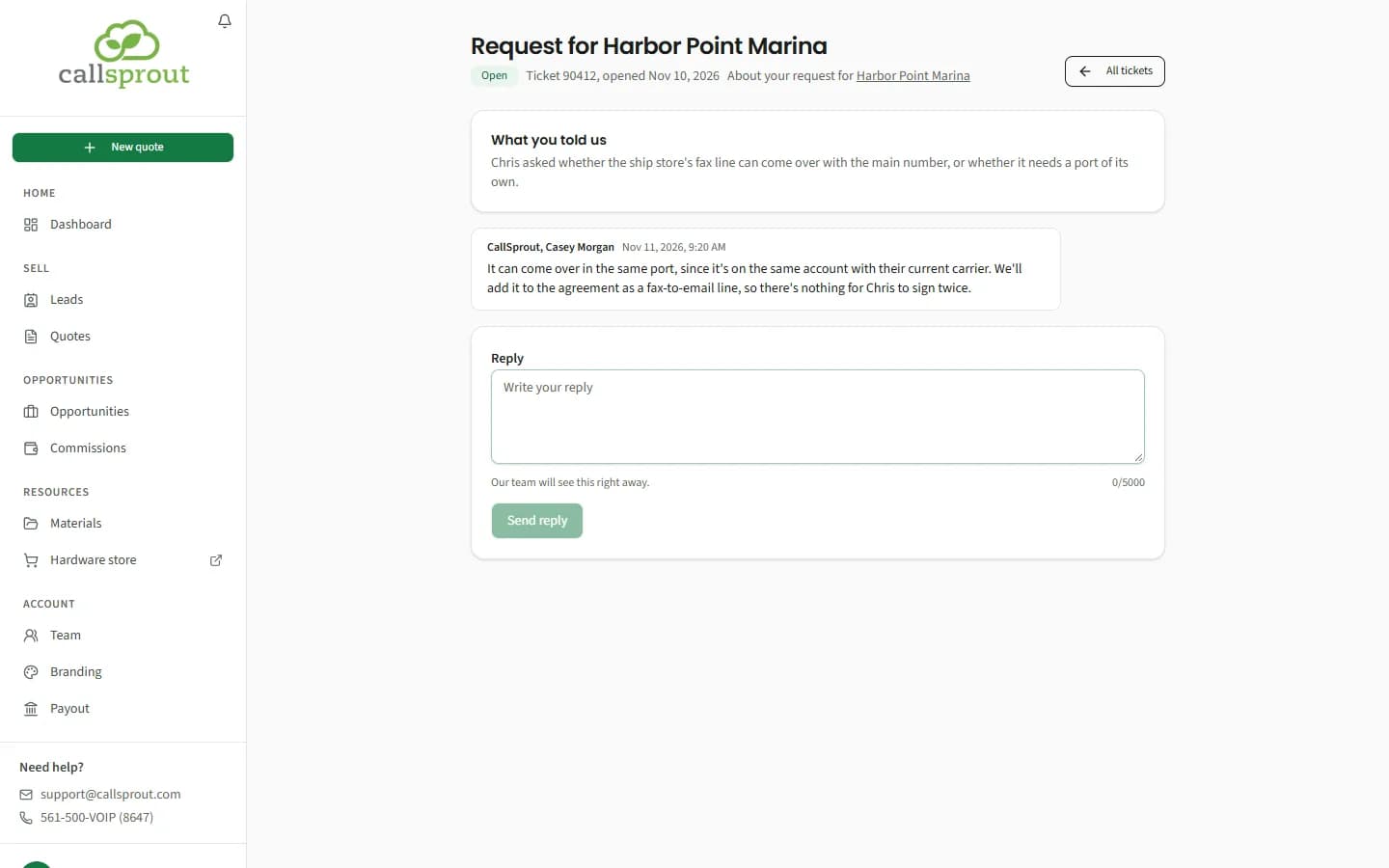
You'll see its status, number and date, What you told us, and the conversation, with your messages marked You and ours marked CallSprout. Type in Reply and click Send reply. We'll email you when CallSprout replies, and the bell shows CallSprout replied: {subject}.
A closed ticket can't take replies. Open a new one if you need more help.
If you see "Support isn't turned on yet" or "Support isn't set up yet", email support@callsprout.com instead.
Conversations about a request
When you write to us from a sent lead's Conversation with CallSprout (see Sending a lead to CallSprout), the conversation is a ticket here too, called Request for {company}. It belongs to whoever owns the lead: a rep's lead is in that rep's list, and the partner sees them all.
- Its page says "About your request for {company}", with a link back to the lead, where you'd otherwise see who opened it.
- You read our replies and answer here, as on any ticket. The lead's Open the conversation (or Read the reply) brings you here.
- Once it's closed: "This conversation is closed. Write again from the request to start a new one." Writing again on the lead starts a new conversation.
Related articles
Still stuck? Contact support
Our team in West Palm Beach can walk you through it. Tell us your name, your company and what you were trying to do.