
Groups and visibility rules
- Audience: Admins
Last updated
Groups
Admin › Groups organises people so managers can see their people's tickets, and so you can assign onboarding items to a whole group.
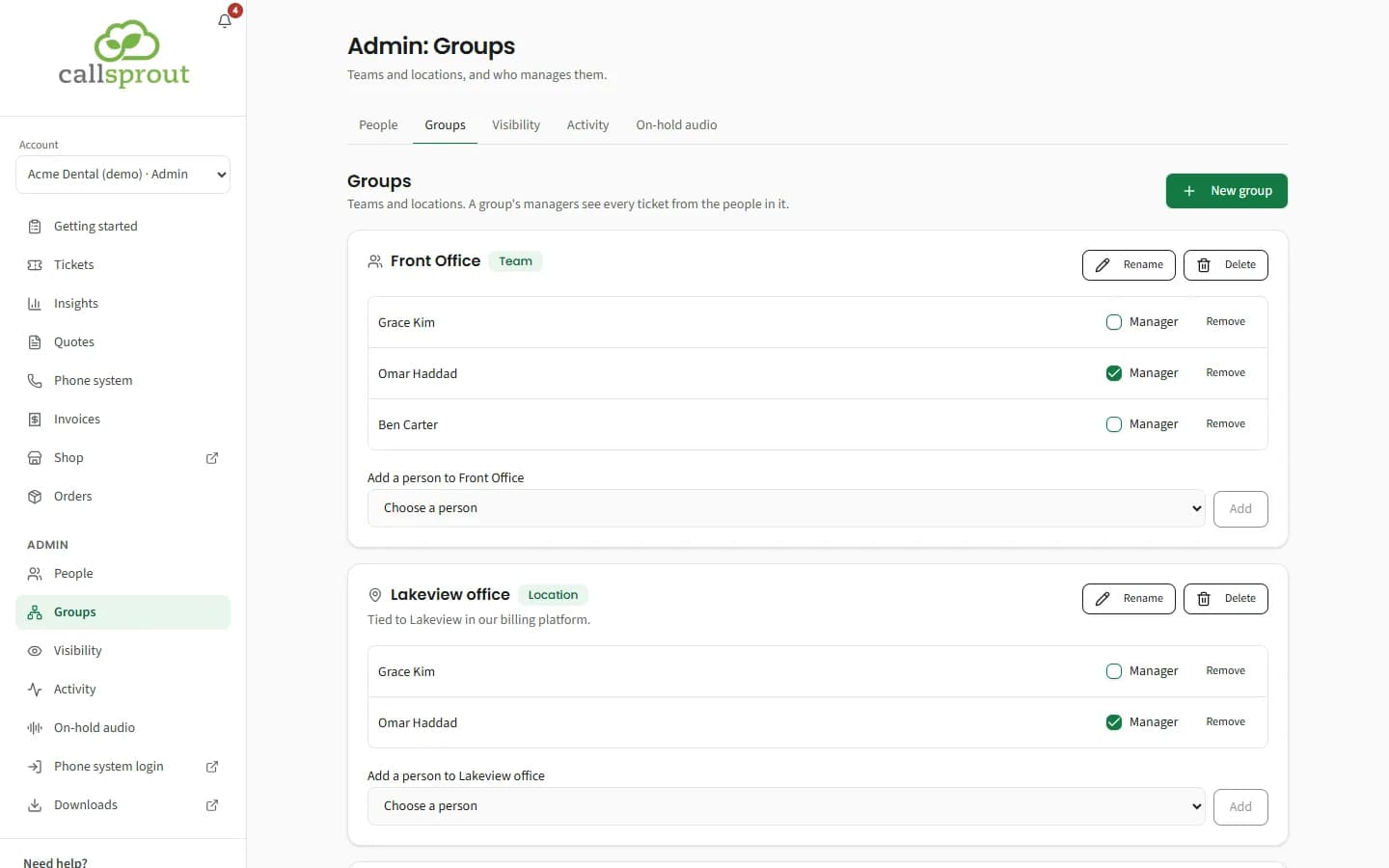
- New group, then pick a Type:
- Team: any set of people, for example Accounts or Front desk.
- Location: an office. It can be tied to one of your locations at CallSprout, or be portal-only.
- Add a person to {group}, and tick Manager for whoever manages it.
- Rename, Delete or Remove a member as needed.
A person ticked as a group's manager sees the tickets of everyone in that group, provided their role is Manager. Ticking an ordinary User as a group manager does nothing until you change their role.
Location admins see location groups for their own locations, and teams whose people are all theirs.
Visibility rules
Admin › Visibility starts by explaining the default rules: users see their own tickets, managers their groups', and admins every ticket at their locations. It ends with "Nobody ever sees tickets outside their own locations."
Below that, you can add rules that let someone see more. A rule reads as one sentence:
[a person or group] can also see tickets from [Everyone in the company / a Location / a Group / a Person]
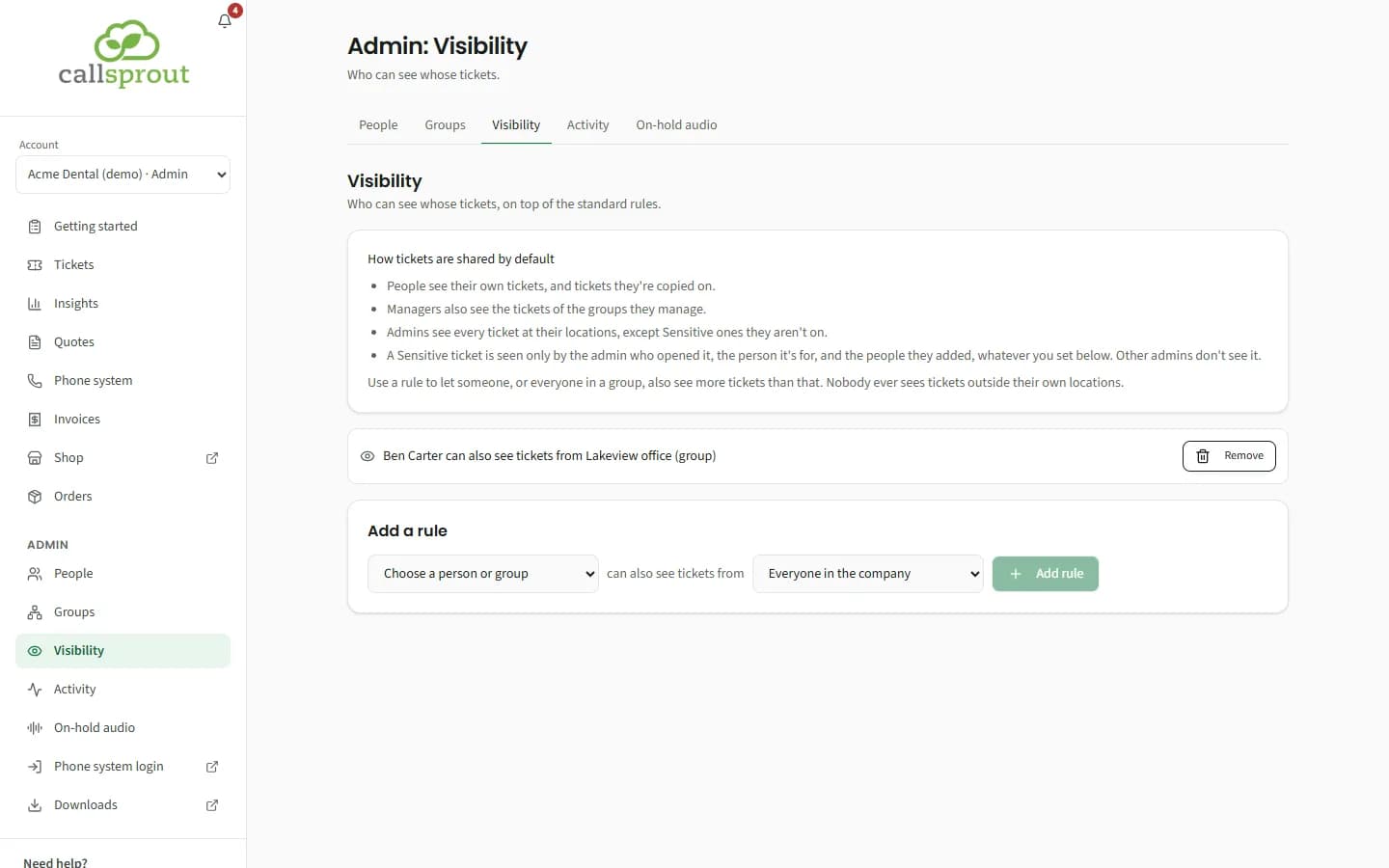
- Choose who gets to see more: a person or a group.
- Choose whose tickets: Everyone in the company, a Location (every ticket at that location), a Group, or a Person.
- Check the preview line, for example "Gina … will see every ticket at All Saints Preschool, on top of what their role gives them. Sensitive tickets stay with the people on them."
- Click Add rule.
Rules are listed as sentences, for example "Front desk (group) can also see tickets from All Saints Preschool". Remove asks "Remove this rule?"; confirm with Remove rule.
Rules only ever add visibility. They never hide a ticket someone could already see, never reach outside the person's own locations, and never open a Sensitive ticket (see Tickets) to anyone not on its list. They never open a billing ticket either: those follow who sees your invoices. Location admins can't make "Everyone in the company" rules.
Examples
| Need | Rule |
|---|---|
| An office manager who sees every ticket at their branch | Person can also see tickets from that Location |
| An office manager who sees all tickets but doesn't manage people | Person can also see tickets from Everyone in the company (or make them an Admin) |
| A team lead covering for a colleague | Person can also see tickets from that Person |
| The IT team sees every ticket | IT (group) can also see tickets from Everyone in the company |
Related articles
Still stuck? Contact support
Our team in West Palm Beach can walk you through it. Tell us your name, your company and what you were trying to do.