
Invite, change and turn off people
- Audience: Admins
Last updated
Admin › People: "Everyone who can sign in to this company's portal." Invite people, set their role, locations and permissions, and link them to their CallSprout contact.
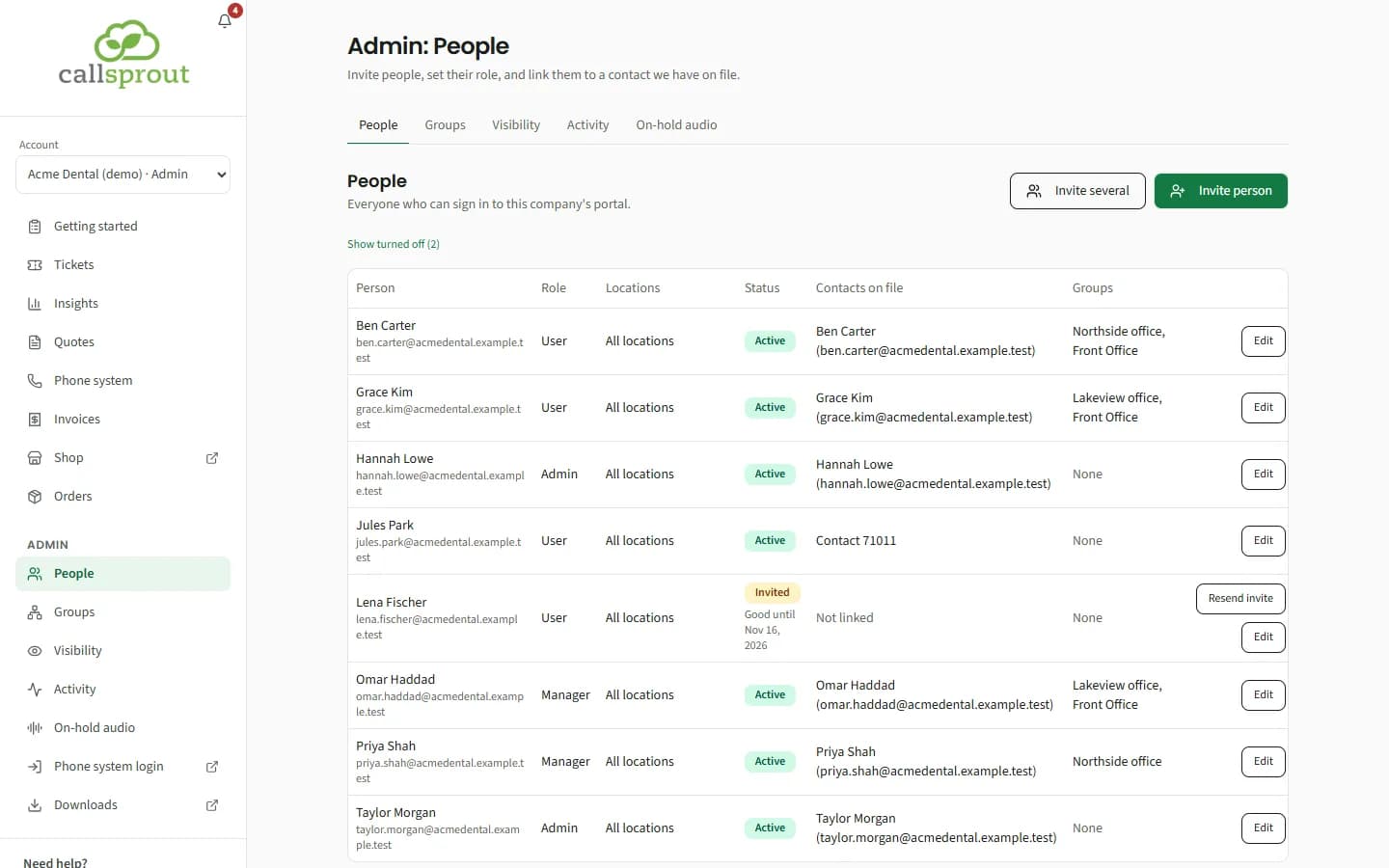
The table shows each person's role, status, Contacts on file and groups, plus a Locations column when your company has more than one location. Turned-off people are hidden until you switch on the toggle to show them.
| Status | Meaning |
|---|---|
| Active | Signed in and on the account |
| Invited | Invite sent, not accepted yet |
| Invite expired | The 14 days ran out. Use Resend invite for another 14 days. |
| Turned off | Can't see this company in the portal any more |
Location admins see only the people whose locations are all within theirs. See Location admins in Locations.
If your account keeps the phone system to people with All locations, a note above the list says "On this account, people limited to some locations can't open the phone system. Only people with All locations can." The same note shows under Locations when you invite or edit someone. See Phone system.
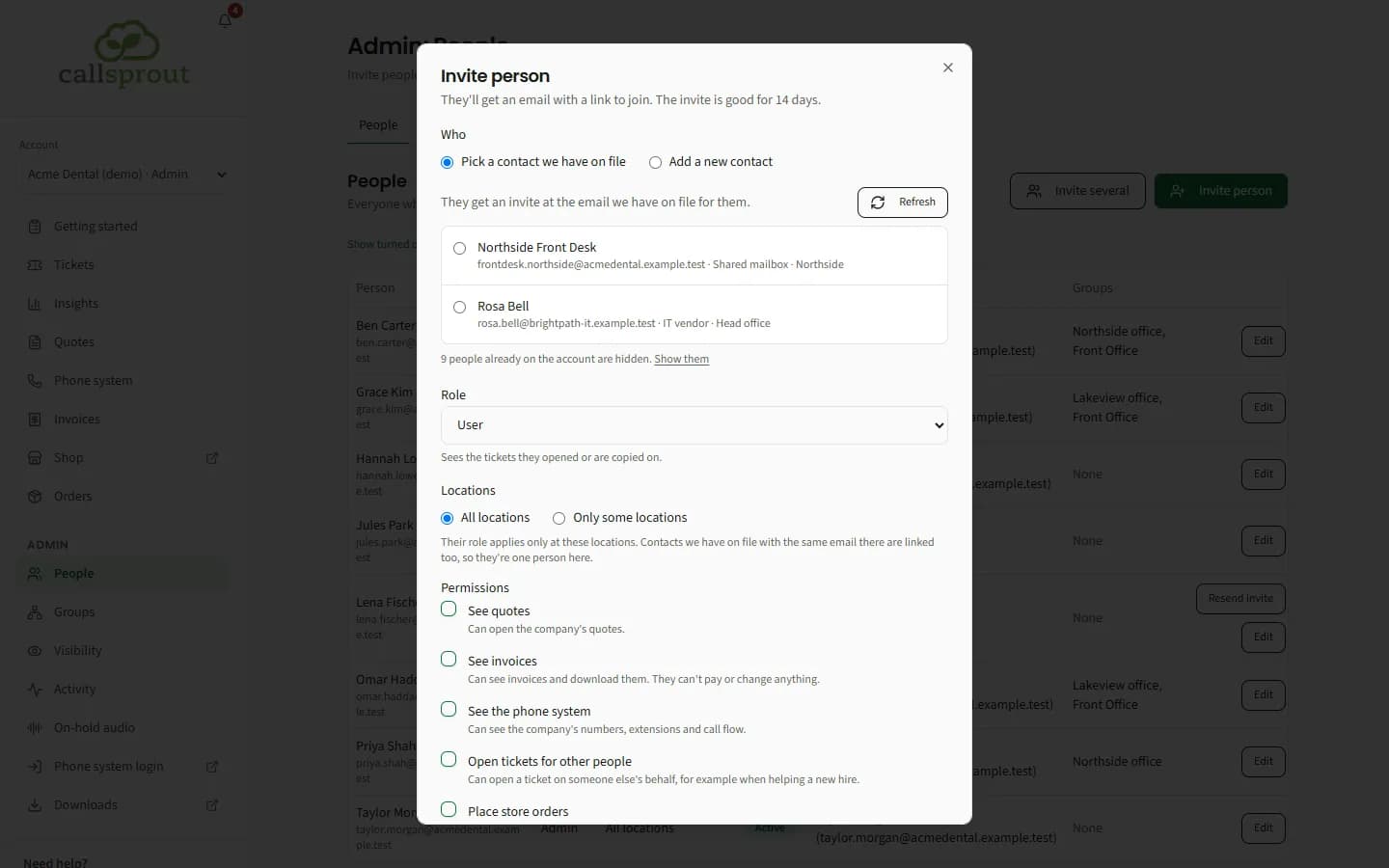
Inviting someone
- Click Invite person.
- Under Who, choose Pick a contact we have on file (people CallSprout already has on file for you) or Add a new contact (first and last name, email, phone, title, address, or Same as the customer's address).
- The list shows one row per person. Records with the same email at different locations are grouped, naming each location.
- People already on the account are hidden ("N people already on the account are hidden"). Show them brings them back.
- Choose their Role. See Roles and permissions.
- Choose their Locations: All locations or Only some locations (see Locations), and tick any Permissions.
- Click Send invite.
An account can send up to 25 invites a day, and add up to 25 new contacts a day. Resend invite works up to 3 times a day for one person, and 50 times a day across the account.
They get an email with a sign-in link, good for 14 days. They're added only once they accept. Use Resend invite if it went astray or ran out. Invite again appears for someone turned off before they ever joined.
If the invite email doesn't send. The invite still stands, but the page tells you the email didn't go, instead of saying they'll get one: "{name} is invited, but the invite email didn't send, so they don't know yet. Resend it to try again.", with Resend invite beside it. If a resend doesn't send either: "The new invite email to {email} didn't send, so they don't have it. Try again in a few minutes, or write to support@callsprout.com." A resend that didn't send still counts toward the 3 a day for that person.
Linking the right contact matters. It's what lets the person open tickets in their own name. Their Locations set what they can reach. For managers and users, the linked contact narrows quotes and invoices further.
Inviting several people
Click Invite several, next to Invite person.
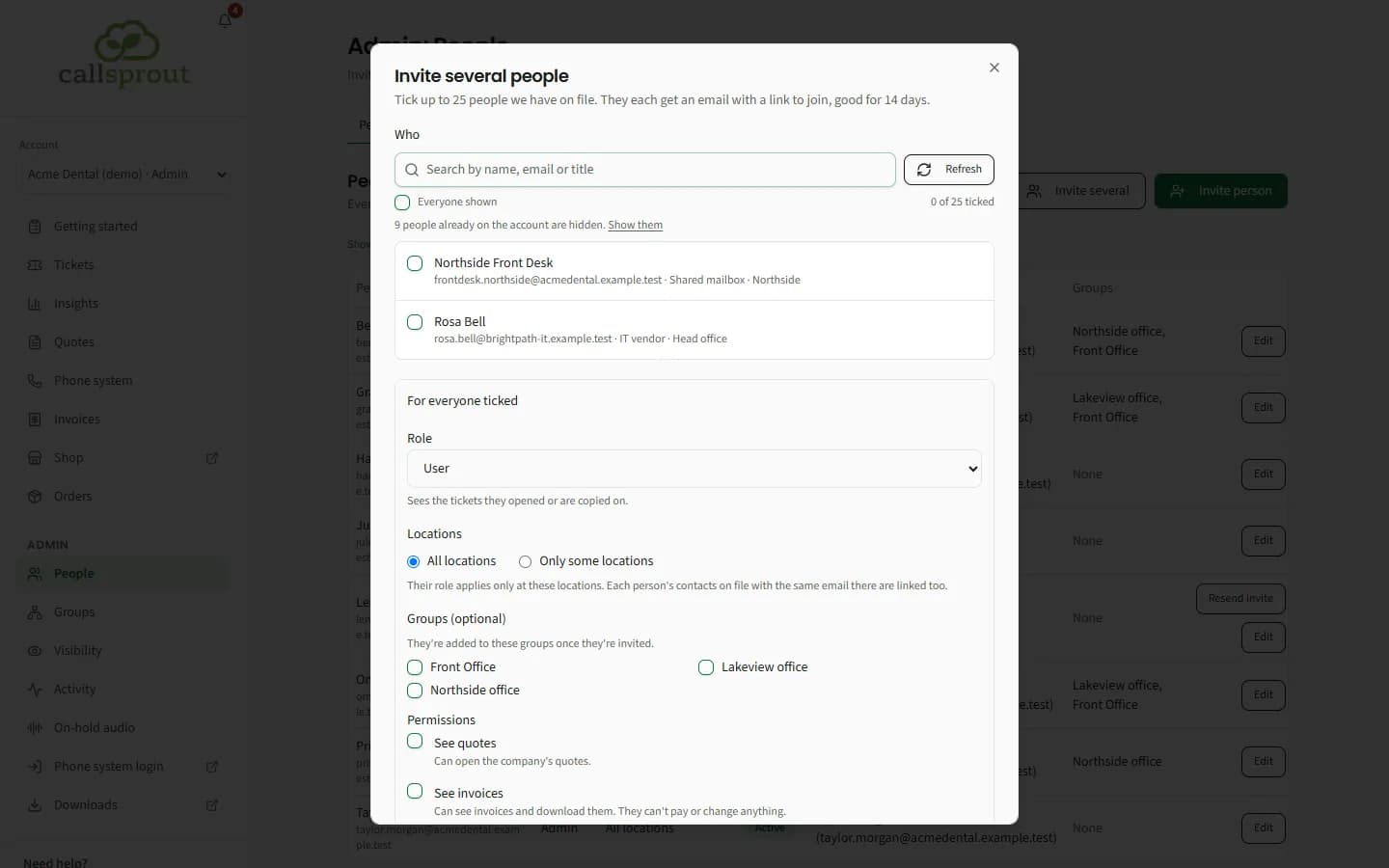
- Tick up to 25 contacts. Use the search, Refresh, or Everyone shown.
- Under For everyone ticked, set the Role, Locations, Groups (optional) and Permissions.
- To give one person a different role, change their row from "Same as everyone".
- Click Send N invites.
If some don't go through, you'll see "N invites didn't go in. They're still ticked to try again." If someone was invited but their email didn't send, the dialog says "{name}: Invited, but the invite email didn't send. Close this and use Resend invite beside their name."
Changing someone
Click Edit on their row:
- Name, Role, Locations, Permissions, then Save changes. Changing someone's locations leaves their linked contacts as they are.
- Contact on file: Search our contacts, then Link, or Unlink a wrong one.
You can't change your own role or locations, or turn yourself off. The account must keep at least one active admin of all locations.
Turning someone off
In Edit, under Access, click Turn off and confirm. They lose access to your company in the portal straight away. Their tickets stay. Turn back on reverses it.
If the confirm box says "Their contact at CallSprout is marked inactive too", turning them off also tells CallSprout's systems they've left your company.
Turning off a portal login doesn't offboard them from your phone system. For that, use the Offboard a person ticket template.
People can also be turned off automatically:
- when CallSprout marks all their contact records inactive;
- when their only location moves to its own account ("Their only location moved to its own account").
Related articles
Still stuck? Contact support
Our team in West Palm Beach can walk you through it. Tell us your name, your company and what you were trying to do.