
Payout, tax and commissions
- Audience: Admins
Last updated
For your company's primary partner contact. Reps don't see these pages. Both open once your account is approved; until then, your payout and tax details are set in Onboarding.
Commissions shows only if your partnership includes commission. If it doesn't, there's no Commissions item in your sidebar, and the page says "Commissions aren't part of your partnership". If you think that's a mistake, contact your CallSprout partner manager.
Commissions
Opportunities › Commissions: "What you've earned on your referrals and what we've paid you, as of {date}. Amounts update as clients are billed and pay."
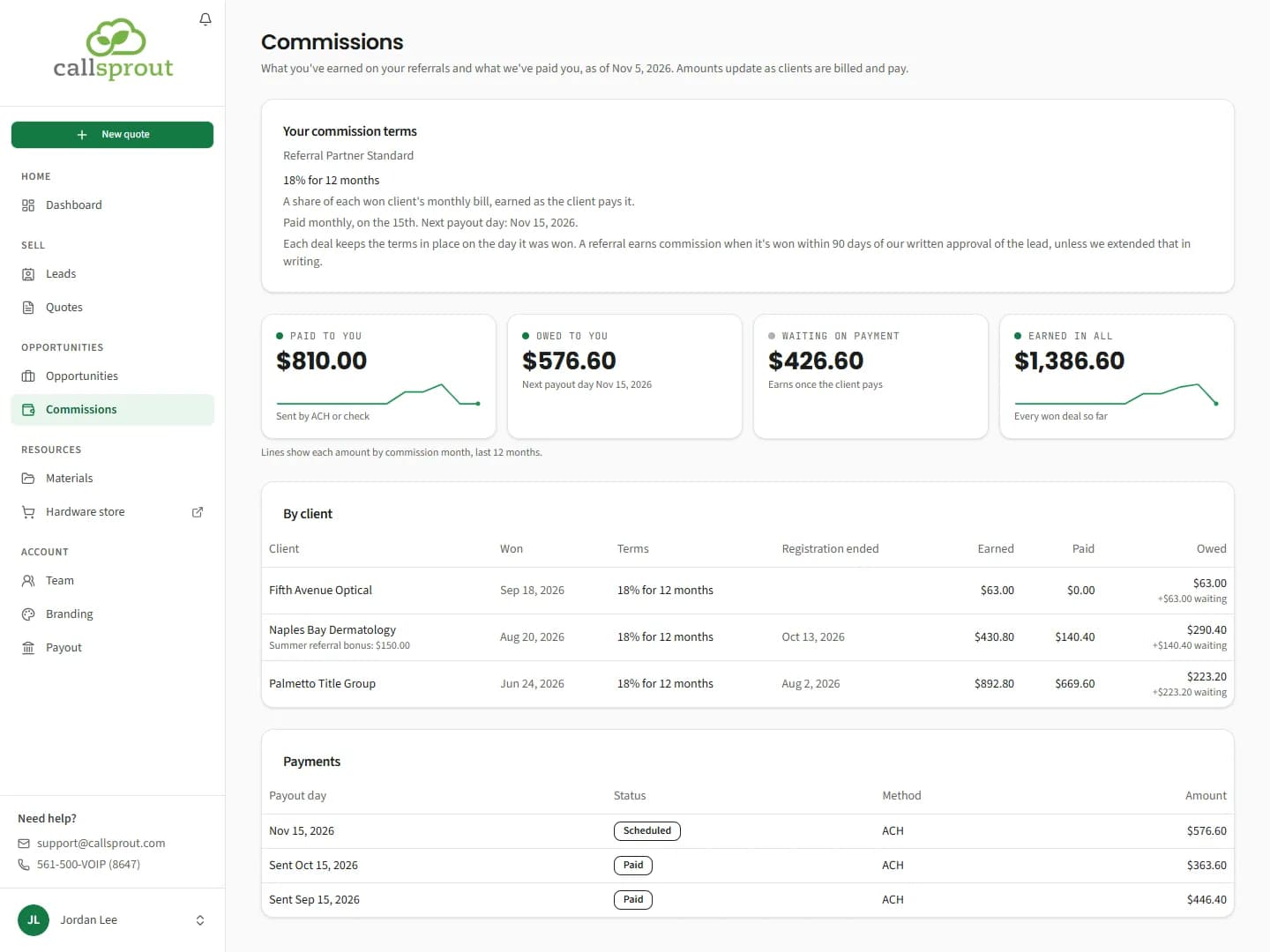
Your commission terms
The card at the top shows what you're paid:
- your plan's name, when you're on one of our standard plans;
- your terms, for example 18% for 12 months or 18% for the life of the account: "A share of each won client's monthly bill, earned as the client pays it.";
- when you're paid: "Paid monthly, on the 15th" or "Paid quarterly, on the first business day of each quarter", and your next payout day;
- "Each deal keeps the terms in place on the day it was won. A referral earns commission when it's won within 90 days of our written approval of the lead, unless we extended that in writing."
If your terms aren't set up yet, it says "Your commission terms aren't set up yet. Wins still count: each one takes your terms once they're set. Your CallSprout partner manager can help."
Your terms, and how they work, are set out in your partner agreement (see Onboarding).
The cards
| Card | Meaning |
|---|---|
| Paid to you | Sent by ACH or check |
| Owed to you | Earned and not paid yet, with your next payout day |
| Waiting on payment | What you'll earn once your clients pay bills that are still open |
| Earned in all | Everything earned on every won client so far |
Paid to you and Earned in all have a trend line by commission month, for the last 12 months.
With nothing won yet you'll see No commissions yet: "Commissions show up here once a referral is won. Each month earns once the client pays that month's bill. You can follow each referral on Opportunities meanwhile."
By client
Each client you've won, newest first:
- Client, with any promotion you were awarded on it underneath (its name and amount). A promotion that pays for each unit sold also shows how many units it counted and the rate, for example "Seat promo (12 × $15.00): $180.00".
- Won: the day the client signed up.
- Terms: the terms that client was won on. "Terms being set up" means it was won before your terms were set, and it takes them once they are. "Won after its registration ended, so it doesn't earn commission" means it closed after its registration period.
- Registration ended: the last day that referral could close and still earn, when one applies.
- Earned, Paid and Owed, with "+{amount} waiting" when some of the client's bills are still unpaid.
A month earns once your client pays that month's bill, and you earn on what they paid, not counting tax.
Payments
Every payment we've prepared for you, newest first:
- Payout day, or "Sent {date}" once it's gone.
- Status: Scheduled (ready to go on the payout day), Paid, or Held, with the reason underneath.
- Method (ACH or Check) and Amount.
- A large payment can be spread over several monthly installments; it says "In {n} installments, {n} sent". The full amount is still yours, and we'll tell you the schedule before the first one.
Before your first payment: "No payments yet. Your first comes on a payout day once you have commission owed."
When a payment is held
| You see | What to do |
|---|---|
| Held until your W-9 is on file. Upload it on Payout and tax. | Upload a signed W-9 on Account › Payout (below). The next payment includes it. |
| Held while your partner account is on hold. | See "Your payouts are on hold" below |
| Held while we review the new payout details you sent. | Nothing: it goes out once we've reviewed the change |
| Held because your partner agreement ended. | Contact your CallSprout partner manager |
| Held. Your CallSprout partner manager can tell you why. | Contact your CallSprout partner manager |
Nothing held is lost. Once the reason is sorted out, the next payment on your schedule includes it, and the held payment drops off your list.
Two banners can show at the top of the page:
- Upload your W-9 so we can pay you: "You have commission owed, and we can't pay it until a signed W-9 is on file." with a link to Payout and tax.
- Payments paused: your account is on hold, or we're reviewing new payout details you sent. "What you earn still counts."
Notifications about your money
- When we send a payment, your bell shows Commission payment sent: {amount} (or Commission installment sent: {amount}), and your primary and accounting contacts get an email, "CallSprout sent your commission payment of {amount}", saying how it was sent. ACH usually arrives in 1 to 3 business days; a check takes longer by mail.
- The first time you have commission owed and no W-9 on file, your bell shows Upload your W-9 so we can pay you, and your primary and accounting contacts get an email asking you to upload it in the portal. Please don't email the form: upload it in the portal so your tax ID stays private.
Payout details
Account › Payout opens Payout and tax: where we send your commissions, and the tax details we keep on file.
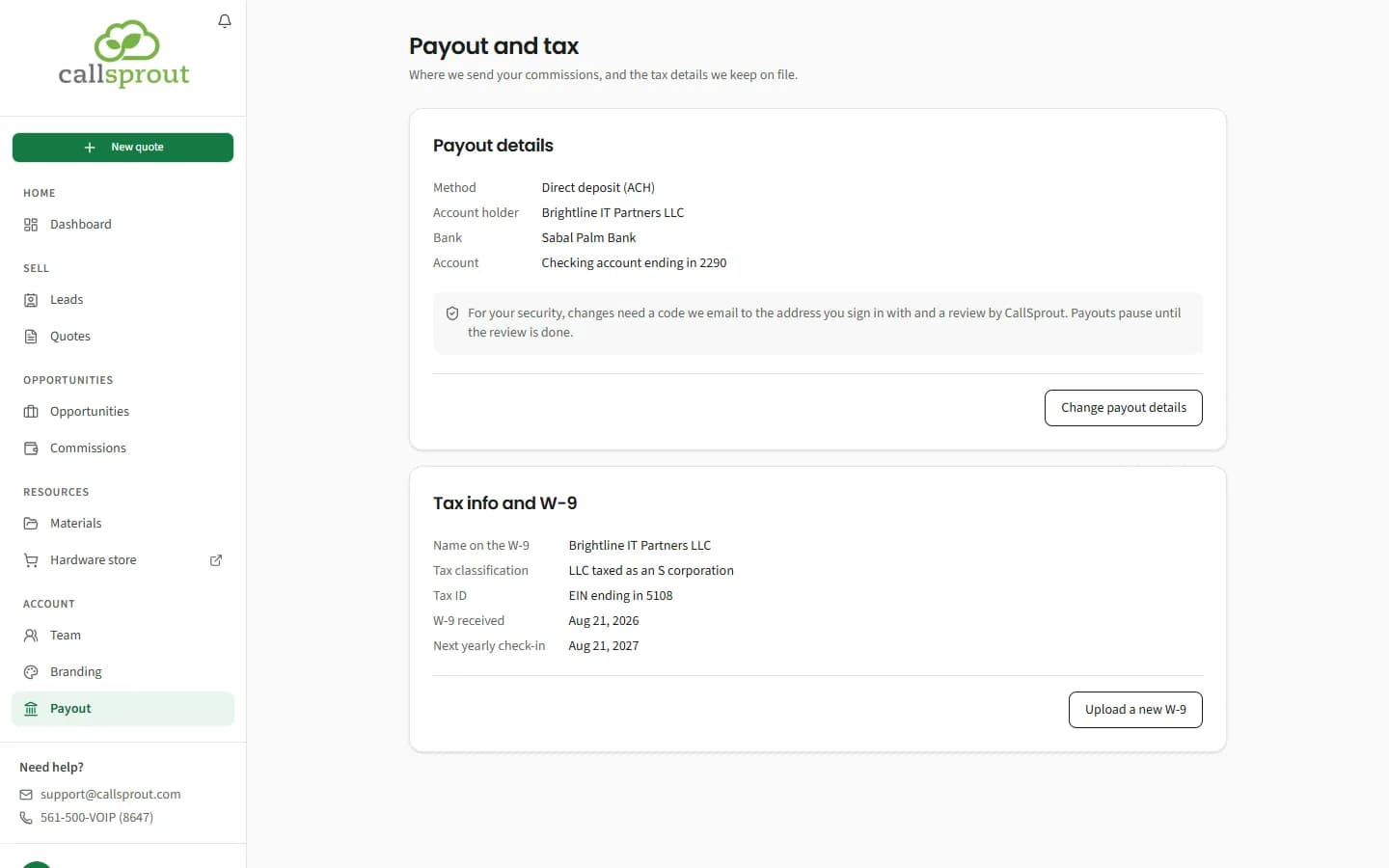
Payout details shows your current method: direct deposit (bank, account type and last 4 digits) or paper check (mailing address).
Changing your payout details
For your security, changes need a code we email you and a review by CallSprout.
- Click Change payout details, enter the new details and click Send code.
- Enter the 6-digit code sent to the email you sign in with. It's valid for 15 minutes. Use Send a new code if needed, then Verify.
- The change shows Waiting on CallSprout review. You can Cancel change until it's reviewed.
Payouts pause while the change is reviewed, and a "Payouts are paused" banner shows. Once CallSprout approves or turns down the change, payouts resume. If it's turned down, payouts keep going to your old details, and you'll see a note from CallSprout.
Changing your payout details doesn't touch your W-9. A W-9 we already have stays on file, so you aren't asked for it again and your payments aren't held for it while the new details are set up.
Tax info and W-9
Shows the name on your W-9, tax classification, tax ID type and last 4 digits, when we received your W-9, and your next yearly check-in.
- Upload a new W-9 if anything has changed. We need a signed W-9 on file before we can pay any commission.
- Once a year you'll be asked Has anything on your W-9 changed?, on this page and by email. If not, click Nothing changed, dismiss.
"Your payouts are on hold"
This banner means CallSprout has paused commission payouts on your account. You can keep using the portal as usual, and what you earn still counts. To find out why, or to get payouts moving again, contact support@callsprout.com.
This is different from "Payouts are paused", which only lasts while a payout change is reviewed.
Related articles
Still stuck? Contact support
Our team in West Palm Beach can walk you through it. Tell us your name, your company and what you were trying to do.