
Invoices, balance and payments
- Audience: Admins
Last updated
Who sees it: admins, and people with See invoices. Who can pay: admins, and people with Pay bills (which also needs See invoices). You see only your own locations.
Once billing is connected, the page has two tabs: Balance and payments and Invoices. If you see "Billing isn't connected yet. Your invoices are below.", only the invoices are available for now.
Choosing a location
If you can see more than one location, a row of buttons sits above the tabs: All locations, then each parent with its locations underneath (marked ↳). Past five locations, the rest are under More locations (n).
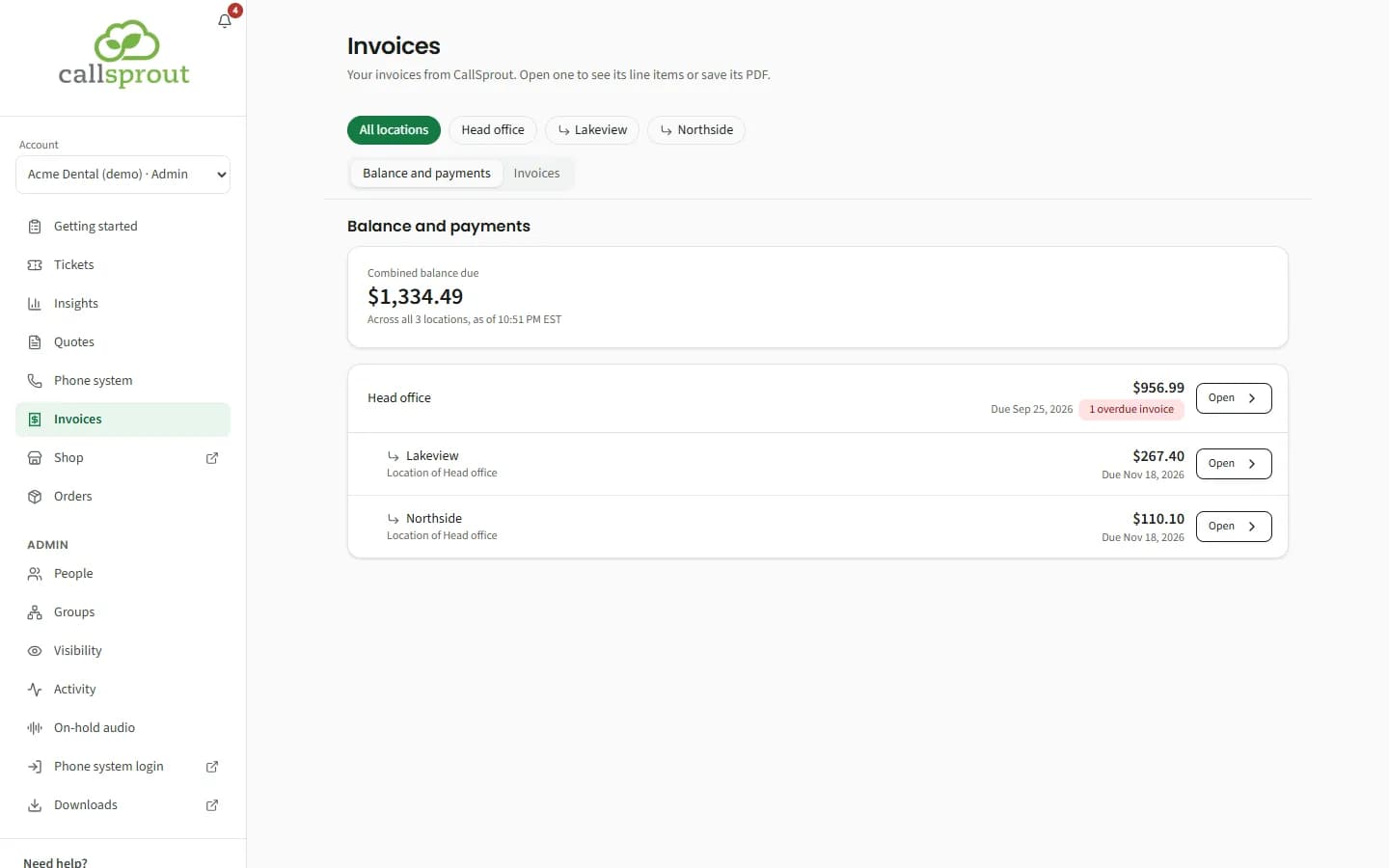
All locations shows a Combined balance due ("Across all N locations, as of…") and a list of your locations, each with its balance, the next due date, how many invoices are overdue, and Open.
The page's address keeps the location, tab and page, so you can bookmark or share a view.
Balance and payments
Open one location to see its own balance and payments:
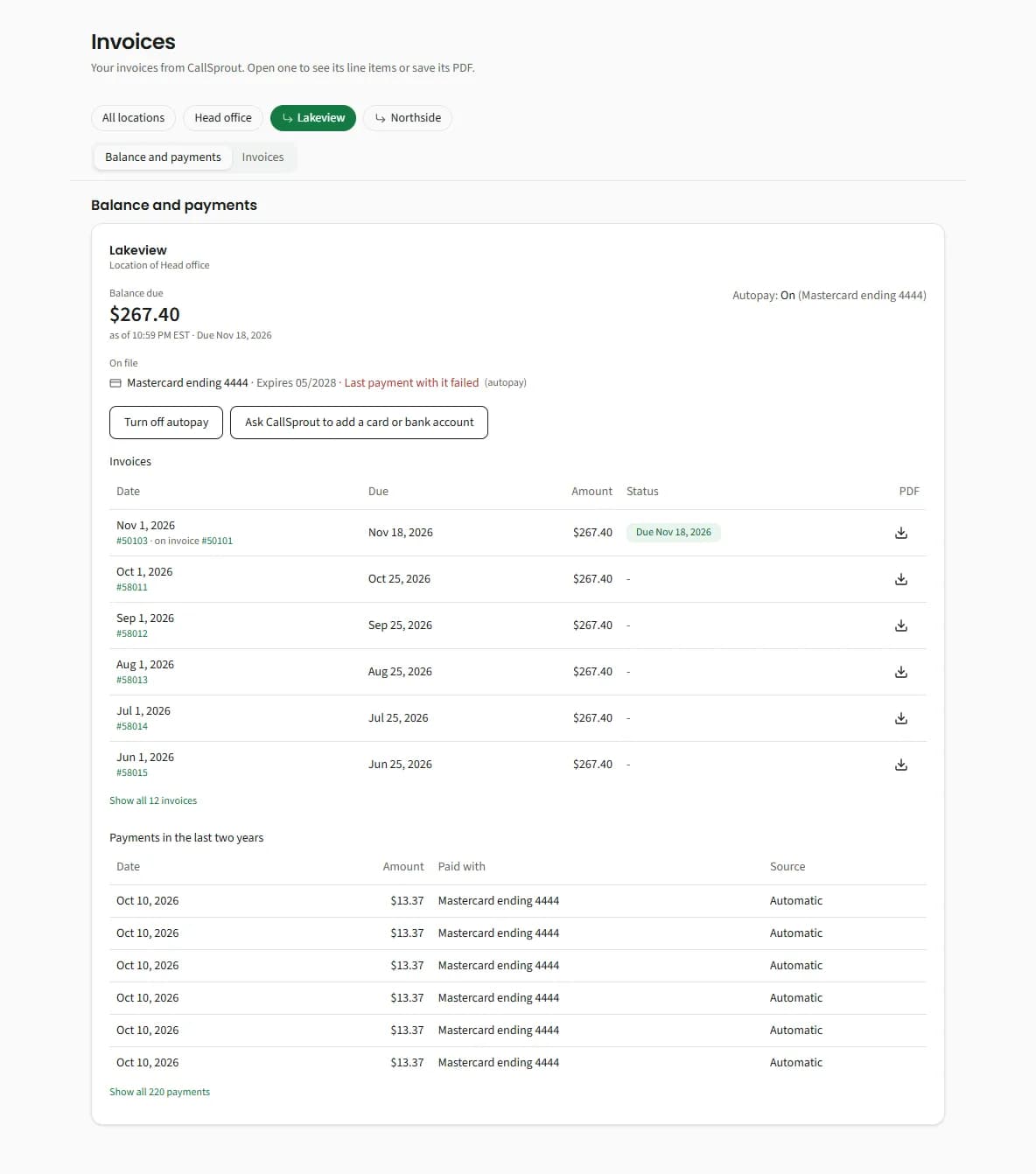
- Balance due: what's due now, as of the time shown, and when it's due. Charges that haven't been billed yet aren't counted.
- Credit on your account, in place of the balance, when you've paid more than you owe (for example, a bill paid twice) or we've credited you: "You've paid ahead or been credited. It comes off your next invoice, so there's nothing to pay now." In the list of locations, a location in credit reads "Credit $X".
- Autopay: On, Looks like it's on, or Off, with the card or bank account it uses.
- On file: each card or bank account (brand, last four digits, expiry). The one autopay uses is marked (autopay), and one whose last payment failed says Last payment with it failed. Only cards and bank accounts confirmed as your company's are listed, and only those can be used to pay. If one you expect isn't there, ask us.
- Invoices: date, due date, amount, status and PDF, at the same totals as the Invoices tab.
- Payments in the last two years, with how each was paid (Automatic, Online, By CallSprout) and whether it Bounced or was Refunded.
Paying your balance
People who can pay see Pay balance:
- Choose the Amount: the whole balance, or "The latest invoice (#N), $X". The latest-invoice option pays what's left on that invoice, and isn't offered once it's paid.
- Choose what to Pay with. Only cards and bank accounts on file can be used.
- Click Pay $X. Once you confirm, it can't be cancelled.
You'll then see Payment made, Payment declined, Payment not sent, or We're checking this payment. You can try up to 5 payments a day; if you need to make another, call us. The bell also tells you whether the payment went through.
Pay balance doesn't show when there's nothing owed, nothing on file, a payment is already going through, the balance couldn't be read, or online payment isn't switched on for your company. A line under the buttons says which, for example "There's nothing to pay right now." or "To pay here, we need a card or bank account on file. Ask us to add one."
Autopay and payment methods
There are no card or bank fields in the portal. Instead:
- Turn on autopay / Turn off autopay opens a ticket asking CallSprout to do it.
- Ask CallSprout to add a card or bank account opens a ticket too.
- Manage payment methods links to CallSprout's payment page, if one has been set up.
Each person can send up to 5 of these billing requests a day.
Invoices
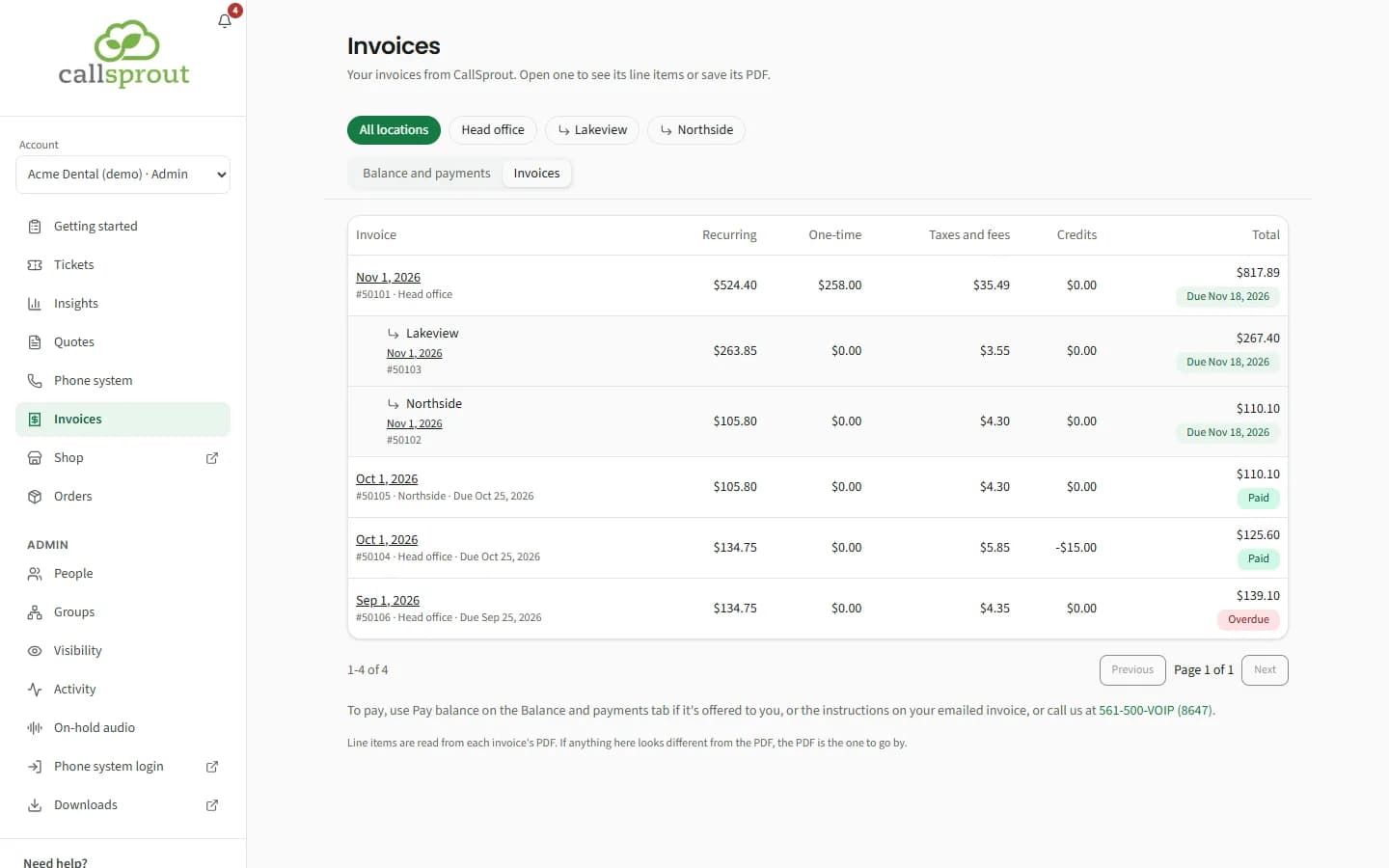
- Each row shows the date, invoice number, due date, and the split between Recurring, One-time, Taxes and fees, Credits and Total, with a Paid, Due or Overdue badge. A part-paid invoice also shows "Balance $X". 12 per page.
- Locations billed together: when a location's charges are printed on its parent's invoice, that location's invoice is nested under the parent's (↳ location name). Shown on its own, it says "Included on {parent}'s invoice #N". The parent invoice lists "Includes {location} (#id)…".
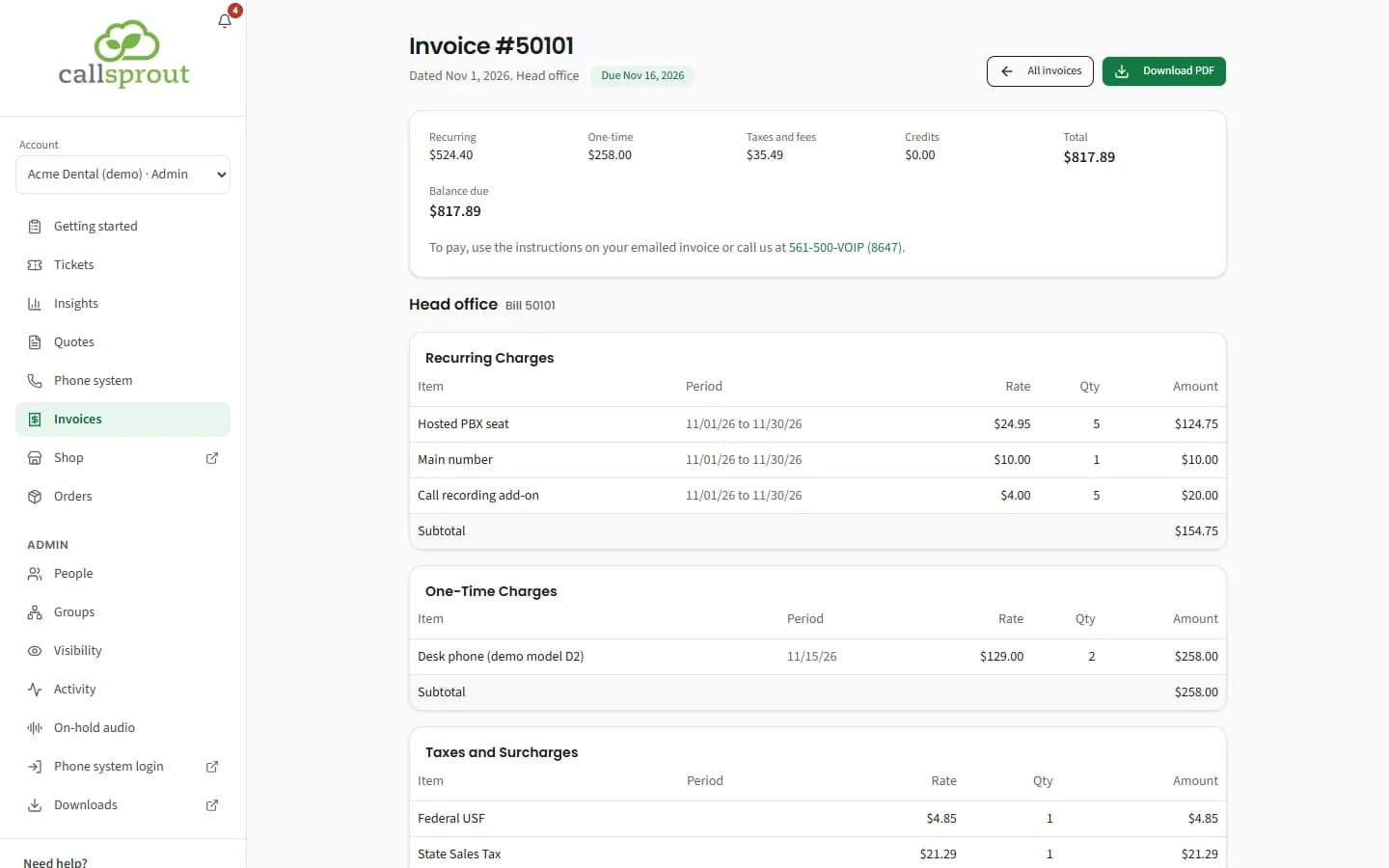
- Open an invoice for its line items, in sections (Item, Period, Rate, Qty, Amount), and Download PDF.
- Your location's part only means you're seeing your location's share of a company-wide invoice. Those don't offer the full PDF.
- Details unavailable, ask CallSprout for a copy means the invoice couldn't be read; email support for a copy.
- Line items are read from each invoice's PDF, so newly issued invoices can take a little while to appear ("We're still reading N invoices", with Refresh).
Paying from an invoice. When an invoice still has something owed and you can pay bills, the invoice's own page has Pay this invoice, which opens the same payment box as Pay balance. It's offered for your newest invoice, or for any invoice that's all you owe. For an older invoice among several, the page points you to Balance and payments instead, where you can pay the balance. If online payment isn't open to you, it says how to pay instead: the instructions on your emailed invoice, or a call.
The bell tells people who can see invoices about each New invoice and when an invoice is past due.
The past-due banner
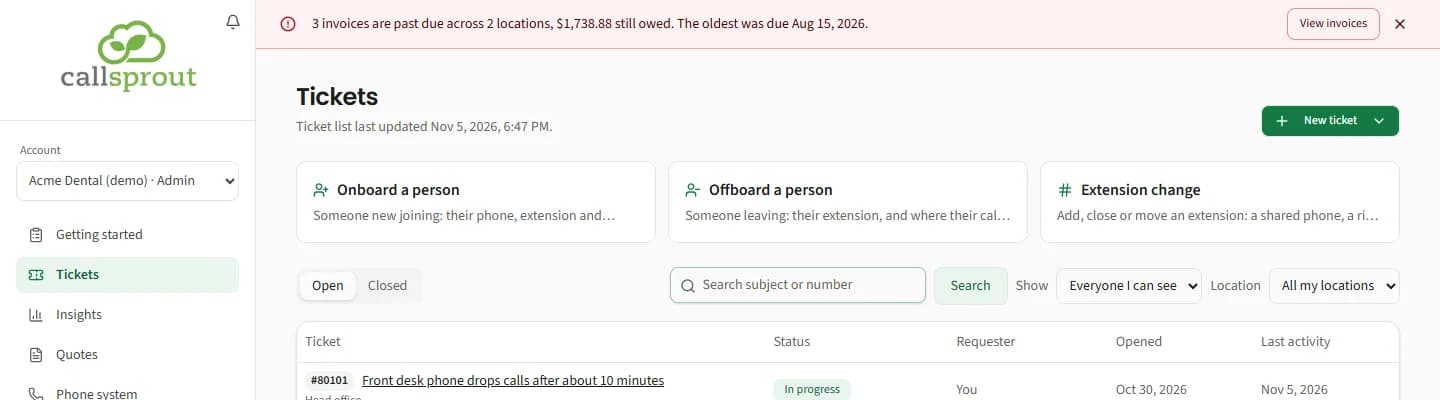
If you're an admin of your company's portal and any of your invoices is past due, a red banner sits at the top of every portal page until they're paid. For example: "3 invoices are past due across 2 locations, $1,738.88 still owed. The oldest was due Aug 15, 2026." (With one invoice: "1 invoice is past due, $X still owed. It was due {date}.")
- View invoices opens this page. The banner isn't shown on the Invoices pages themselves, which already mark each overdue invoice.
- ✕ hides it until you close your browser. It comes back sooner if the number of past-due invoices or the amount owed changes, for example when another invoice falls due.
- It counts every past-due invoice across the locations you can see, however long ago it was due. The bell's past-due alert, by contrast, rings once per invoice, shortly after its due date.
- Only admins see the banner. Other people who can see invoices still get the bell.
- If your invoices can't be read just now, the banner simply doesn't show. The Invoices page still has the full picture.
Without Pay balance, pay using the instructions on your emailed invoice, or call 561-500-VOIP (8647).
Emails about your bill
Besides the bell, two kinds of billing email can reach your company: your invoices, and a note from our billing team when a payment needs attention.
Your invoice
Each new invoice is emailed to the billing email address we have on file for your company, from our billing system.
If invoices go to the wrong address, or nobody gets them, ask us to update the billing email on file.
A note about a payment problem
If a payment is declined or bounces and hasn't been paid since, the card autopay uses has expired or runs out this month, or part of your balance is past due, someone on our billing team may email you about it.
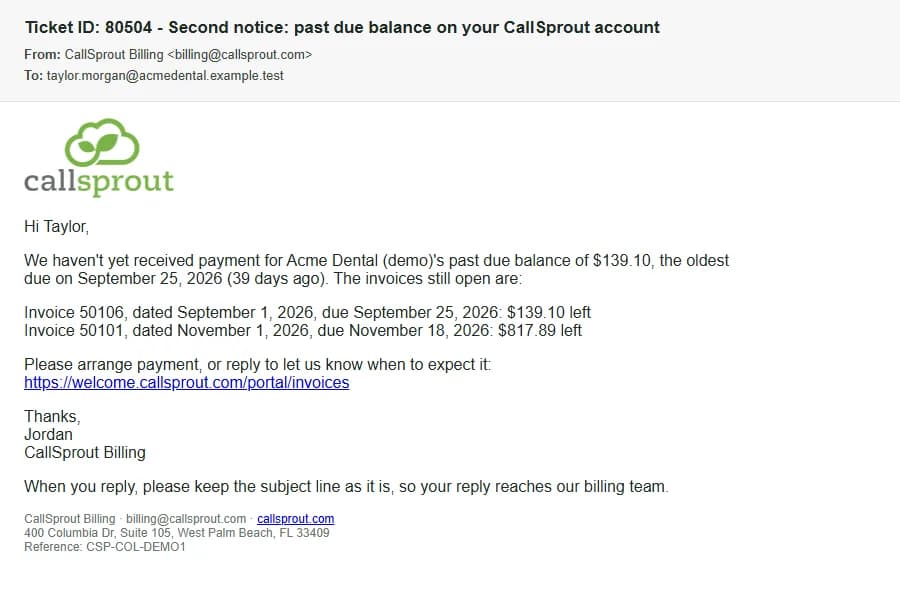
- From: CallSprout Billing. Replies go to our billing team at billing@callsprout.com.
- To: your company's billing email address on file, or a contact at your company we have on file. It never goes to an address we don't have on file for your company.
- Subject: it starts with "Ticket ID: {number} -", then the subject, for example "Second notice: past due balance on your CallSprout account". Keep the subject as it is when you reply, so your reply reaches the billing team.
- What's in it: what's owed or what went wrong, the invoices still open, and how to pay or update your card (for portal customers, a link to the portal's Invoices page). At the bottom: "CallSprout Billing · billing@callsprout.com · callsprout.com", our address, and a reference.
- In the portal: the email and the replies are kept on your company's billing ticket, which the people who can see your invoices can read and reply to. See Billing tickets in Tickets.
If you've already paid, reply to say so, or check Balance and payments first.
Related articles
Still stuck? Contact support
Our team in West Palm Beach can walk you through it. Tell us your name, your company and what you were trying to do.