
Send a lead to CallSprout to quote
- Audience: Admins
Last updated
When your client is ready, send their lead to CallSprout and ask us to quote them. We pick it up from there, quote the client, send them the agreement, and keep you posted on the lead and under Opportunities. Partners and reps can both send leads; a rep sends their own.
How to send
Open the lead and click Send to CallSprout. You can also start from a quote: on a finalized quote in the quote builder, Send to CallSprout opens the quote's lead with that quote already picked.
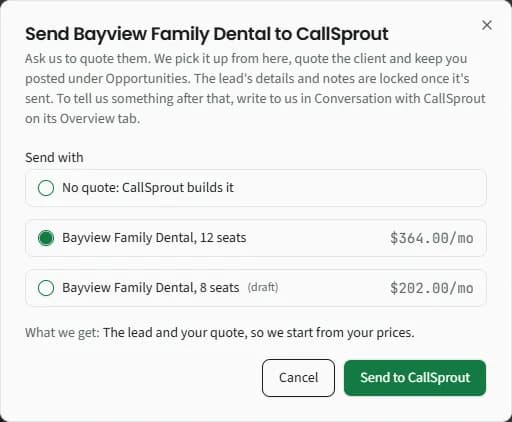
Send {company} to CallSprout: "Ask us to quote them. We pick it up from here, quote the client and keep you posted under Opportunities. The lead's details and notes are locked once it's sent. To tell us something after that, write to us in Conversation with CallSprout on its Overview tab." See Conversation with CallSprout, below.
-
Send with (when the lead has quotes): No quote: CallSprout builds it, or one of the lead's quotes with its monthly total. Drafts are marked (draft).
-
What we get says what goes with the lead:
- The lead: the company and its contacts.
- The lead and your questionnaire answers. (when you've answered some of the quote questions on the lead's Questionnaire tab; see Leads)
- The lead and your quote, so we start from your prices.
Your questionnaire answers go with the lead whichever you pick, quote or not.
-
Anything that stops the send is listed in red, and notes are listed in grey (see below).
-
Click Send to CallSprout. You'll see "Sent to CallSprout: We'll pick it up and quote them. Follow it under Opportunities."
What has to be in place
| You see | What to do |
|---|---|
| Add a contact to the lead first, so CallSprout knows who to talk to. | Add a contact on the Contacts tab |
| Add an email for {name}, the primary contact. CallSprout sends the agreement to it. | Edit the primary contact and add their email, or send the quote that has it (see the notes below) |
| Finalize the quote before sending it, so the prices CallSprout works from can't change. | Finalize the quote in the quote builder, or send with no quote |
| This lead is closed out. Reopen it first. | Open it from Archived on the Leads page and click Reopen |
| This lead is already sent to CallSprout. Use Send update to tell us what changed. | Use Send update on the lead (see Telling us what changed, below) |
| That quote has already gone to CallSprout. | Pick another of the lead's quotes, or send with no quote |
| Sending to CallSprout isn't set up yet. Try again later, or contact your CallSprout partner manager. | Try again later |
Notes don't stop the send:
- Sending with nothing but the lead: CallSprout asks the client what they need.
- Other contacts with no email: CallSprout gets their details in the notes only.
- Your quote fills in the lead: "{name} from your quote is added to the lead's contacts." or "The contact details on your quote fill in what the lead's contact was missing." The quote's client contact is added to the lead, or fills an email or phone the lead's contact didn't have, when you send.
- "Another partner already sent us {company}. You can still send it, but our team will check who the client came from before referral credit is given."
After you send
- The lead moves to Sent. Its company details, contacts and notes lock. To tell us something, write to us in Conversation with CallSprout on its Overview (see below).
- A quote you sent with it shows Sent to CallSprout and can't be sent again. To send a new version, duplicate it and send it with Send update.
- It appears under Opportunities as In progress.
- You get an email, "We got your referral for {client}", with an Open Opportunities button.
The lead's Overview now starts with a Sent to CallSprout card:
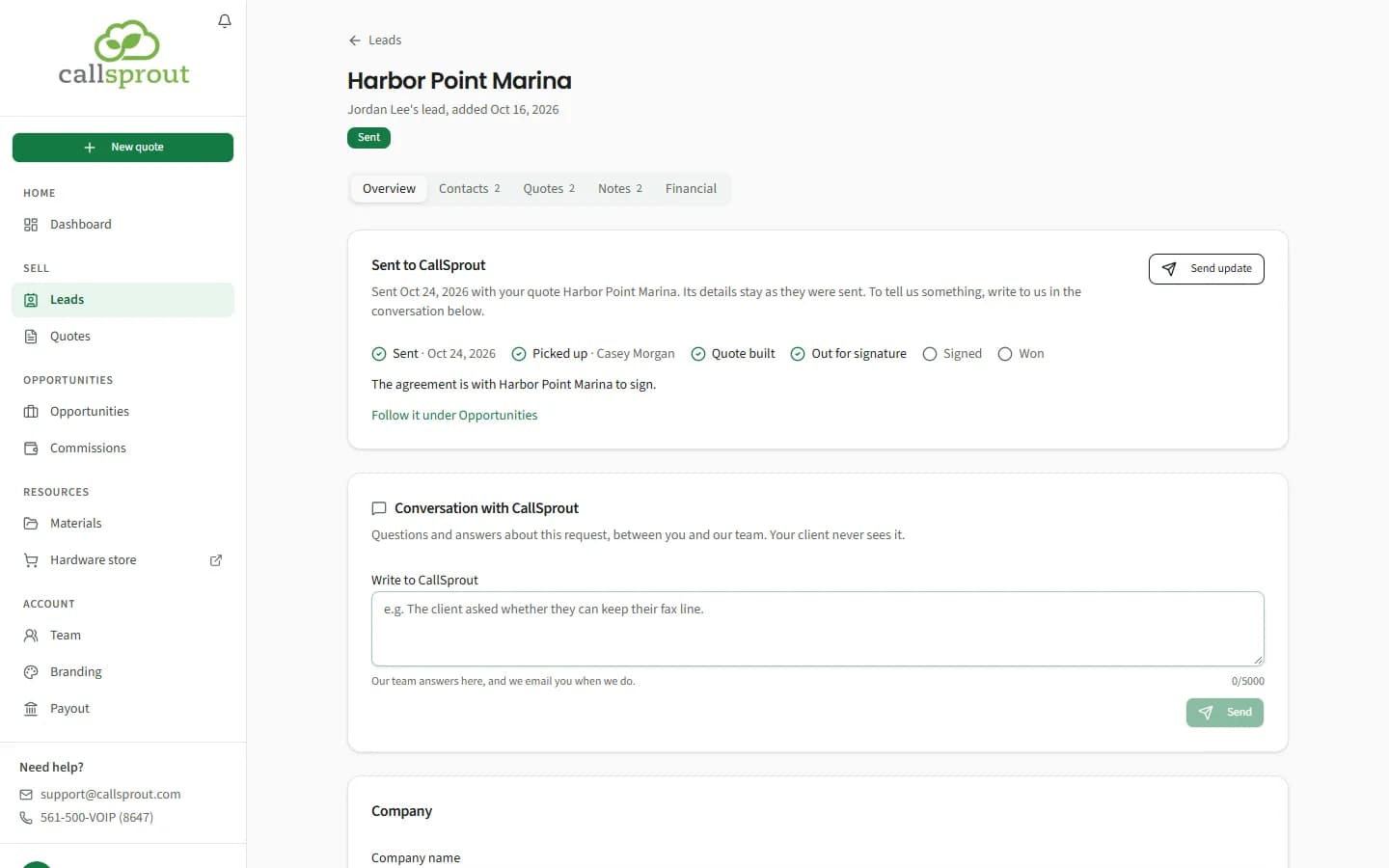
- When it was sent, and with which quote. "Its details stay as they were sent. To tell us something, write to us in the conversation below."
- How far it got, step by step. A tick means the step is done:
| Step | What it means | The line under the steps |
|---|---|---|
| Sent (with the date) | We have it | "Waiting for our team to pick it up. You'll hear when someone does." |
| Picked up (with who) | Someone on our team is working on it | "{name} is working on {client}'s quote." |
| Quote built | We've built the final quote | "{name} built the quote and will send {client} the agreement to sign." |
| Out for signature | The agreement is with your client | "The agreement is with {client} to sign." |
| Signed | Your client signed | "{client} signed. We're approving the agreement." |
| Won | Approved, and your client is with our onboarding team | "{client} approved their agreement, and our onboarding team has them now." |
- If your client doesn't go ahead, the next step shows a red cross and "{client} isn't going ahead. Use Send again if they change their mind." If a newer send replaced it: "A newer send took this one's place."
- Once the agreement is approved, Handing to onboarding (then Handed to onboarding) lists each step as our team takes the client on: Opportunity marked won, Sales ticket closed, Customer account opened, Onboarding ticket opened, Handoff note posted for onboarding, Onboarding started. The steps are for following along; there's nothing for you to do.
- Follow it under Opportunities.
On your Leads list, a sent lead shows the same step under its Sent badge (for example Picked up or Out for signature, or Not going ahead).
Conversation with CallSprout
Under the Sent to CallSprout card, the Overview has Conversation with CallSprout: "Questions and answers about this request, between you and our team. Your client never sees it." It's where you ask us something about the request, or tell us something, and where we answer.
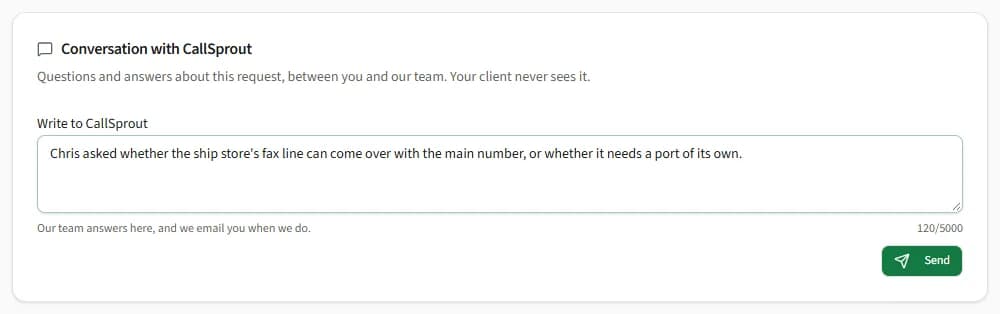
- Type your message in Write to CallSprout and click Send. Under the box: "Our team answers here, and we email you when we do." A counter shows how many characters you've used, up to 5,000.
- You'll see "Sent to CallSprout: We'll email you when our team replies."
- Your first message starts the conversation. It's a support ticket on your own account, called Request for {company}, and it's also listed under Resources › Support (see Support tickets). Your client isn't on it and never sees it.
- From then on, the card shows the conversation's status and where it stands: "Started {date}. No reply yet: we'll email you when we write back.", "Last reply from CallSprout {when}.", or, with a dot when there's a reply you haven't read, "CallSprout replied {when}." Click Open the conversation (or Read the reply) to read our replies and answer, the same as on any support ticket.
- When our team replies, you get an email and a bell: CallSprout replied: Request for {company}.
- Once a conversation is closed, the card says "Your last conversation about this request is closed (read it). Write again to start a new one." and the Write to CallSprout box is back.

Partners see the conversation on every sent lead in the company; a rep sees it on their own leads.
If writing to us here isn't available for your account, the card says so instead, for example "Writing to us here isn't turned on for your account yet. Email support@callsprout.com about this request." (or "isn't set up yet", or "Your account isn't linked to our support system yet, so you can't write to us here."). Email support@callsprout.com about the request instead.
Telling us what changed
A sent lead keeps the details it was sent with, so tell us what changed instead:
- Write to us in Conversation with CallSprout on the lead's Overview (see above). It goes straight to our team, and the person working on the lead hears about it.
- Send update, in the corner of the Sent to CallSprout card (until the client approves, or doesn't go ahead).
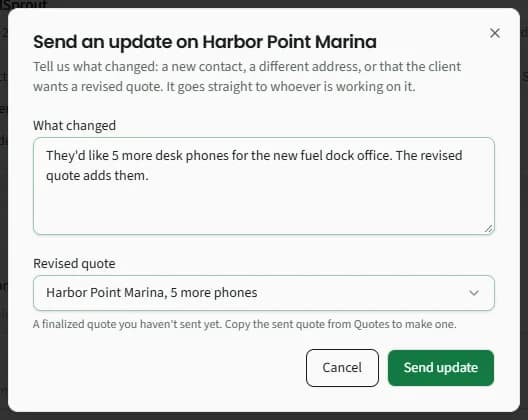
Send an update on {company}: "Tell us what changed: a new contact, a different address, or that the client wants a revised quote. It goes straight to whoever is working on it."
- What changed (required).
- Revised quote: No revised quote, or a finalized quote for this lead that you haven't sent yet. To make one, copy the sent quote from Quotes, change it and finalize it.
- Click Send update. You'll see "Update sent", with "We've passed your update to {name} in your conversation with us about this request." If you picked a revised quote, it replaces the one you sent ("…and your revised quote replaces the one you sent."), or, if we've already built the final quote, "The quote is already built, so they'll revise it from yours."
- The update goes into the request's Conversation with CallSprout, so you'll find it there with our replies. If writing to us there isn't available for your account, the update still reaches our team, is saved on the lead's Notes tab instead, and the message reads "We've passed your update to {name}."
Once our team has built the final quote from yours, Revised quote isn't offered any more. The dialog says instead: "To change the quote itself, close this and use Make a new version on the lead: it goes onto CallSprout's quote when you save it." See Changing the quote: new versions, below.
Messages you might see: "{company} already approved their agreement. Write to us in the conversation on this lead if anything changes, or add a new lead for another location.", "Say what changed, so our team knows what to do.", "Finalize the revised quote first, so the prices our team works from can't change." or "Something changed on this lead just now. Reload it and try again."
Changing the quote: new versions
Once our team has built the final quote from the one you sent, that quote is locked. To change it, make a new version. The Sent to CallSprout card shows Quote versions: "The quote is locked now it's with CallSprout. To change it, make a new version: it starts from CallSprout's quote as they are now, and goes to the same quote when you save it."
- Click Make a new version. A copy (V2, V3 and so on) is made from our quote as it stands now, so anything our team changed is in it. A short list under it says what it took from our quote, for example a quantity or price we changed, or a line we added or took off.
- Click Open to change on the version, and change it in the quote builder. Its top bar has Save Vn on the lead, which saves your changes and takes you back to the lead.
- Back on the lead, click Save as the new version. It goes onto the same quote with our team, and the version list shows it as the one CallSprout has.
Drop it throws away a version you don't want (archiving it from Quotes does the same). Each version shows its number, its state (CallSprout has this one, Being made, Waiting for CallSprout, Earlier version or Not used), its monthly and one-time totals, its date, and View or Open to change.
If you save a version while the agreement is already out for signature, it waits: "Saved while the agreement is out. CallSprout takes it if the quote is reopened; if the agreement goes through as it is, it isn't used." Our team decides whether to reopen the quote for it.
There are no new versions once the agreement is approved ("The agreement is approved and billing has started, so it takes no new versions. Start a new quote for a change.") or the quote was cancelled.
Send again
If your client didn't go ahead and later changes their mind, the card shows Send again instead. It opens the same dialog, with the note "This goes as a new request. The one sent before, which {company} didn't go ahead with, stays closed." You'll see "Sent to CallSprout again: It goes as a new request. We'll pick it up and quote them."
What the bell tells you
- Picked up: {client}: someone at CallSprout is working on the quote (to you and the rep who owns the lead).
- Agreement out for signature and Agreement signed, or for a lead sent with your quote Quote out for signature and Quote signed. For a lead sent with your quote you also get those by email.
- Referral credit needs a check: {client}: your client is already a CallSprout customer, or already registered with CallSprout by someone else, so referral credit isn't given automatically. Our team checks and lets you know.
- Not going ahead: {client}: the agreement was declined or cancelled. "The agreement isn't going ahead. If they change their mind, open the lead and use Send again." Your lead stays Sent, showing Not going ahead, with Send again on its card. You also get an email, "{client} isn't going ahead".
- Won: {client}: the client is going ahead with CallSprout. It gives the expected monthly amount when we know it, and for partners who earn commission it opens Commissions ("See Commissions for what it earns."). You also get an email, "Your opportunity with {client} is won".
- Closed lost: {client}: our team closed the opportunity. "This opportunity was closed. If they change their mind, open the lead and use Send again." You also get an email, "Your opportunity with {client} was closed".
Each of these goes to you and to the rep who sent it, once per opportunity. The quote bells open the lead.
See Notifications.
Commission
An opportunity you send is credited to your company (and to the rep who owns the lead). If your partnership includes commission, the client earns it once they're won and paying, and it shows on Commissions. See Payout, tax and commissions.
Related articles
Still stuck? Contact support
Our team in West Palm Beach can walk you through it. Tell us your name, your company and what you were trying to do.