
Fill in your Getting started checklist
- Audience: Admins
Last updated
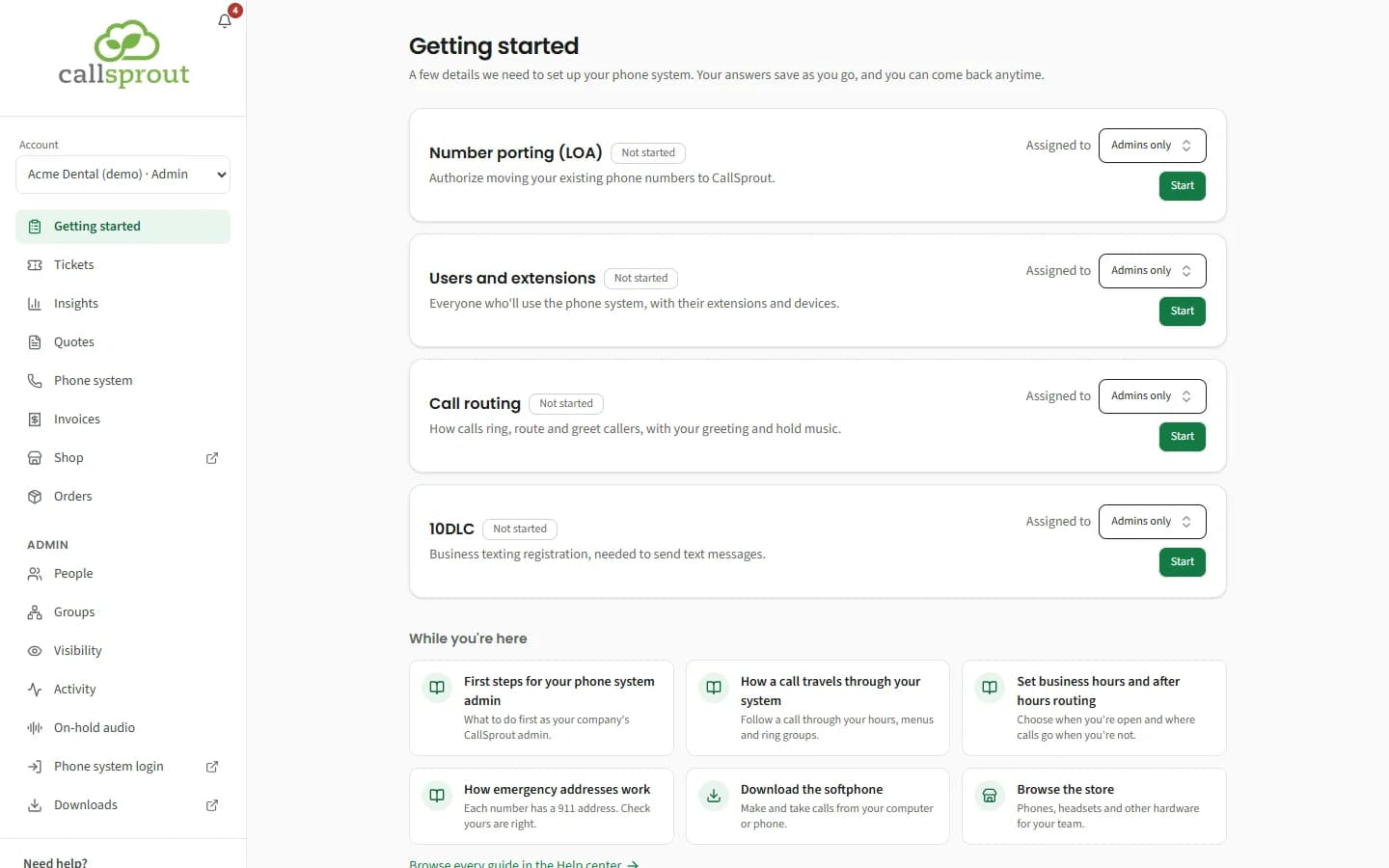
Getting started is the checklist for a new CallSprout customer: the details we need to set up your phone system. While your company is being set up, it's the first item in the sidebar. It's meant for new customers, so a company that was already with CallSprout before it joined the portal usually doesn't have it. It goes away when CallSprout switches it off for your account.
While there's an item you can fill in that hasn't been sent yet, the portal opens on Getting started when you sign in, or when you follow the link in your invite or welcome email. Once everything of yours is sent (or nothing is assigned to you), it opens on Tickets as usual.
Looking for on-hold music and messages? They're now in Admin › On-hold audio, for every company's admins, whether or not you have Getting started. See On-hold audio.
The checklist
| Item | What you fill in |
|---|---|
| Number porting (LOA) | The numbers you're bringing over, with the letter of authorization |
| Users and extensions | Your people and their extensions. It's a spreadsheet-style grid; you can paste rows from Excel or Google Sheets. Sending it goes straight to us: nothing is downloaded to your device, and if it can't be sent, the form says why. |
| Call routing | How calls should flow, including greetings and on-hold audio |
| 10DLC | Business text-messaging registration |
From your quote
If you told us about your phones when you ordered, a From your quote box sits above the form it bears on: "This is what you told us when you ordered. Check it against the form and correct anything that has changed."
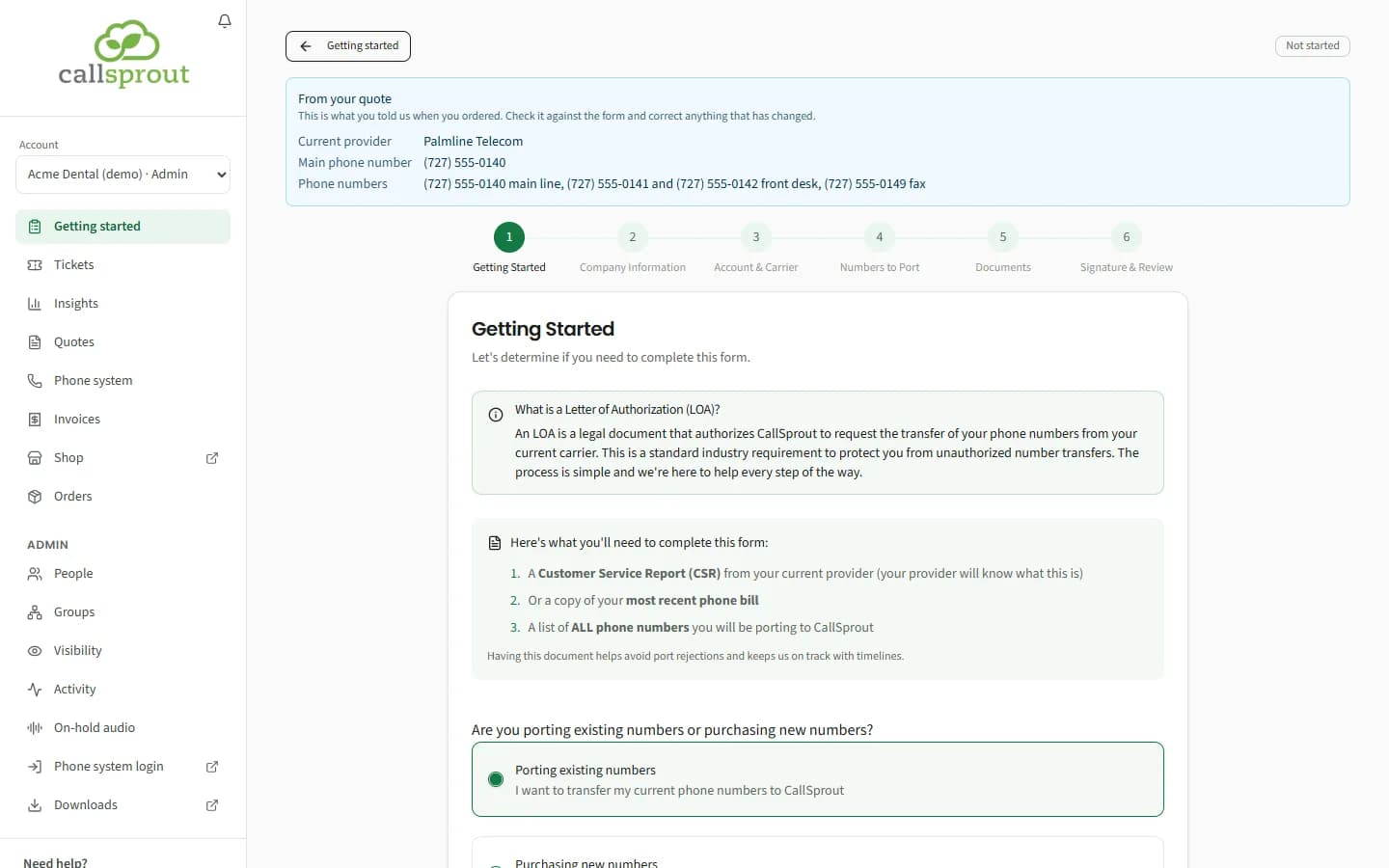
| Item | What the box lists (whatever we have) |
|---|---|
| Number porting (LOA) | Current provider, Main phone number, Phone numbers |
| Users and extensions | Extensions, Softphones, Locations |
| Call routing | Hours of operation, Locations, Location addresses |
| 10DLC | Nothing, so there's no box |
Some of it is also filled in for you when you start a form, so you check rather than retype:
- Number porting (LOA): your current provider and main phone number, along with your company's details. They only fill empty fields, so nothing you typed is replaced.
- Call routing: your business hours, when the hours you gave us can be read clearly (for example "Mon-Fri 8-5" or "24/7"), with after-hours routing turned on. If they can't, the form starts with its usual hours, and the box still shows what you told us.
- Users and extensions: the grid starts with one blank row for each extension you told us about (at least the usual 5, at most 200).
This only happens when you start a form. One you've already saved opens as you left it.
Statuses
| Status | Meaning |
|---|---|
| Not started | Nobody has opened it |
| Draft | Started, saved as you go, not sent yet |
| Submitted | Sent to CallSprout, and read-only unless CallSprout sends it back to you as a Draft |
| In progress | CallSprout is working on it |
| Done | Finished |
Only CallSprout sets In progress and Done. Click Start, Carry on or View what was sent. Drafts save themselves as you type.
Everything you submit goes to your company's onboarding ticket at CallSprout.
Your old carrier's account number and PIN
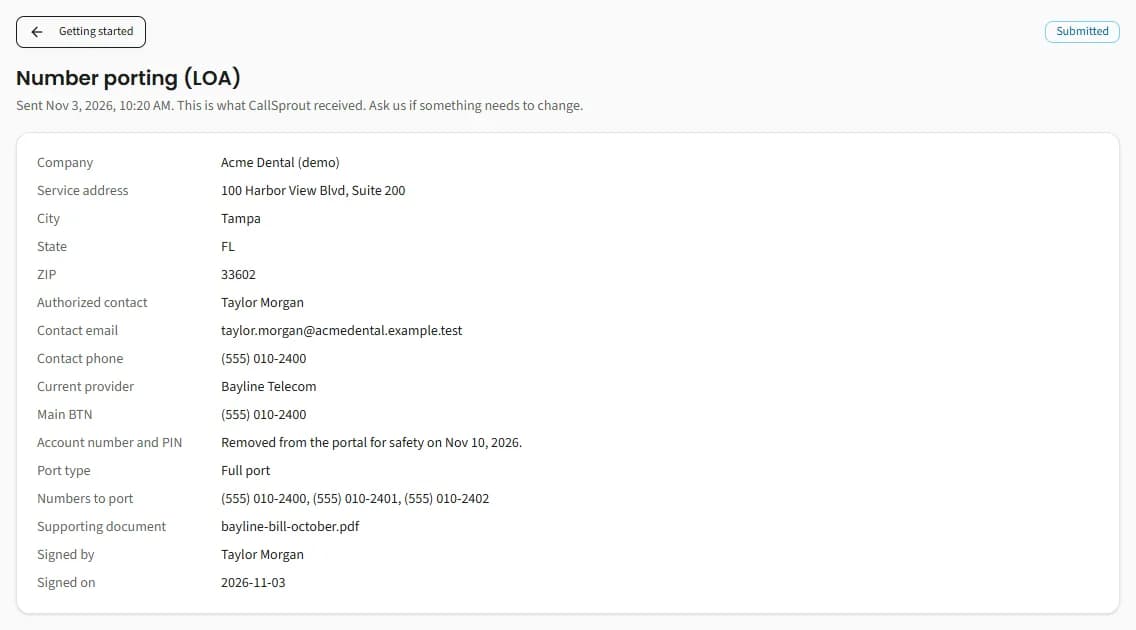
The Number porting (LOA) form asks for your current carrier's account number and PIN (and, if you're moving toll-free numbers, their toll-free account number). Once the form is sent, View what was sent never shows them in full: a long one shows dots and its last four characters, a short one only dots.
7 days after the form reaches our team (normally the day you send it), the portal removes the account number, the PIN and the toll-free account number for safety. Our team already has them for your port, so nothing about it changes. From then on, the sent form shows Account number and PIN: "Removed from the portal for safety on {date}." Everything else on the form stays as you sent it.
When CallSprout moves an item along, the bell tells the people it's assigned to and your company's admins:
| Alert | When |
|---|---|
| We've started on your {item} | CallSprout set it to In progress. "Our team is working on it. We'll be in touch if we need anything else." |
| Your {item} is done | CallSprout set it to Done. "There's nothing more for you to do on it." |
| Please update your {item} | CallSprout sent a submitted item back to you as a Draft. The alert says what to change, or, if no reason was given, "We've sent it back to you. Open it, make any changes, and send it again." |
Click the alert to open the item.
Who fills in what
Admins see every item and choose who fills each one in. The Assigned to picker is searchable:
- Admins only: your account's admins fill it in.
- Or any mix of People and Groups, up to 20. Everyone in a chosen group counts, managers included. Click Save.
Everyone else sees only the items assigned to them, marked "Assigned to you".
If a chosen person or group is removed or turned off, the item says so: "It's back with your admins until someone else is chosen."
When you're done, and while you're here
When nothing is left for you to fill in (everything is submitted, or nothing is assigned to you), you'll see You're all caught up here, with next steps. While items are still open, the same steps show under While you're here:
- Four Help center articles picked for your role:
- Admins: First steps for your phone system admin, How does a call travel through your system?, Set business hours and after hours routing and How emergency addresses work, and how to change one.
- Everyone else: Your first day on CallSprout: a checklist, Which CallSprout app should I use?, Record your voicemail greetings and name and How 911 works on your CallSprout phones and apps.
- Download the softphone, Browse the store, and Browse every guide in the Help center.
Related articles
Still stuck? Contact support
Our team in West Palm Beach can walk you through it. Tell us your name, your company and what you were trying to do.