
Build a quote in the quote builder
- Audience: Admins
Last updated
Build a priced, co-branded estimate for a client. Every quote belongs to one of your leads. When the client is ready, send the quote's lead to CallSprout and we turn your quote into the final one.
Open Sell › Quotes, click New quote at the top of the sidebar, or use Create quote on a lead.
Your quotes
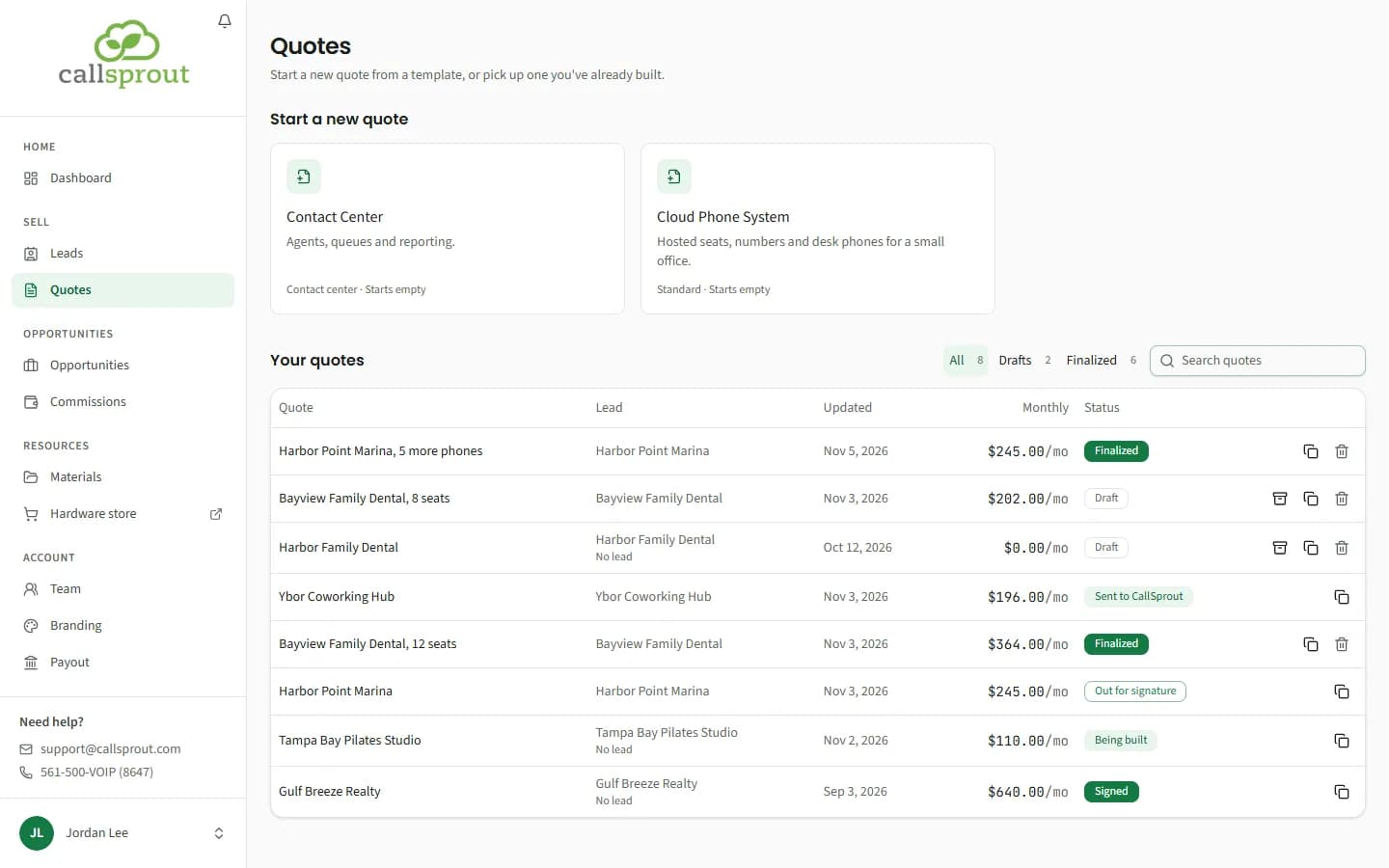
- Start a new quote: pick one of the templates CallSprout offers partners. Each card says how many products it includes, or Starts empty. If you came from a lead's Create quote, a note at the top says "Pick a template for the new quote for {company}."
- Your quotes: filter All, Drafts or Finalized, and search. The Lead column links to each quote's lead. Quotes made before leads came to the portal show No lead.
- Any quote can be duplicated with the copy button.
- An amber warning sign beside a quote's status means a product on it has changed price, or is no longer offered, since the quote was built. Hover over it to see each change, for example "Cloud PBX Seat's price changed from $25.00 to $27.00". Open the quote and the Build quote step lists the same changes. The quote keeps the prices it was built with until you choose to move it onto the new ones (see New prices, below). The sign goes once the quote is updated. Only open quotes are checked.
- You can archive a draft, or a quote whose 60 days ran out unsigned, to tidy the list. Quotes that are sent, signed or still valid can't be archived. Once you've archived one, a Show archived switch appears so you can find and unarchive it.
- Delete (the bin button at the end of the row) removes a quote for good. It's only offered for a quote that never left the portal: one that hasn't been sent to CallSprout. Once a quote has gone to CallSprout, it's kept with the opportunity, and so are its versions; archive it instead when it can be archived. Clicking it asks Delete "{quote}"?: "The quote, its lines and anything emailed of it are deleted for good. This can't be undone. It was never sent on for signature, so nothing else changes." Click Delete quote, or Keep it to leave it. Partners can delete any of the company's quotes that qualify; a rep can delete their own.
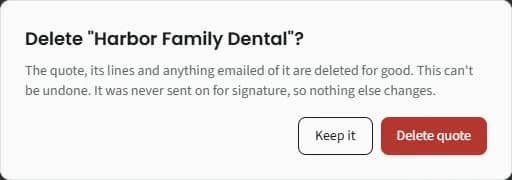
- If a quote can't be deleted after all (for example, it was sent from another window), the message says why, such as "CallSprout built the final quote from this one, so it's kept." or "This is a version of a quote that was sent, so it's kept as history.", and then what you can do: archive it instead, or why it stays (a signed quote stays in the list, and one out for signature can be archived once its 60 days run out, if it isn't signed by then).
Partners see every quote in the company. Reps see the ones they built.
Building a quote
The builder has three steps: Template, Client details, Build quote.
Client details and the lead
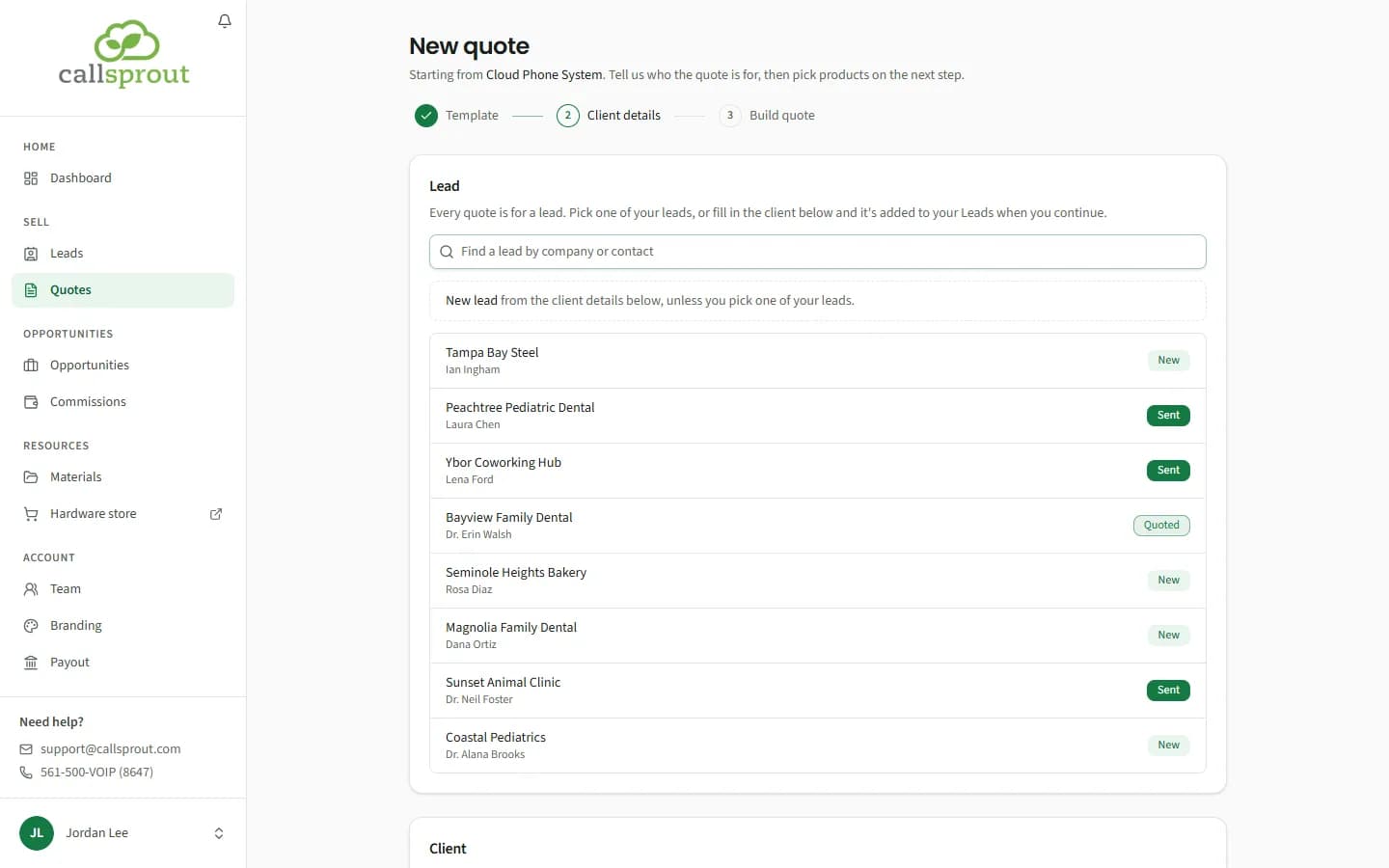
The step opens with the Lead card: "Every quote is for a lead. Pick one of your leads, or fill in the client below and it's added to your Leads when you continue."
- On a new quote it starts on New lead: when you continue, the client details below make a new lead, with the contact as its primary contact.
- To use a lead you already have, find it (Find a lead by company or contact) and click it. That fills in the client details from the lead: the company, its primary contact and the address. If you change the client contact on the quote later, the lead's matching contact changes too (or is added), and a blank address on the lead is filled from the quote, until the lead is sent.
- Once a lead is picked, the card shows it with its stage, Open lead and Change. New lead instead goes back to making a new one.
- A quote started from a lead's Create quote has that lead picked already.
Below the lead:
- Client: company name (required), quote name, contact name, phone, email and address. Typing the ZIP code fills in the city and state.
- Prepared by: your company, name, phone and email. These start from your Branding and apply to this quote only.
Click Continue to products. Starting a quote for a New or Working lead moves the lead to Quoted.
Build quote
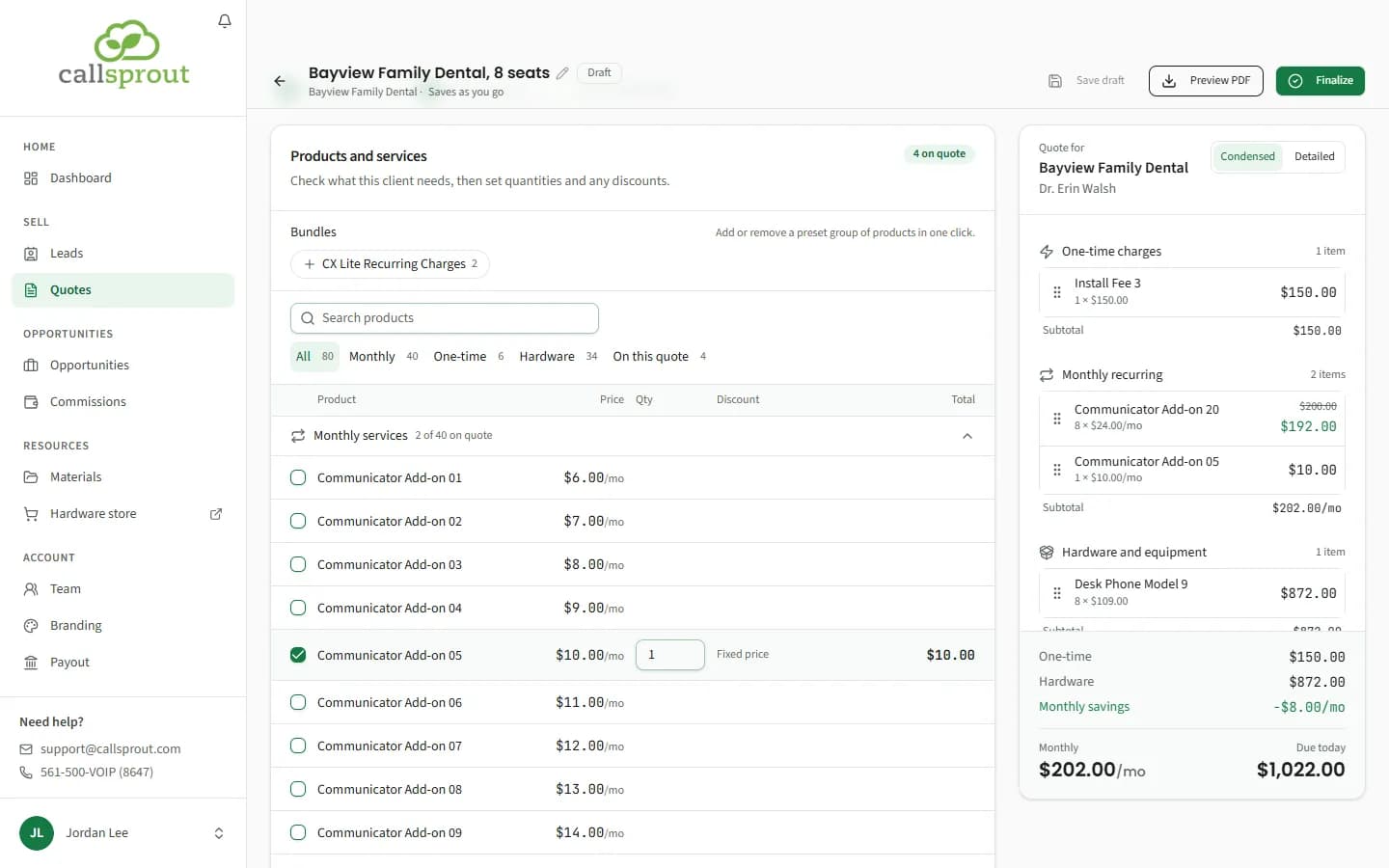
- The quote's name is at the top of the step, with a pencil beside it. Click it to rename the quote right there, for example to drop "(Copy)" from a duplicate. Press Enter or click away to keep the new name, or Escape to cancel. Left blank, the quote takes the client's company name, as on the Client details step. The name can't be changed this way once the quote is finalized, or while saving is paused (for example, when the quote was changed somewhere else).

- Products and services: filter All, Monthly, One-time, Hardware or On this quote, or search. Set the quantity and any discount on each line. Products the template includes can't be removed.
- Bundles add or remove a preset group of products in one click.
- Add section adds your own text (rich text) to the estimate.
- The summary shows totals and any monthly or upfront savings. Switch between Condensed and Detailed layouts.
The quote saves as you go. The status shows Saving…, Saved or Save failed (with Retry). There's also Save draft.
If a save fails because the site was busy or restarting, the builder tries again by itself: after 5 seconds, then a little longer each time, up to once a minute, until it goes through. Retry tries at once. If you leave the builder for another page while edits are still unsaved, it sends them as you go. A save refused for another reason (for example, the quote was changed somewhere else) waits for you.
New prices
When a product on a quote you haven't finalized changes price in our catalog, or is no longer offered, the Build quote step shows an amber notice listing each change. The quote keeps the prices it was built with until you choose.
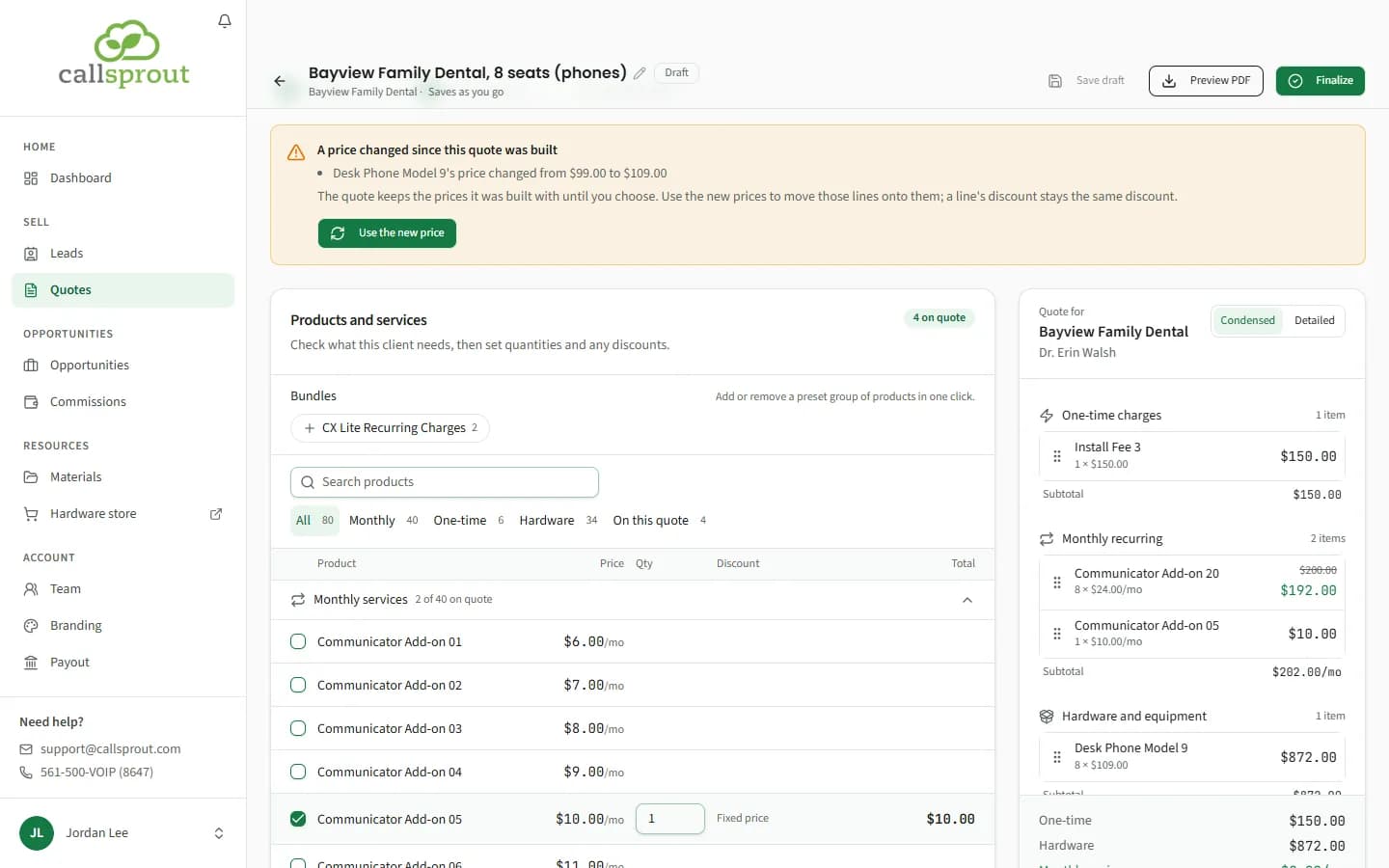
- Click Use the new price (or Use the {n} new prices when more than one changed) to move those lines onto today's prices. Any changes you haven't saved are saved first, then the quote reloads with the new prices and a message names the products that moved.
- Each line keeps the same kind of discount. A percentage off stays that percentage of the new price, and a dollar discount stays the same dollars off the line, both within the product's minimum price. A line priced above list stays the same amount above the new price.
- A product that's no longer offered keeps its line as it was. Remove or replace it yourself. When only those changed, there's no button and the notice reads "The quote keeps the prices it was built with. Update it before it goes to the client."
Preview and finalize
- Preview PDF opens the printable estimate. Use Print / Save as PDF to save or send it.
- Finalize locks the products and prices ("Finalize this quote?", then Finalize quote). To change a finalized quote, use Duplicate to edit.
- If our catalog prices changed since a finalized quote was built (a quote that's sent, signed or expired too), the quote says so instead, for example "A price changed since this quote was built", with each change as "{product}: $27.00 on this quote, $29.00 now". The finalized quote keeps its prices. To work from it, choose Duplicate with the new prices or Duplicate with the old prices. Either way the copy is a draft you can change, and each line keeps the same kind of discount. A copy on the old prices can still move to the new ones later, from its own price notice.
Sending it to CallSprout
On a finalized quote, click Send to CallSprout ("Opens the quote's lead to send it to CallSprout with this priced quote"). The lead opens with this quote picked in the send dialog. See Sending a lead to CallSprout.
- A lead is sent once, with one quote or none. Its other quotes stay on the lead. To send a revised quote after that, duplicate the sent one, change and finalize the copy, and send it with Send update on the lead. If the client didn't go ahead, Send again sends the lead as a new request. See After you send.
- Once sent, the quote shows where it is: Sent to CallSprout, CallSprout is building the final quote, Out for signature, Expired, Signed or Not going ahead. Pricing holds for 60 days from going out for signature. The bell tells you when it goes out for signature and when it's signed, and so does an email.
- A quote with No lead can't be sent from the builder. Duplicate it, pick its lead on the Client details step, finalize the copy and send that.
What the PDF looks like
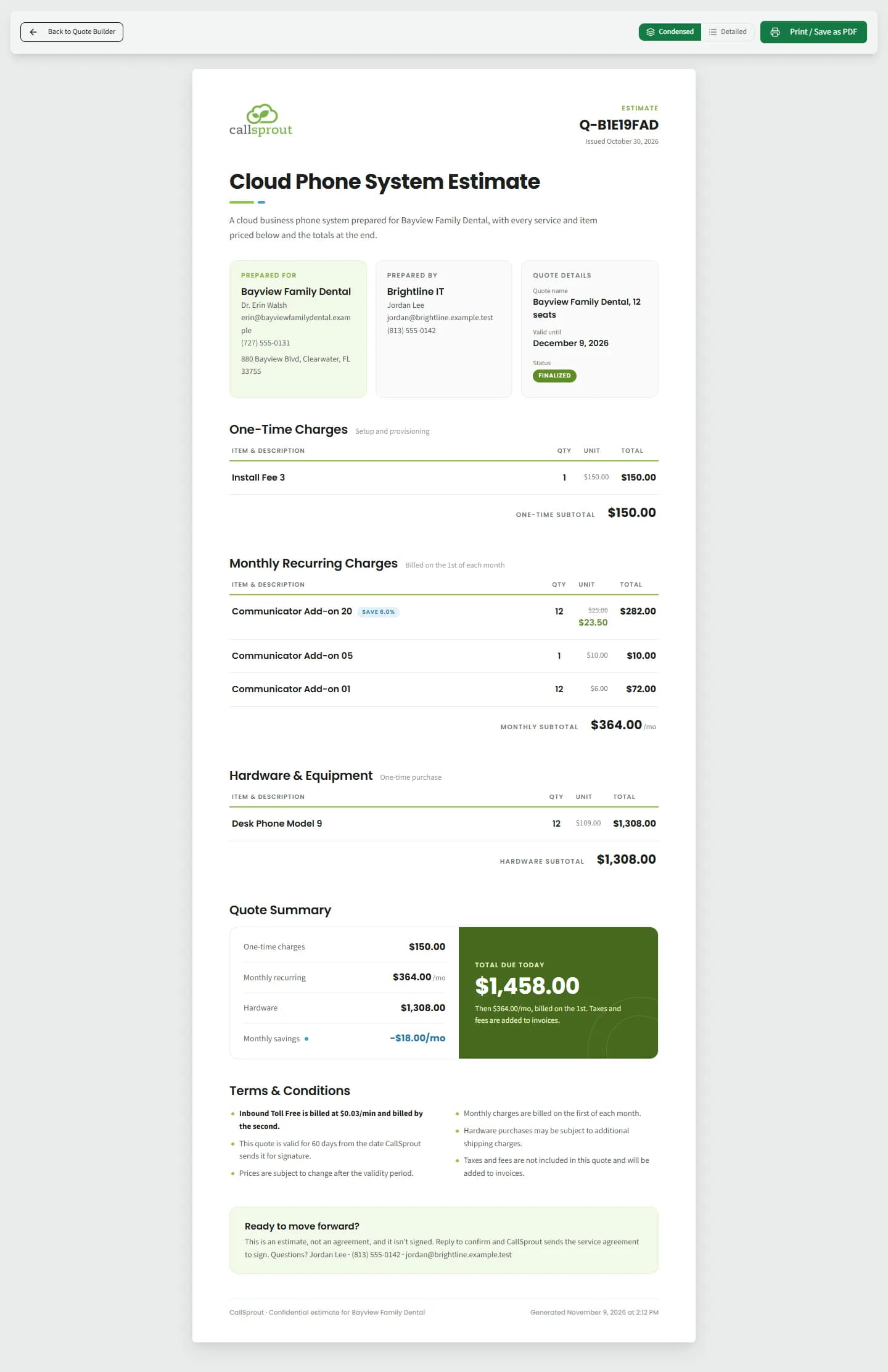
Your PDF is an estimate, not something your client signs. CallSprout sends the client the service agreement to sign separately.
- Marked Estimate (or Draft estimate for a draft) and titled Cloud Phone System Estimate or Contact Center Estimate.
- The CallSprout logo in the header.
- Prepared for (the client), a Prepared by card with your logo, name and contact details, and Quote details with the quote's status (Draft, Finalized or Expired) and Valid until: 30 days from the day you print it, or, once the agreement is out for signature, the date its pricing holds to.
- The charges by type, a Quote Summary, CallSprout's terms, and your contact details again in the closing Ready to move forward? section, which says "This is an estimate, not an agreement, and it isn't signed. Reply to confirm and CallSprout sends the service agreement to sign." (or, once the agreement is out, "This is an estimate, not an agreement. CallSprout sent the service agreement to sign separately.").
- The footer reads "CallSprout · Confidential estimate for {client}".
- When you save it with Print / Save as PDF, the file name your browser suggests starts
CallSprout_Estimate_, followed by the client, the quote's name and the date the quote was made.
A rep's quotes carry their company's logo.
Related articles
Still stuck? Contact support
Our team in West Palm Beach can walk you through it. Tell us your name, your company and what you were trying to do.