
See your phone system in the portal
- Audience: End users
- Audience: Admins
Last updated
Who sees it: admins, and people with See the phone system. It's read-only: to change anything, contact CallSprout or use a ticket template. Admins can also make changes themselves in the phone system (below).
Some companies keep the phone system to people with All locations. On such an account, someone limited to some locations doesn't see Phone system (or Phone system login) in their menu, even with See the phone system or the Admin role. If they open the page anyway, it reads "The phone system is for people with All locations": "On this account, only people who can see all of its locations can open the phone system. Ask an admin of your account, or contact CallSprout." Your admins see a note about it on Admin › People (see Locations). Ask CallSprout if you'd like your account set up this way, or changed back.
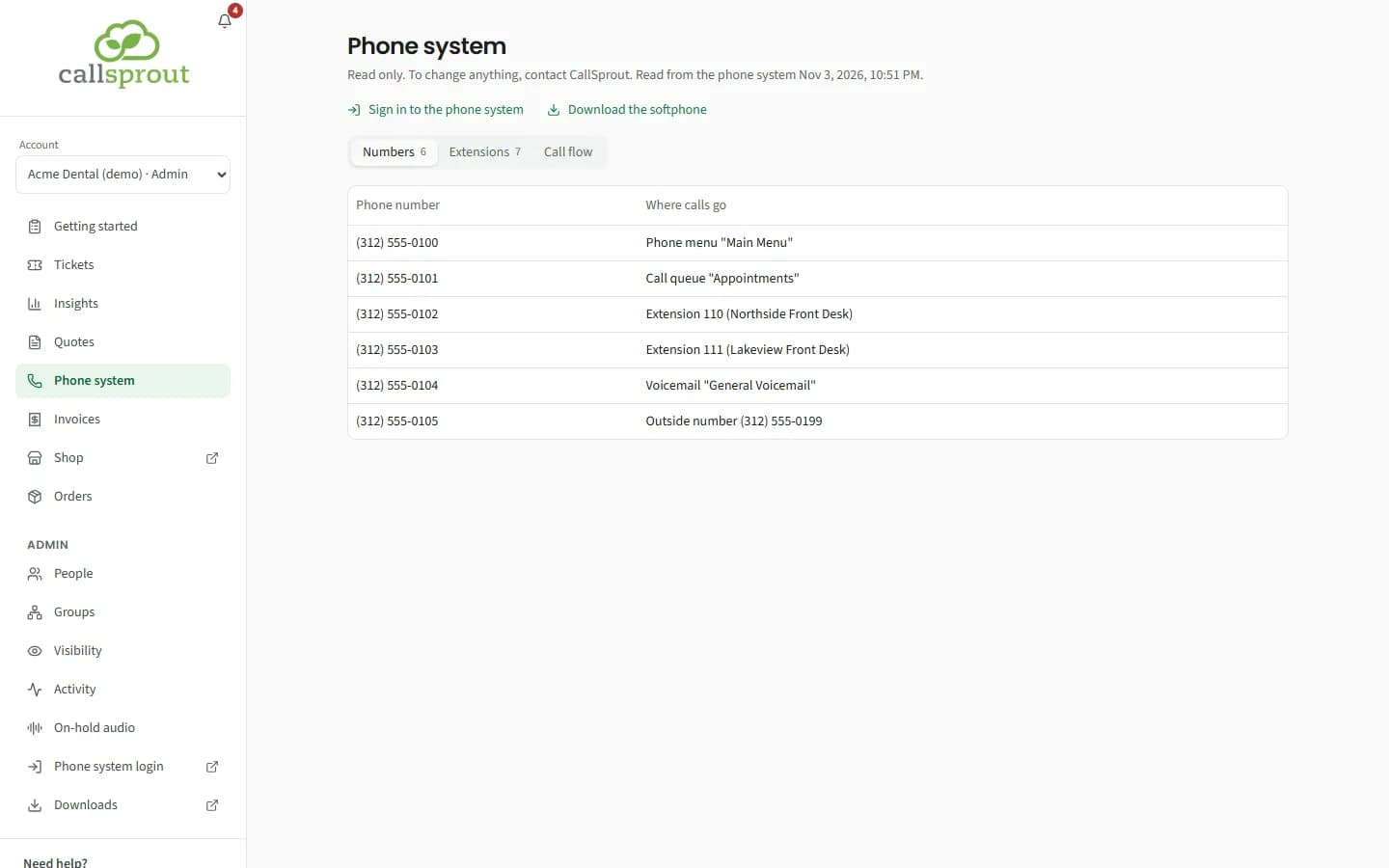
Three tabs:
| Tab | Shows |
|---|---|
| Numbers | Each phone number and where its calls go |
| Extensions | Extension number, name and email |
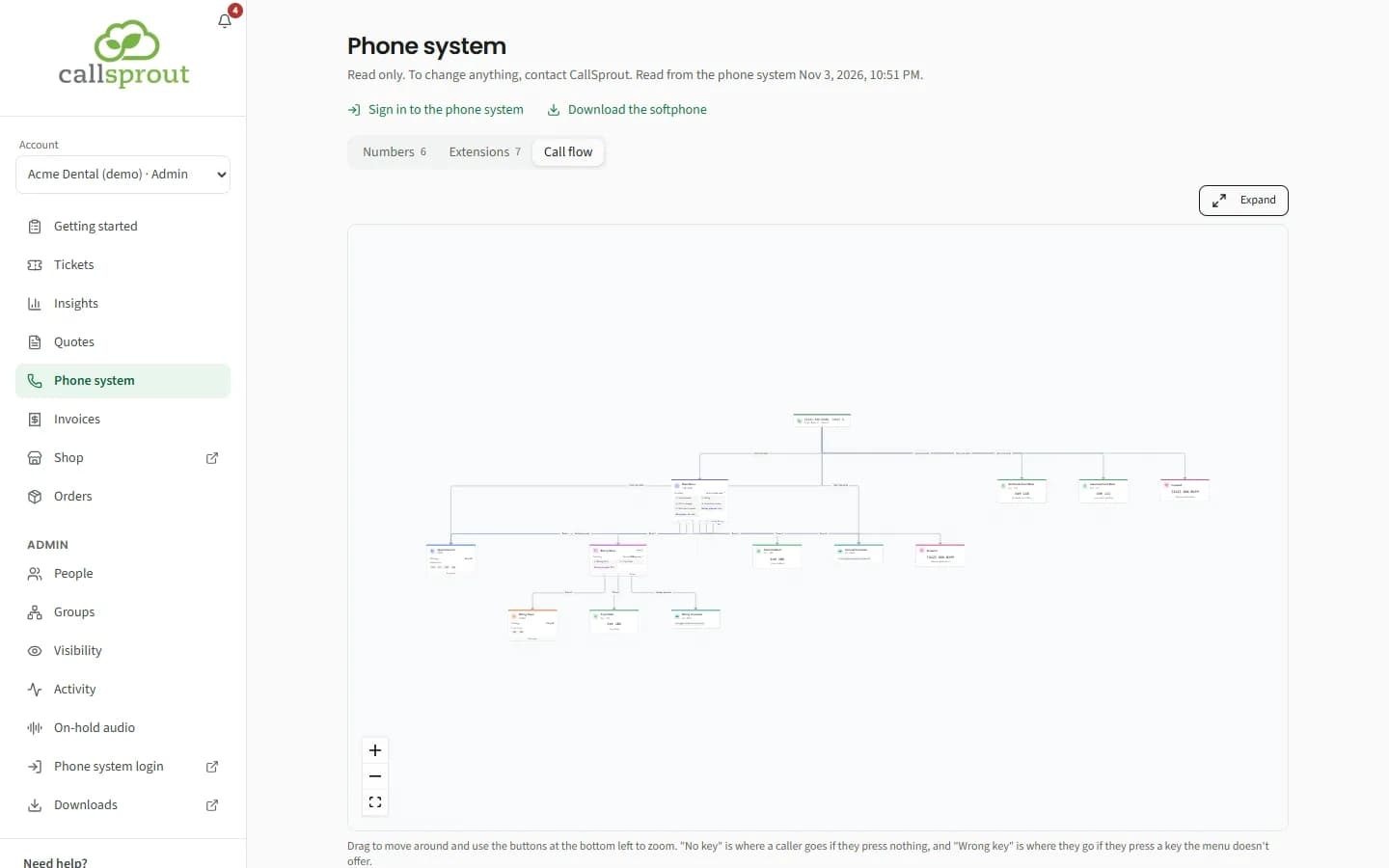
| Call flow | A diagram of how calls are routed. Expand for a bigger view. |
| Message | Meaning |
|---|---|
| Your phone system isn't set up yet | CallSprout hasn't linked your phone system to your account |
| Your phone system isn't connected to the portal yet | It's linked, but the portal can't read it yet |
| The phone system is for people with All locations | Your account keeps the phone system to people with All locations, and you're limited to some (see above) |
Signing in to the phone system (admins)
Admins get Sign in to the phone system at the top of this page, and Phone system login in the sidebar's Admin section (except a location admin, on an account that keeps the phone system to people with All locations). Both open the phone system itself in a new tab, where you manage users, extensions, greetings and call routing. It has its own login, separate from the portal: if you don't have one, contact CallSprout.
Softphone and apps
Downloads in the sidebar (in the Admin section, for admins) has the CallSprout softphone and apps. Download the softphone is also at the top of this page and, for new customers, in Getting started.
On-hold audio
Hold music and recorded messages are under Admin › On-hold audio, for admins: see On-hold audio.
Related articles
Still stuck? Contact support
Our team in West Palm Beach can walk you through it. Tell us your name, your company and what you were trying to do.