
Open, follow and reply to support tickets
- Audience: End users
- Audience: Admins
Last updated
Tickets are how you ask CallSprout's support team for help and follow the answer. Tickets opened by email or phone, or by CallSprout's team, show here too, not just the ones opened in the portal.
The ticket list
Tickets in the sidebar.
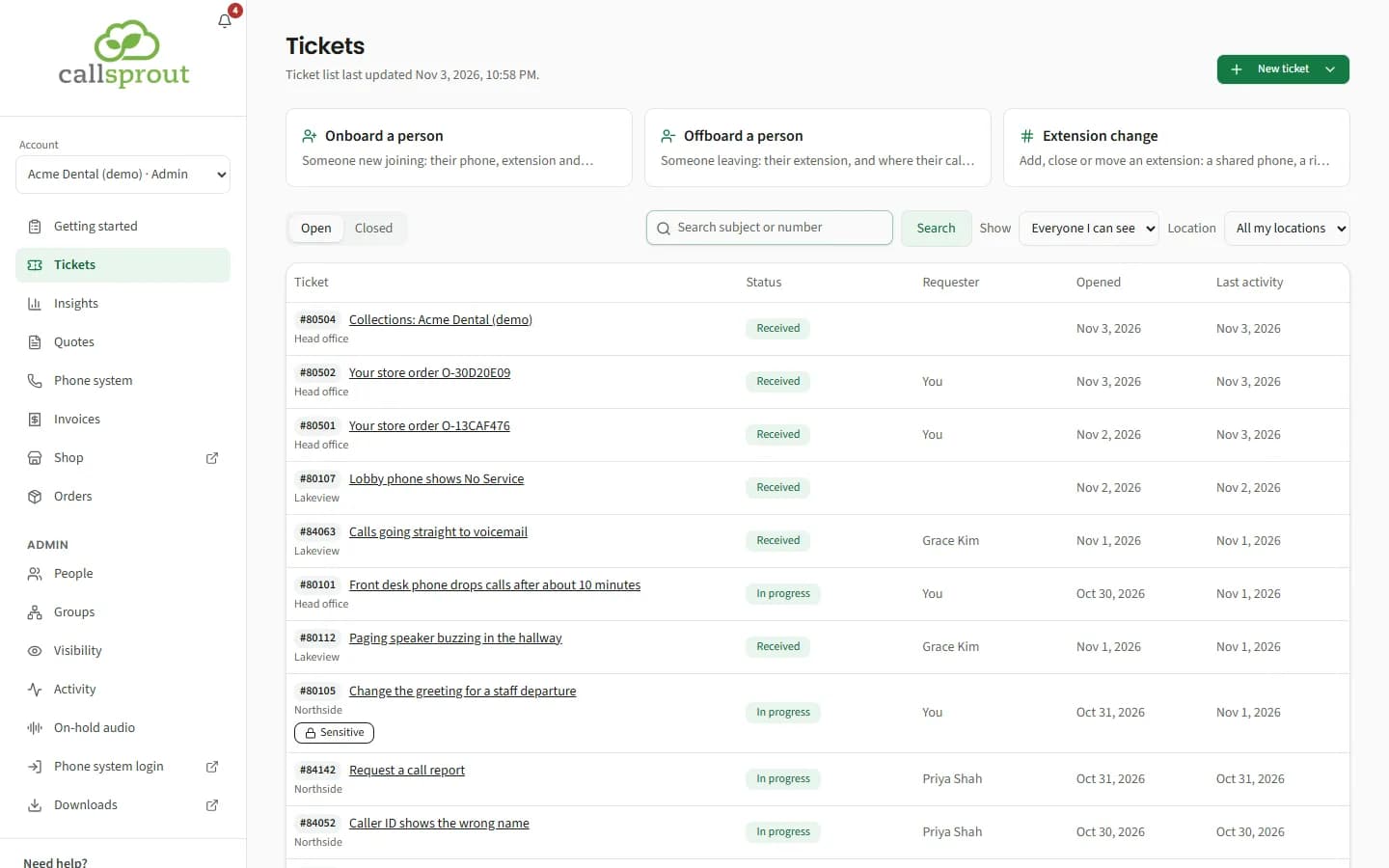
- Open / Closed tabs.
- Search subject or number, then Search.
- Show: Everyone I can see or just Me.
- Location: All my locations, or one of them. Shown when you can see more than one location.
- Columns: Ticket (number and subject, with its location underneath when you see several), Status, Requester ("You" or their name), Opened, Last activity. 25 per page.
- The line under the heading says when the list was last updated. It refreshes itself ("Checking for changes…"), so you don't need to reload.
A Sensitive badge marks a private ticket (see Sensitive tickets, below).
Ticket statuses
Each ticket shows one of these statuses. Waiting on you is filled in, so it stands out: those tickets need something from your company.
| Status | Meaning |
|---|---|
| Received | We have it and haven't started yet |
| In progress | We're working on it |
| Waiting on you | We need a reply or something else from you before we can go on |
| Waiting on a third party | We're waiting on a carrier, vendor or supplier |
| Scheduled | The work is booked for a set time |
| Visit needed | Someone needs to come on site |
| On hold | Paused for now |
| Resolved | We've finished the work |
| Closed | The ticket is closed |
| Cancelled | The ticket was cancelled |
A closed ticket always shows Resolved, Closed or Cancelled.
When you reply to a ticket that's Waiting on you, your reply reaches our team straight away. Depending on how CallSprout has set things up, the ticket may also move on to another status, such as In progress, so it no longer shows as waiting on you.
Which tickets you can see
| Your role | You see |
|---|---|
| User | Tickets you opened, and tickets you're copied on or added to |
| Manager | The same, plus tickets opened by people in the groups you manage |
| Admin | Every ticket at your locations, except Sensitive tickets you aren't on |
Nobody ever sees tickets outside their own locations. An admin can also add rules that let someone see more, for example an office manager who sees one location's tickets. See Groups and visibility.
Billing tickets follow a rule of their own: only the people who can see your company's invoices see them. See Billing tickets, below.
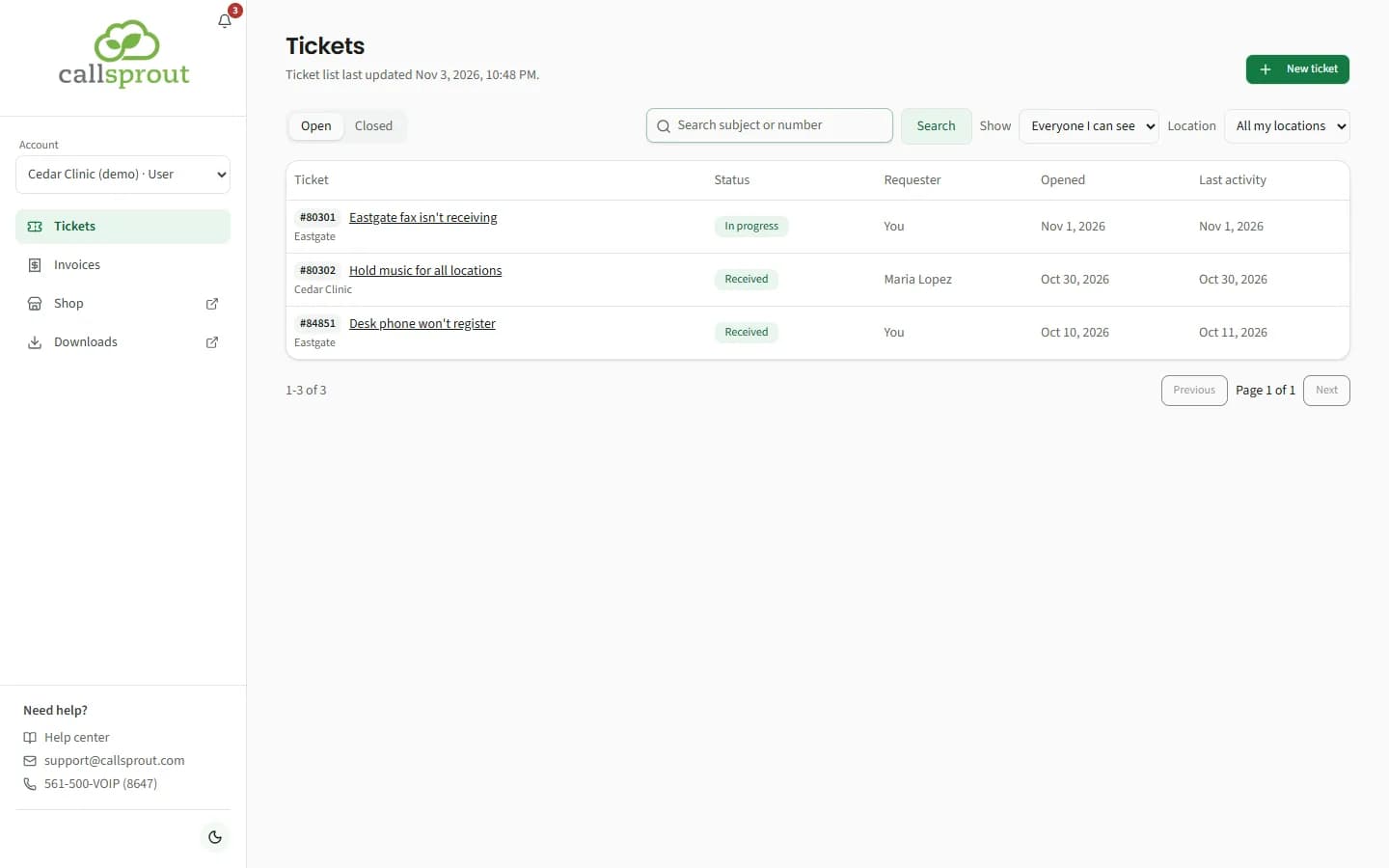
Some internal ticket types, and tickets in some internal statuses (for example one opened by mistake), are never shown in the portal. A ticket you open in the portal always shows.
Opening a ticket
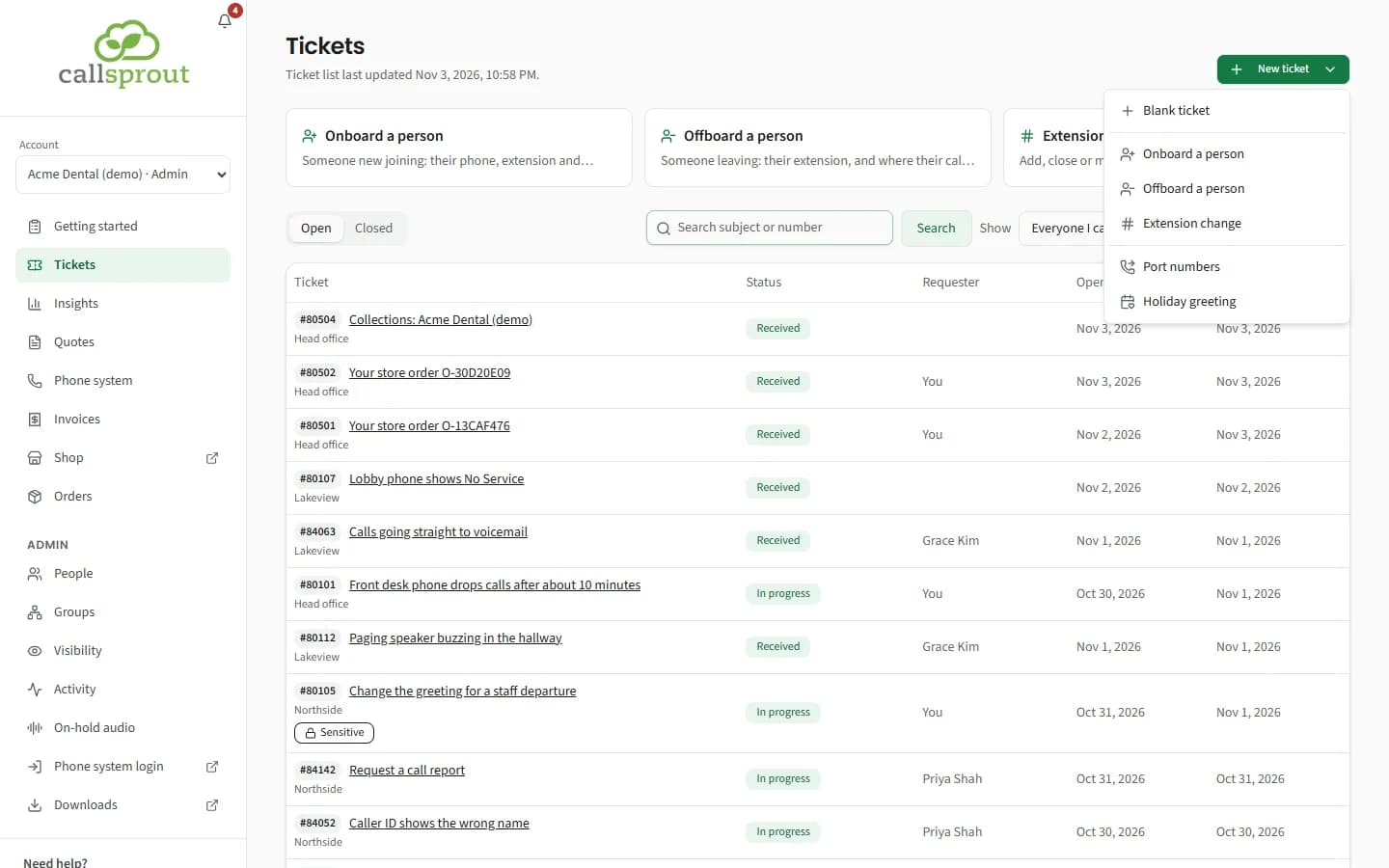
Click New ticket. If your company uses ticket templates, New ticket becomes a menu: pick Blank ticket for an ordinary ticket, or one of the templates.
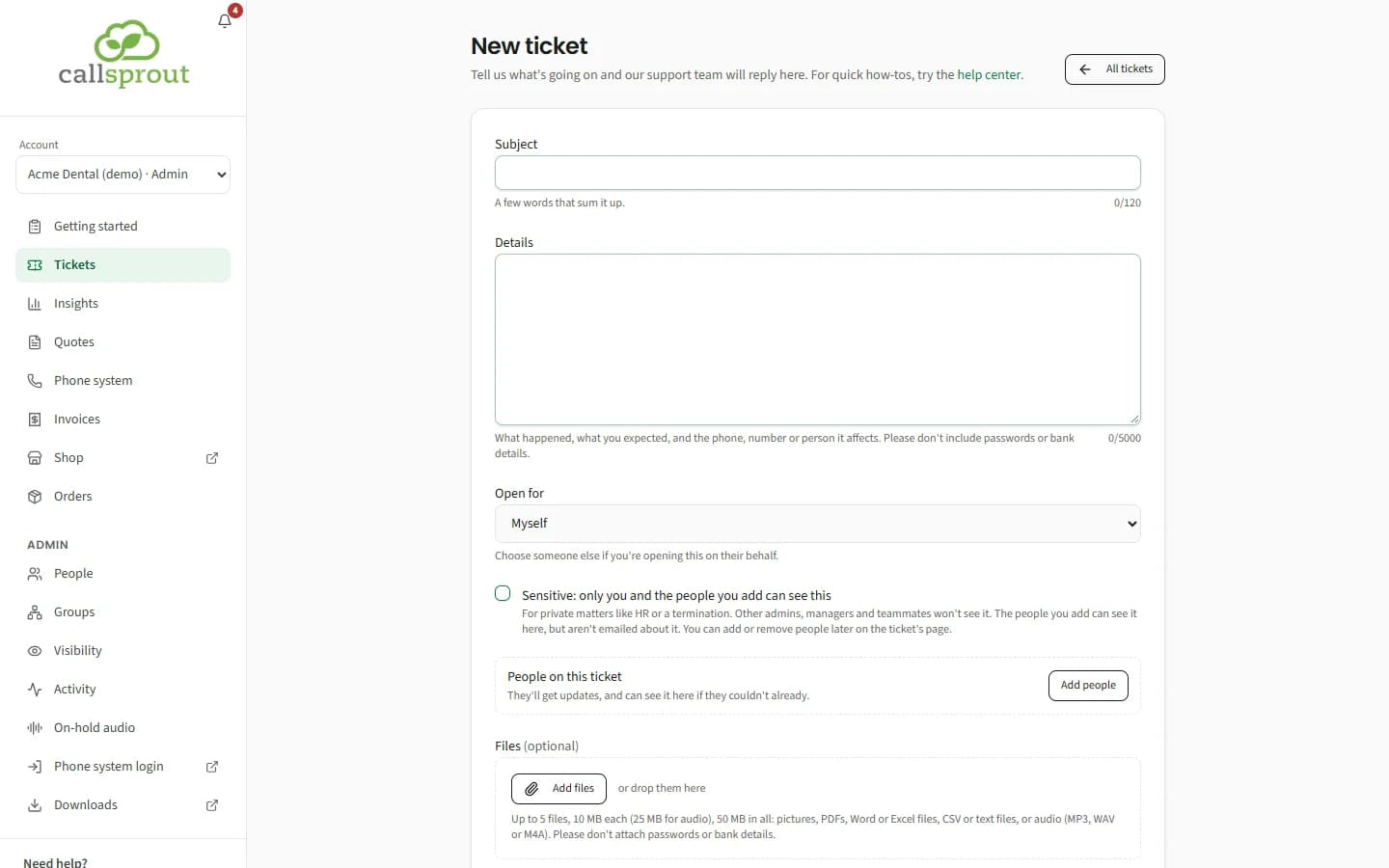
| Field | Notes |
|---|---|
| Subject | 3 to 120 characters. A few words that sum it up. |
| Details | 10 to 5,000 characters. Please don't include passwords or bank details. |
| Open for | Shown only to admins and people with Open tickets for other people. Choose Myself or a colleague. Opening it for a colleague: "The ticket will be theirs, and they'll see it in their list. You'll be on it too, so you'll hear when we reply." |
| Location | "Which of your locations this is about." Shown when the person the ticket is for has more than one location. It starts on the location you filtered the list to. |
| Sensitive | Admins only. See Sensitive tickets, below. |
| People on this ticket | Add people: colleagues (listed under your company's name), or contacts without a portal login, who get the email updates only. Up to 20. They'll get updates, and can see the ticket here if they couldn't already. |
| Files (optional) | Up to 5 files, 10 MB each (25 MB for audio), 50 MB in all. See Files you can attach, below. Shown only while file uploads are switched on. |
Click Open ticket.
Each person can open up to 10 tickets a day in the portal, and send up to 30 replies an hour. If you reach a limit, the portal tells you; for anything urgent, email support@callsprout.com or call 561-500-VOIP (8647).
Your login isn't linked yet means your portal login isn't tied to your contact record at CallSprout, so a ticket can't be opened in your name. Contact your admin or CallSprout.
If the connection drops while a ticket is being opened, the portal pauses sending that same ticket so you don't end up with two. Check the ticket list first. If it isn't there, change the text a little and send it again.
Files you can attach
While file uploads are switched on for your company, a new ticket and a reply can each carry files:
- Kinds: pictures (PNG, JPG, GIF, WebP, HEIC), PDFs, Word and Excel files (.doc, .docx, .xls, .xlsx), CSV and text files, and MP3, WAV or M4A audio.
- Sizes: up to 5 files, 10 MB each (25 MB for audio), 50 MB in all.
- Word and Excel files are checked before they're accepted. A file with macros, embedded objects, or links that load something from another computer when it opens is refused, and so is a file that isn't really the kind its name says: "We can't take {file}: it has macros, embedded objects or links that load from other computers, or isn't a real .docx file. Save it as a PDF and attach that instead." Ordinary links that someone has to click are fine.
- How often: each person can send files up to 10 times an hour. One upload runs at a time for each person, and one for each company: if a colleague is sending files at the same moment, you'll see "Someone else on your account is sending files just now. Try again in a minute."
Inside a ticket
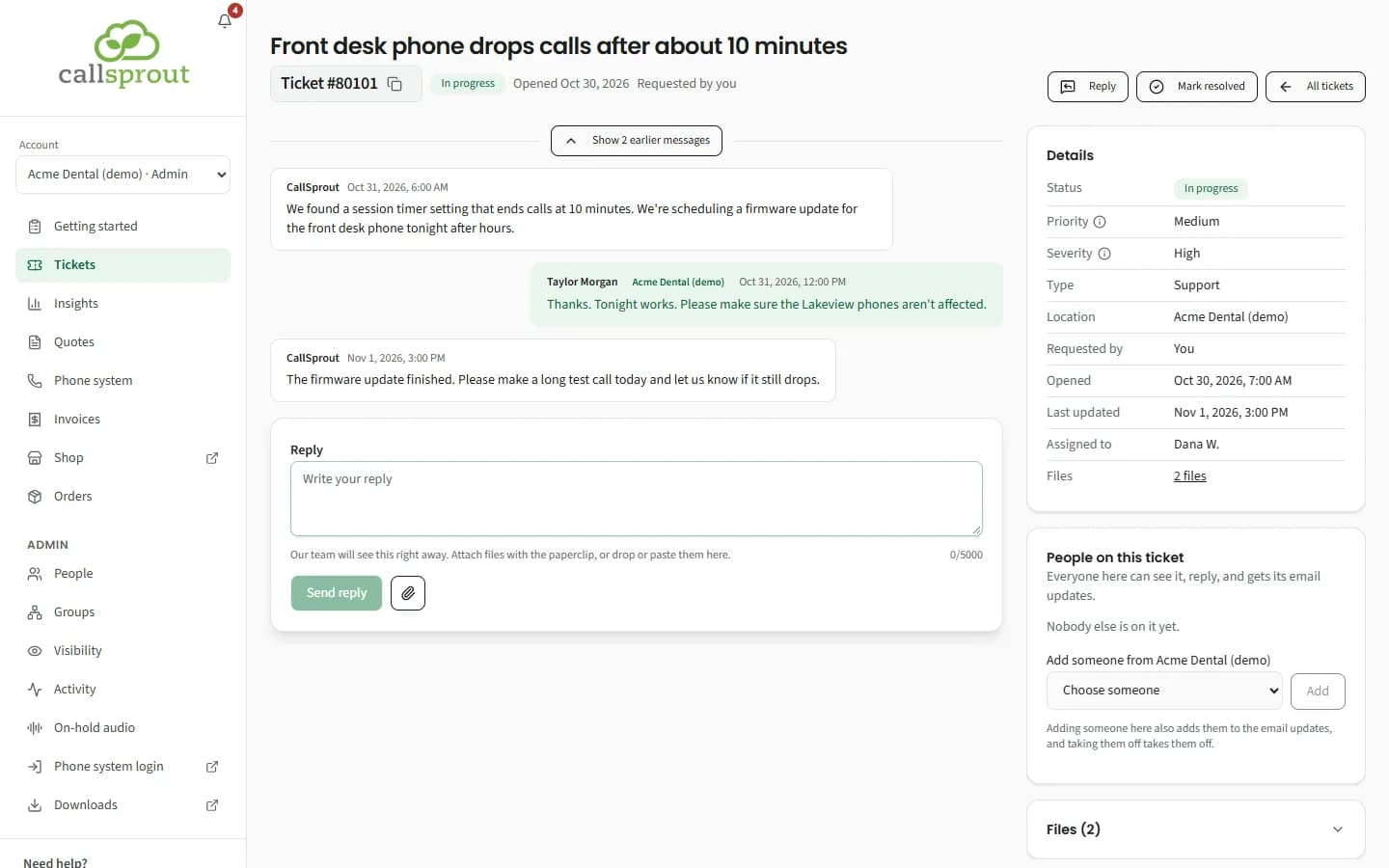
- The heading shows the subject, Ticket #N (with a copy button), status, who requested it and when. On an open ticket, Reply jumps to the reply box, and Mark resolved closes the ticket (see Marking a ticket resolved, below).
- The conversation runs oldest at the top to newest at the bottom, just above the reply box. It scrolls in its own box, so the ticket's title, number, status, Reply and Mark resolved stay in view. It opens at the newest message, and stays there while pictures load, until you scroll or click in it. After you send a reply, it goes back to the bottom. A short conversation sits at the bottom of the box, next to the reply box, like a chat. You can also click in the box and scroll it with the arrow keys and Page Up / Page Down. For a ticket opened in the portal, the first message is what was typed when it was opened. An emailed ticket starts with the email.
- CallSprout's messages are labelled CallSprout. Your colleagues' messages show their name with your company's name as a badge.
- Older messages fold away behind "Show N earlier messages". Quoted email and signatures fold behind "Show quoted text" and "Show signature", and long messages behind "Show more".
- Files sent from the portal show inside the message they came with: the files attached when the ticket was opened on the first message, and a reply's files on that reply. Pictures show as small previews. Click one to see it bigger. Other files are listed by name with a download button.
- On a wide screen the page itself doesn't scroll: the conversation and the Details column each scroll on their own, and the reply box sits under the conversation. On a phone the conversation box is at most about two thirds of the screen high, and the page scrolls as usual.
- Details, on the side: Status, Priority, Severity, Type, Location, Requested by, Opened, Last updated, Closed, Assigned to, Files and People. Priority and Severity have an ⓘ that explains the levels. CallSprout may hide Priority, Severity or Type for your company.
- People on this ticket, then Files (n), which is folded until you open it. Each file says where it came from (From the email, Attached in the portal, From CallSprout) and has Download. If a file type can't be passed on, it says Ask us for this file.
Replying
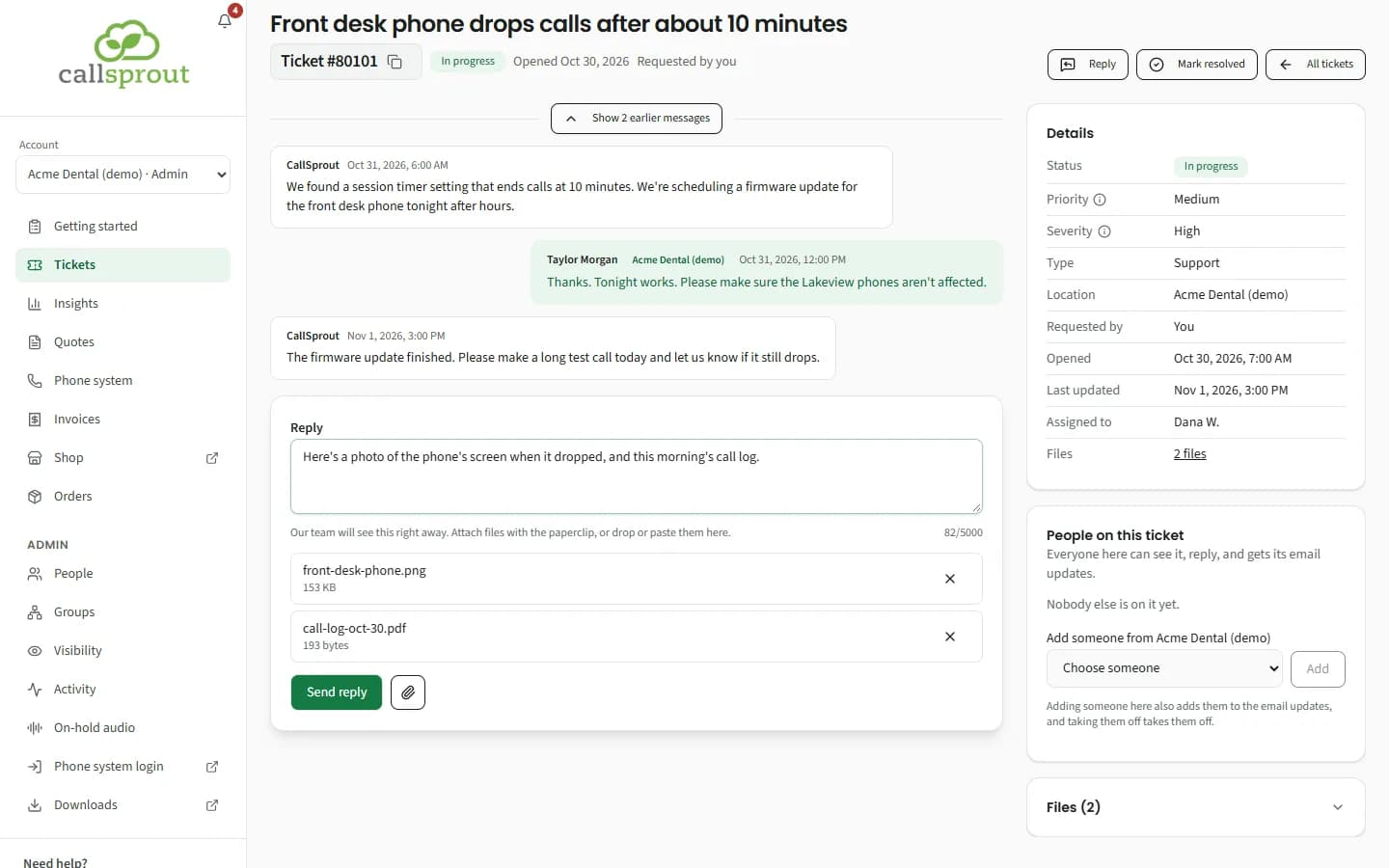
Type in Reply (up to 5,000 characters) and click Send reply. CallSprout's team sees it right away. The bell tells you when CallSprout replies.
Adding files to a reply. While file uploads are switched on for your company, a reply can carry files too. Any of these attaches a file:
- the paperclip (Attach files) next to Send reply;
- dragging files onto the reply box;
- pasting, for example a screenshot you just copied.
The same rules apply as when opening a ticket (see Files you can attach, above). A reply can be just files, with no text. If a file can't be attached, it's marked in the list: remove it, then send. While the files upload, the button reads "Sending files...".
When you reply on a colleague's ticket, you're put on its people, so your bell tells you when CallSprout answers too.
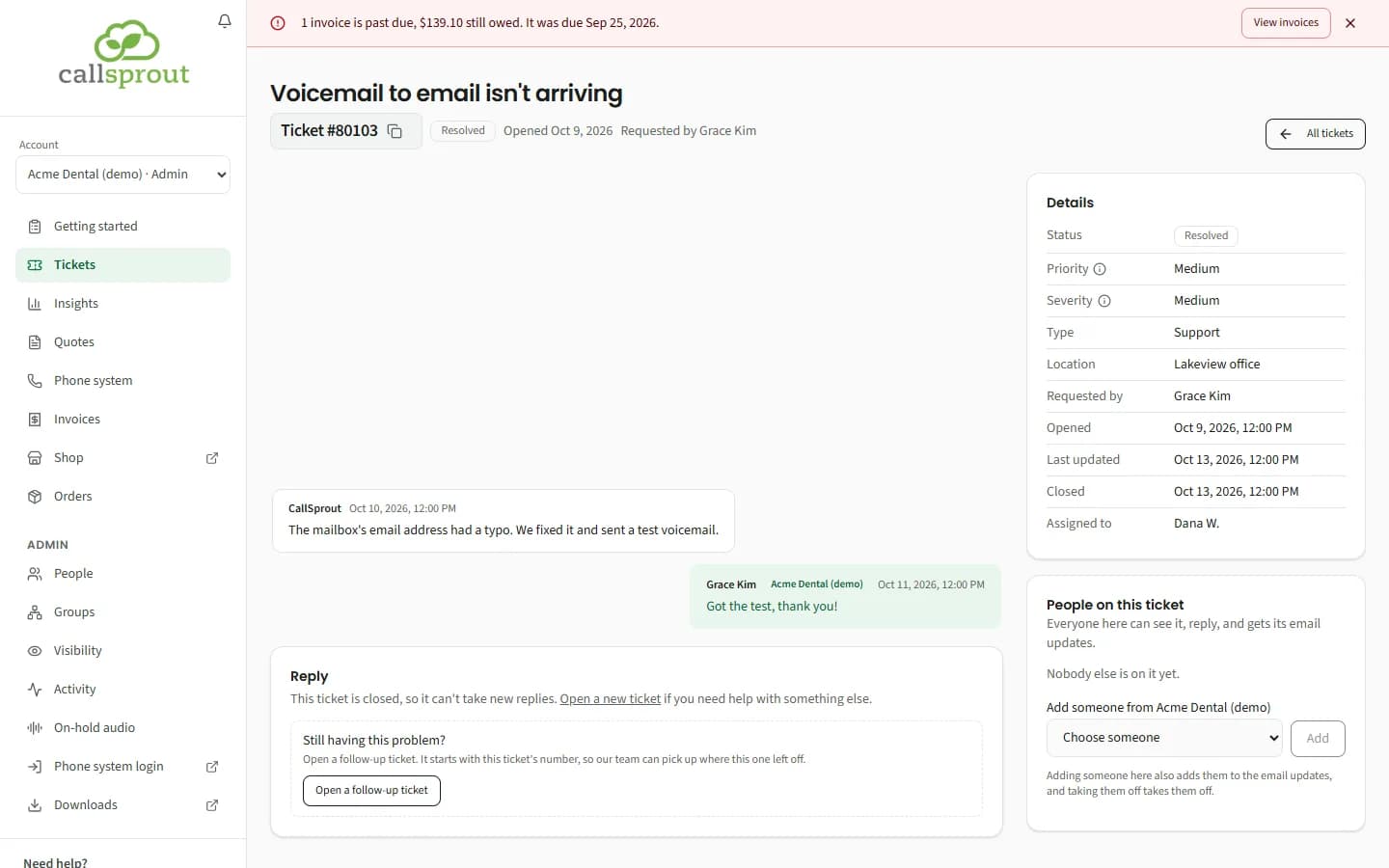
A closed ticket can't take replies: "This ticket is closed, so it can't take new replies. Open a new ticket if you need help with something else."
Still having this problem? A closed ticket offers Open a follow-up ticket: "It starts with this ticket's number, so our team can pick up where this one left off." The new ticket's subject starts "Follow-up to ticket #N", and it starts at the same location. Add what's still wrong and click Open ticket.
Marking a ticket resolved
When you don't need more help, you can close a ticket yourself. Anyone who can see an open ticket and reply to it can do this, except on a billing ticket (see Billing tickets, below).
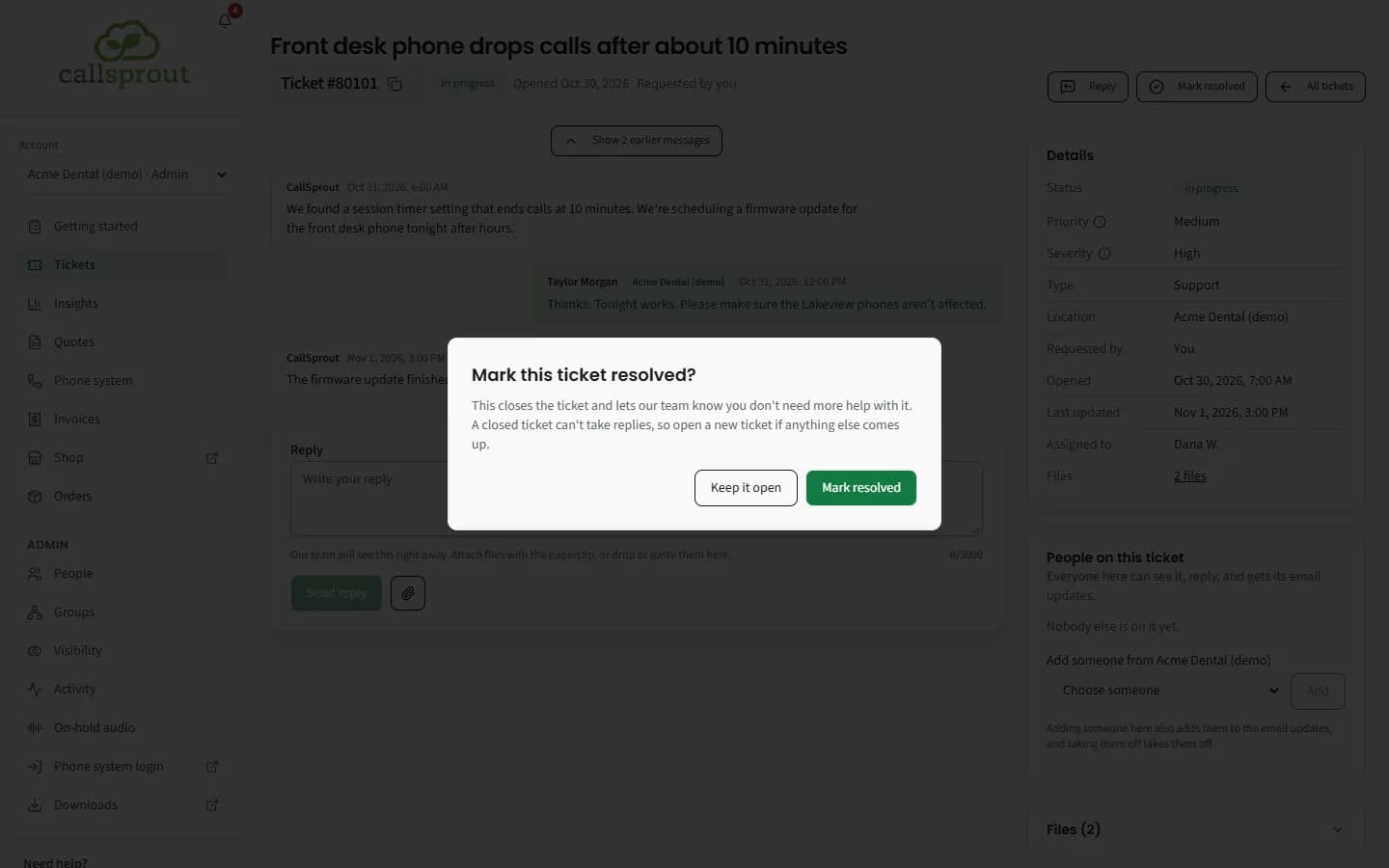
- Click Mark resolved at the top of the ticket.
- The portal asks Mark this ticket resolved?: "This closes the ticket and lets our team know you don't need more help with it. A closed ticket can't take replies, so open a new ticket if anything else comes up."
- Click Mark resolved to close it, or Keep it open.
What happens:
- The ticket closes straight away, shows Resolved, and moves to the Closed tab. It can't take replies after that. If the problem comes back, use Open a follow-up ticket on it (see above).
- CallSprout's team sees who closed it. Nobody is emailed about it.
- If you closed someone else's ticket, the person it's for gets a bell alert saying who closed it, in case it isn't sorted for them.
- It's listed in Admin › Activity under Tickets.
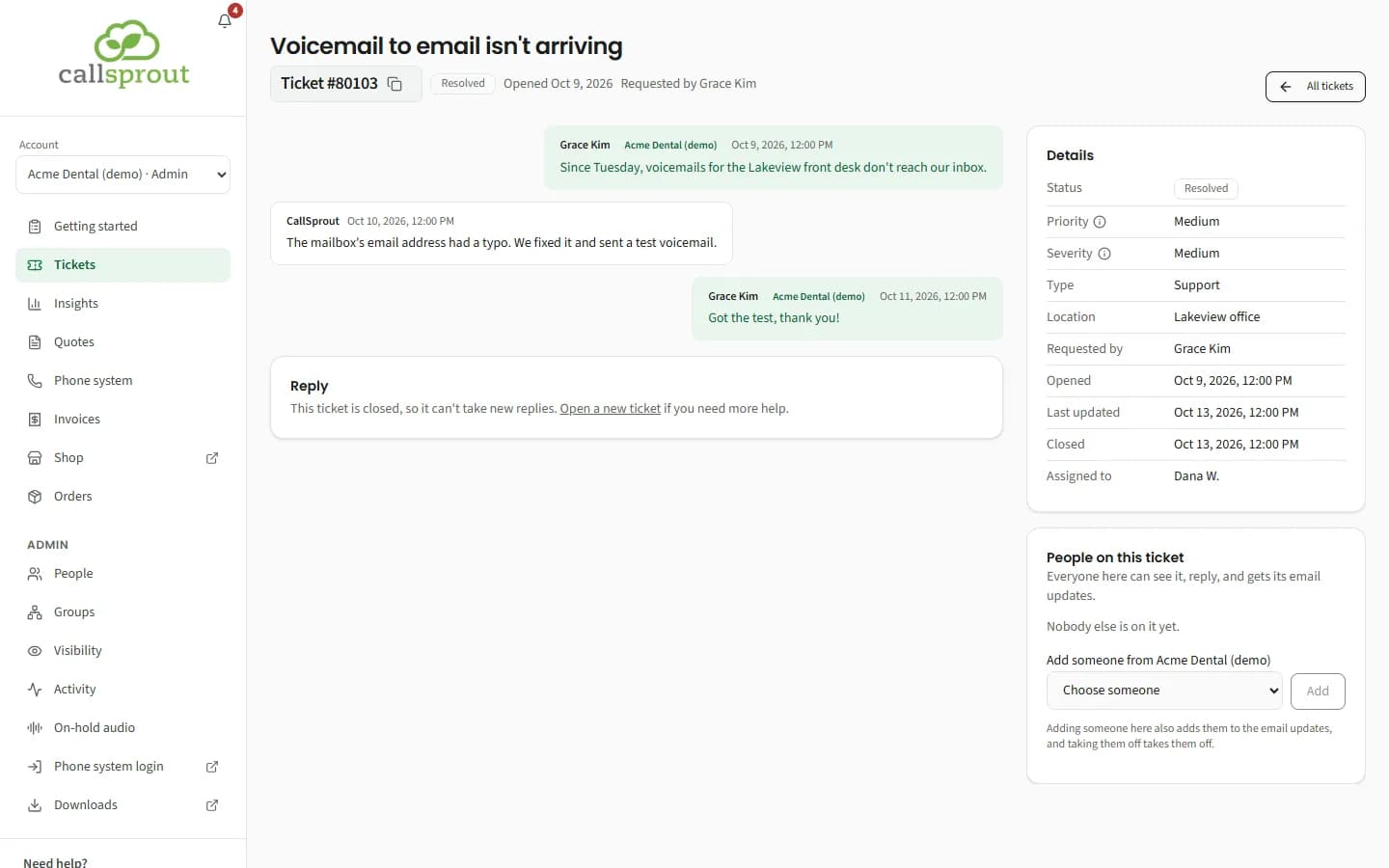
If CallSprout has already closed the ticket, the page simply shows it closed. Each person can close up to 30 tickets an hour. If closing doesn't work, the box says why, for example "This ticket can't be closed from here. Reply to ask us to close it."
If you don't see Mark resolved on an open ticket, reply and ask us to close it.
People on this ticket
Everyone on the list can see the ticket and reply to it. The card's summary tells you whether they also get emails:
- "They can see it here and reply." Email updates go only to the people added when the ticket was opened.
- "Everyone here can see it, reply, and gets its email updates." CallSprout has switched on email updates for everyone on the list. Adding or taking someone off also adds them to, or takes them off, the emails.
The requester and account admins can use Add someone from {your company} and Add, or Take off someone. A note beside a person explains when they won't get emails, for example "(not on the email updates: we have no contact for them at this company)" or "(not on the email updates yet: ask us to add them)".
Billing tickets
If your company has a payment problem or a past-due balance, CallSprout's billing team may email your billing contacts about it (see Emails about your bill in Invoices and payments). Those emails, and your replies to them, are kept together on a billing ticket called Collections: {your company}.
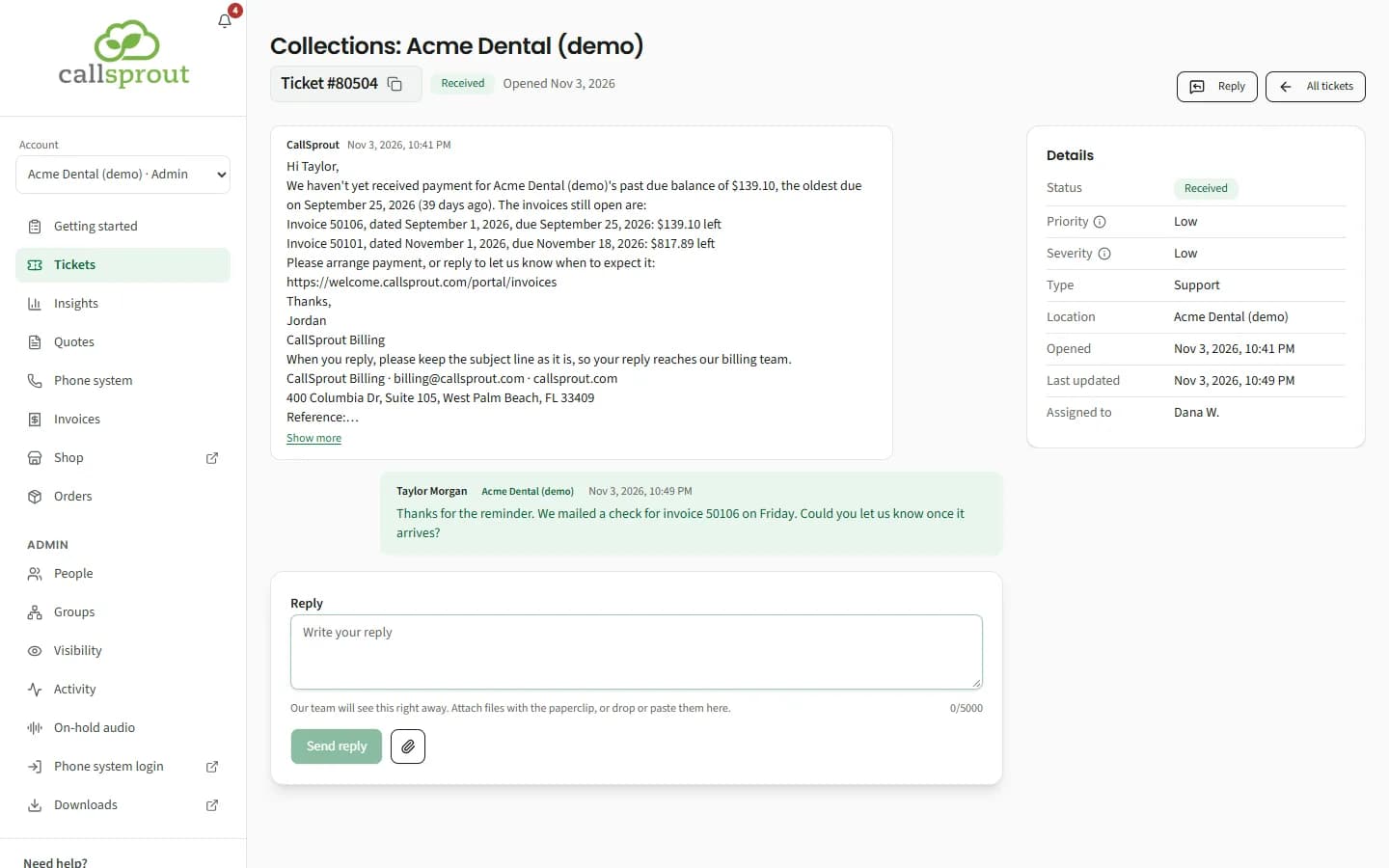
- Who sees it: only the people who can see that location's invoices. That's admins, and people with See invoices whose own contact is at that location, always within their own locations. Nobody else sees it, whatever their role, groups or visibility rules, and nobody sees it while Invoices isn't switched on for your company.
- Reading and replying: its conversation shows the billing team's emails to your company's billing addresses, and the replies from those addresses. You can reply here too. Your reply goes to the billing team.
- You can't close it. Mark resolved isn't offered. Our billing team closes it once the account is settled, and it then no longer shows in your list.
- Its people can't be changed. Who sees it follows who sees your invoices: "Who sees a billing ticket follows who sees your invoices, so it can't be changed here."
Sensitive tickets
For private matters such as HR issues or a termination. Only admins can mark a ticket Sensitive, and only when opening it. An existing ticket can't be changed to Sensitive.
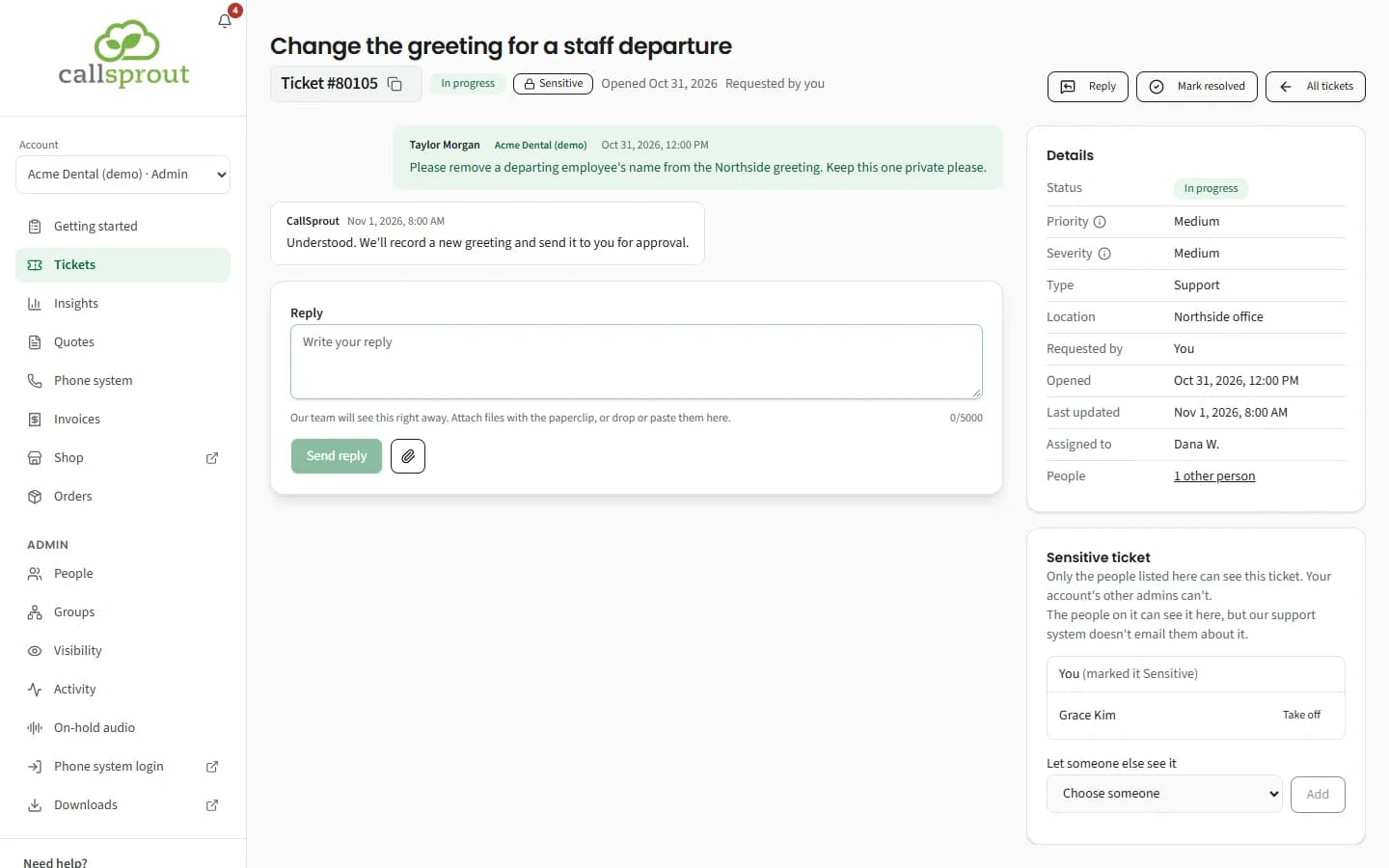
- Only the people on its list can see it. Other admins, managers and teammates can't.
- The admin who opened it can Let someone else see it or Take off people.
- The people on it can read it in the portal, but CallSprout's support system doesn't email them about it.
If a Sensitive ticket needs a new owner (for example, the admin who opened it leaves), contact CallSprout.
Related articles
Still stuck? Contact support
Our team in West Palm Beach can walk you through it. Tell us your name, your company and what you were trying to do.