
Send a request with a ticket template
- Audience: End users
- Audience: Admins
Last updated
A ticket template is a ready-made form for a common job, such as adding a person or porting numbers. Each one you send becomes a ticket that CallSprout's team works on. A template asks for everything the team needs, so there's less back and forth than with a blank ticket.
Who can use them: admins, and people with the Use ticket templates permission, once CallSprout has turned Ticket templates on for your company. You also need to be linked to a contact at your location.
Opening a ticket from a template
Open Tickets, click New ticket and pick a template from the menu. Up to three templates CallSprout has highlighted also show as quick-action cards at the top of Tickets.
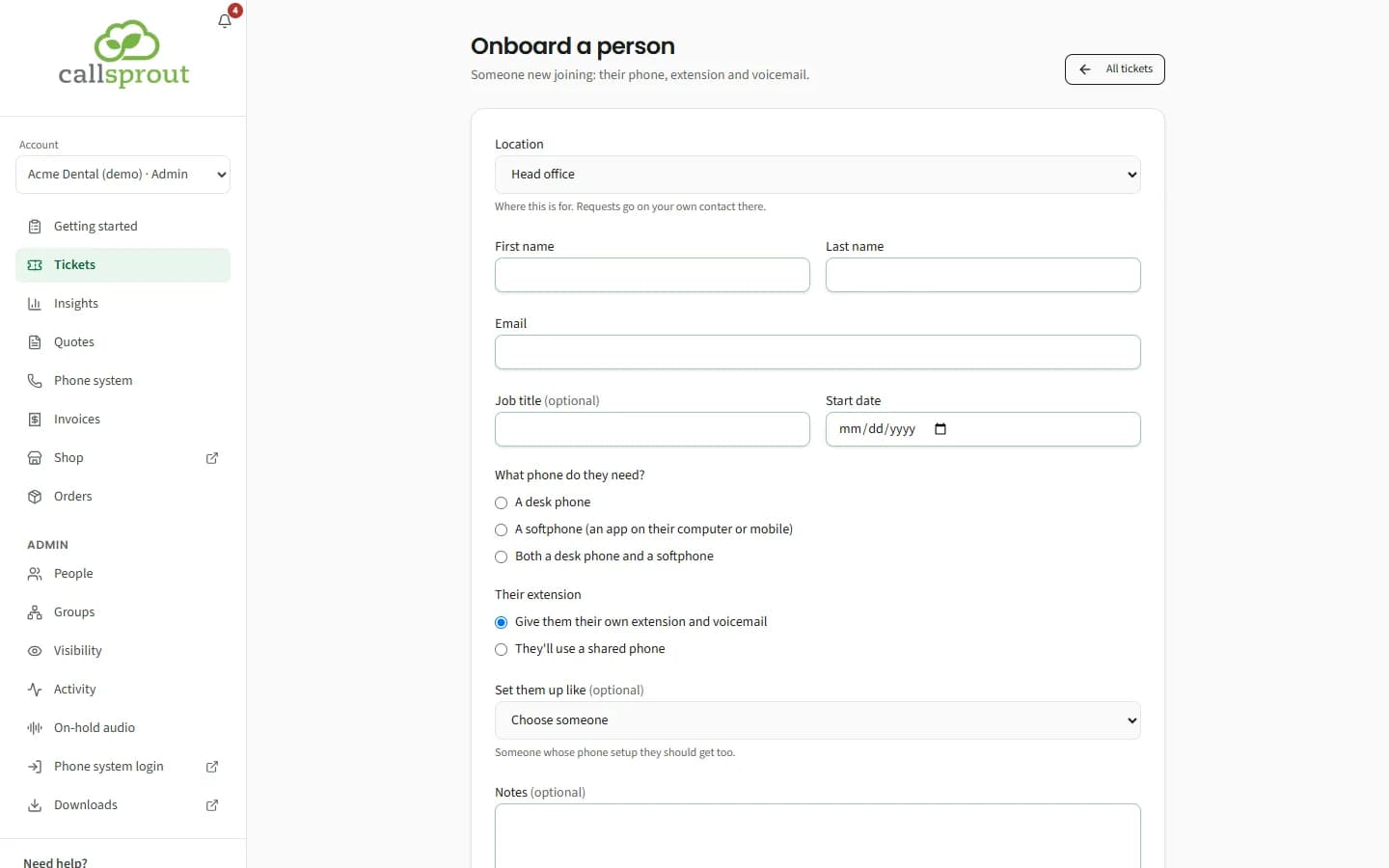
Every template asks for a Location, offering only your own locations. Fill it in and click Send request. You'll see "Thanks, we've got your request." with the ticket number. From there you can go to All tickets or Send another.
The standard templates
| Template | Use it to |
|---|---|
| Onboard a person | Set up phones and access for a new starter |
| Offboard a person | Remove a leaver. We handle it on their last day. Turning off their portal login is separate: an admin does that in Admin › People. |
| Extension change | Add a new extension, Close an extension, or Move an extension from one person to another |
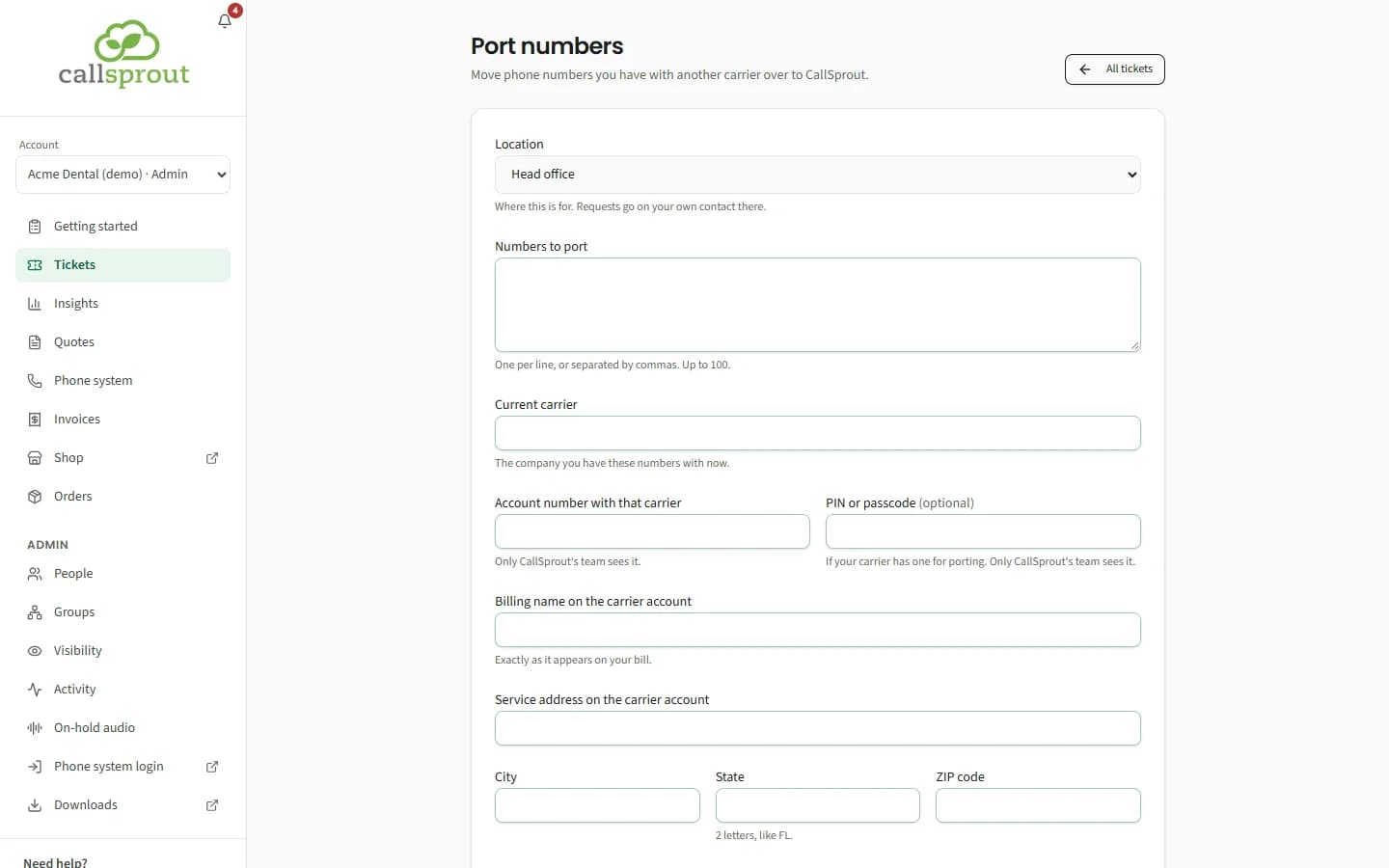
| Port numbers | Move phone numbers to CallSprout from another carrier. The account number, PIN and bill copy are seen only by CallSprout's team. The authorized person signs the Authorization to port these numbers by typing their name, exactly as given in the authorized-name field. |
| Holiday greeting | Set up a holiday greeting or closed message for your callers, ahead of time. See below. |
Holiday greeting
Use it a few days before a holiday, so callers hear the right message on the day.
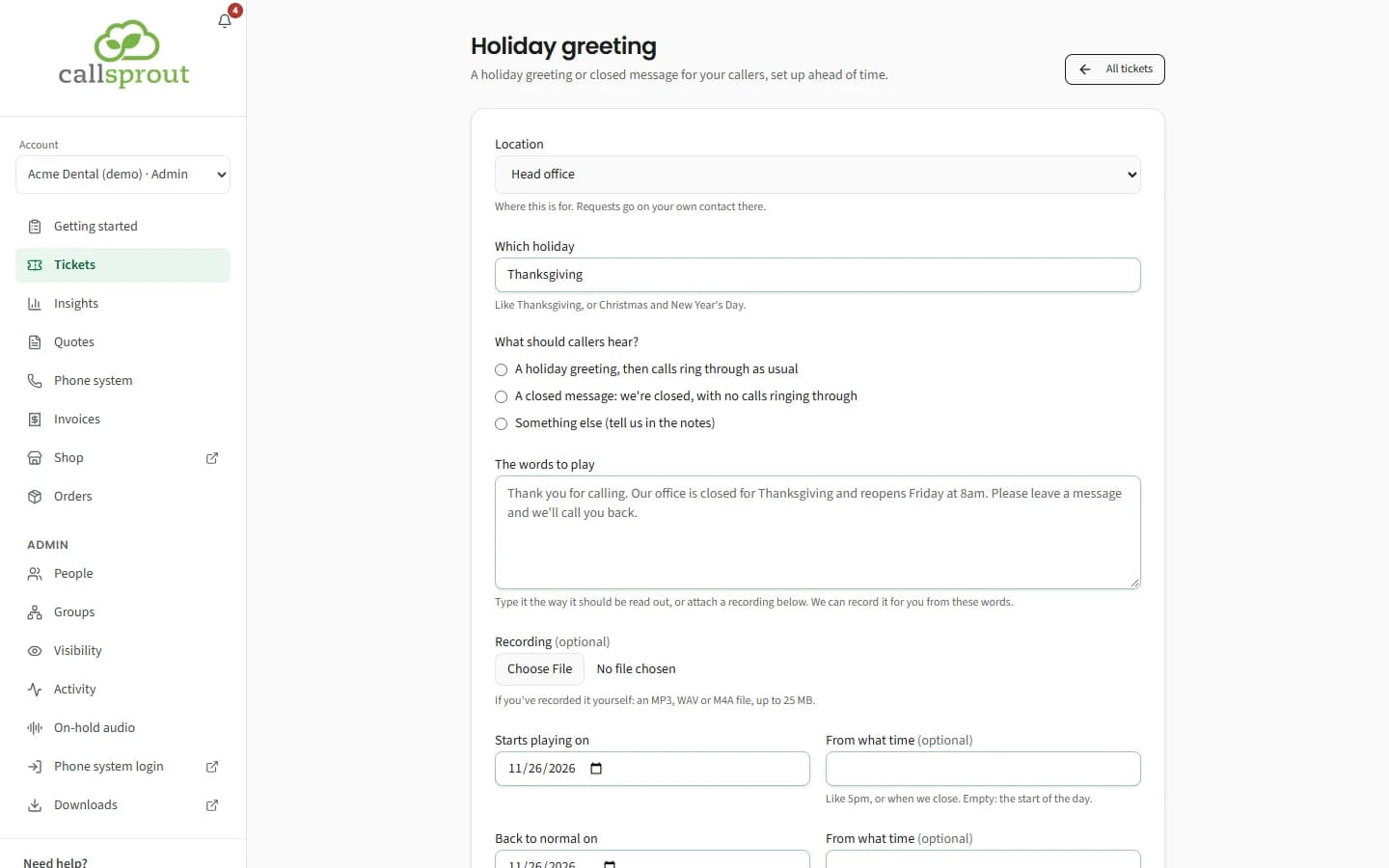
| Field | Notes |
|---|---|
| Which holiday | For example "Thanksgiving", or "Christmas and New Year's Day". |
| What should callers hear? | A holiday greeting, then calls ring through as usual, A closed message: we're closed, with no calls ringing through, or Something else (tell us in the notes). |
| The words to play | Type the message the way it should be read out. We can record it for you from these words. |
| Recording (optional) | If you recorded it yourself: an MP3, WAV or M4A file, up to 25 MB. You need the words or a recording. |
| Starts playing on, From what time | The day it starts, and optionally a time, like "5pm" or "when we close". With no time, it starts at the beginning of the day. |
| Back to normal on, From what time | The day your normal greeting comes back, and optionally a time, like "8am". It can't be before the start. |
| Which numbers or locations (optional) | Leave it empty for all of them. |
A recording you add is attached to the ticket, so our team has the file, and it shows on the ticket's page with your other uploads.
If you're an admin, CallSprout may also email you before each holiday. Its Send your holiday greeting button opens this template with the holiday and its date already filled in.
CallSprout can also build templates just for your company. They work the same way. A field marked private is seen only by CallSprout's team.
Following what you sent
Once your request has a ticket, it's an ordinary ticket in your list: follow and reply to it there.
For a moment after sending, it may show its own page while it's delivered:
| You see | Meaning |
|---|---|
| Sending to support | It's on its way |
| Couldn't send (we're on it) | Delivery failed and CallSprout has been alerted |
| Not sent (send it again) | Use Send it again |
That page also shows What was sent (private answers are marked as private, not shown). Admins see every request sent at their locations (the whole company, for an admin of all locations); everyone else sees their own.
Messages you might see
- Ticket templates aren't set up for your account yet: CallSprout hasn't finished setting them up for your company. Email support@callsprout.com and we'll help.
- Using ticket templates needs your account admin to allow it: ask your admin to turn on Use ticket templates for you.
- You aren't linked to a contact at any of your company's locations yet: ask your admin or CallSprout to link your login to your contact.
- This form isn't available any more: CallSprout has taken that template away. Go back to Tickets to see the ones you can use.
- This form changed while you were filling it in: check it over and send it again.
Related articles
Still stuck? Contact support
Our team in West Palm Beach can walk you through it. Tell us your name, your company and what you were trying to do.