
Complete your partner onboarding
- Audience: Admins
Last updated
Until CallSprout approves your company, the portal opens on Onboarding. The sidebar shows Get started › Onboarding with how far along you are, and the pages you can't use yet are greyed out with a lock ("Unlocks after approval"). Branding, Team and My account stay open. Everything saves as you go, so you can stop and come back.
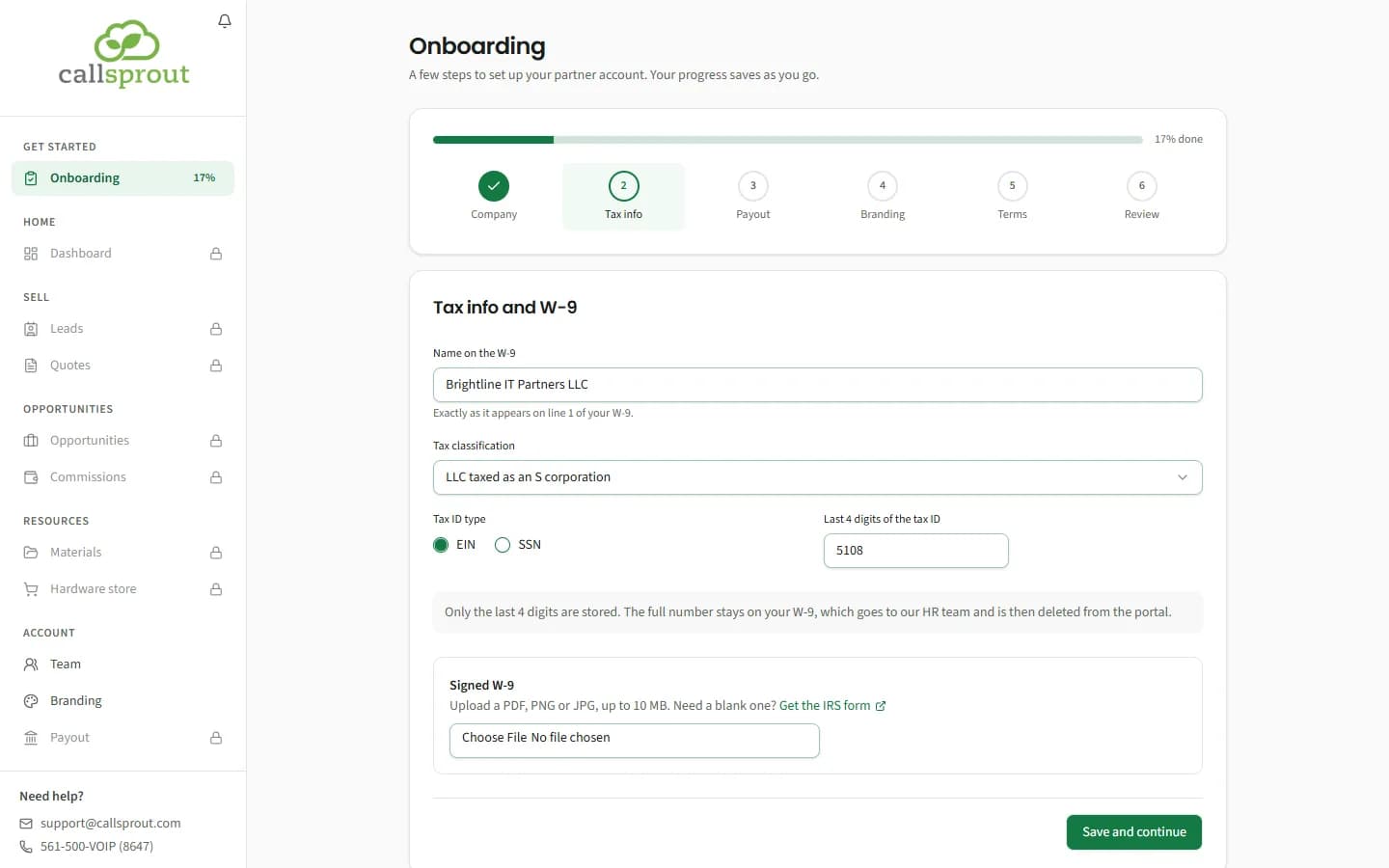
For partners: six steps
The steps are Company, Tax info, Payout, Branding, Terms and Review. A bar across the top shows how much is done. Most steps end with Save and continue. Terms ends with Accept and continue, and Review with Submit for review. You can open a step once the ones before it are done.
1. Your company and contacts
- Business: legal business name, DBA or brand name, company phone, website.
- Address.
- Primary contact: name, email, phone.
- Accounting contact and Marketing contact (both optional).
Some of these may already be filled in from what CallSprout has on file. Check them and change anything that's out of date.
2. Tax info and W-9
- Name on the W-9 ("Exactly as it appears on line 1 of your W-9"), Tax classification, Tax ID type (EIN or SSN) and the Last 4 digits of the tax ID.
- Signed W-9: upload a PDF, PNG or JPG, up to 10 MB. There's a Get the IRS form link if you need a blank one.
Only the last 4 digits are stored. The full number stays on your W-9, which goes to CallSprout's HR team and is then deleted from the portal.
This step isn't finished until the W-9 is uploaded. If you save without it you'll see "Your tax details are saved. Upload your signed W-9 to finish this step." We can't pay any commission without a signed W-9 on file.
3. How you'd like to be paid
Choose a Payout method:
- Direct deposit (ACH): account holder name, bank name, checking or savings, routing number, account number (entered twice).
- Paper check: Pay to the order of and a mailing address.
Changes after approval go through a verification step: see Payout, tax and commissions.
4. Your logo (optional)
Add logo: PNG, JPG or SVG, at least 300 px on its longer side, up to 5 MB. It goes on your co-branded quotes and materials. Save and continue unlocks once a logo is added; otherwise click Skip for now.
5. Program and brand terms
Shows Your Referral Partner Agreement: the agreement you signed with CallSprout, which sets your commission, payment and program terms. You'll see the date it was signed and its reference, and View agreement if CallSprout has the document on file. If there's no signed agreement on file yet, it says so; contact CallSprout if you think that's wrong.
Once you're approved, the commission terms we set up from your agreement (the rate, how long it's paid, and whether you're paid monthly or quarterly) show at the top of Commissions, if your partnership includes commission. See Payout, tax and commissions.
Below it are CallSprout's Brand usage terms. Tick I've read and accept the brand usage terms and click Accept and continue. If the brand terms change later, you'll be asked to accept the new version.
6. Review and submit
A summary of every step, each with Edit. Before you can submit lists anything still missing. When it's clear, click Submit for review.
After you submit
| You see | Meaning |
|---|---|
| Submitted, we're reviewing it | CallSprout is checking your details. Nothing can be changed while we review it. |
| We need a few changes | CallSprout has sent it back with a note. The steps to fix are marked Needs changes; update them and submit again from Review. |
| You're approved | The portal is open. Go to your dashboard. |
We email you when you're approved, and when we send it back for changes.
For sales reps: two steps
"Two quick steps before you start working with {company}."
- Your profile: first name, last name, phone, job title (optional).
- Program and brand terms: accept the brand usage terms, then Accept and finish.
You'll see You're all set. If your company is already approved, the portal is open. If not, it opens once CallSprout approves your company.
Related articles
Still stuck? Contact support
Our team in West Palm Beach can walk you through it. Tell us your name, your company and what you were trying to do.