
Keep your leads in the partner portal
- Audience: Admins
Last updated
Sell › Leads: "The companies you're working, who's involved and what you know." Keep one lead for each company you're talking to: its contacts and the part each plays in the decision, your notes, the financial picture, and the quotes you build for it. A lead stays private to your company until you send it to CallSprout.
Partners see every lead in the company. Reps see their own.
The list
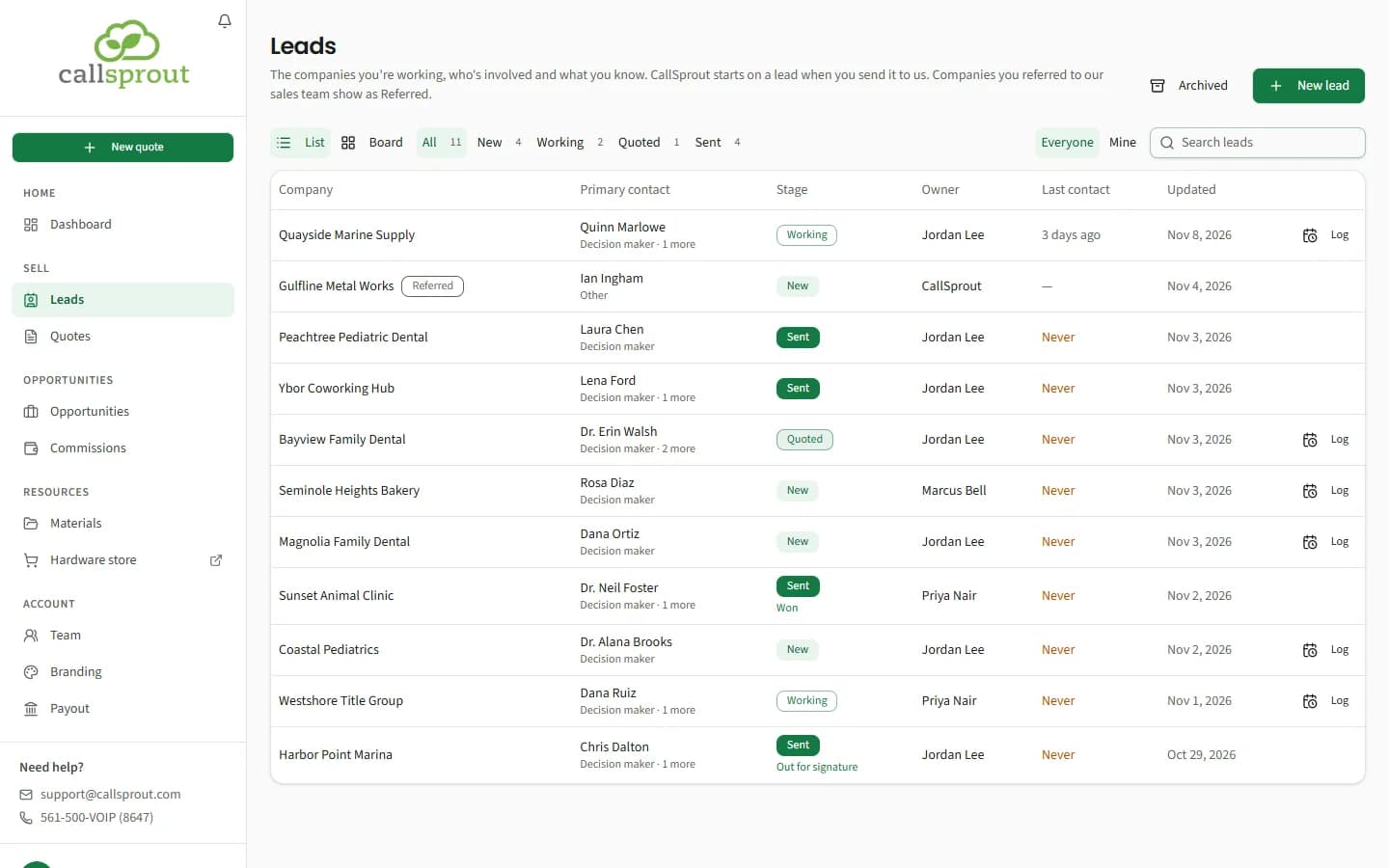
- Stage filters with counts: All, New, Working, Quoted, Sent. Leads you closed out are on the Archived list instead (see Closing a lead out, below).
- Everyone / Mine (partners only): everyone's leads, or only the ones you own.
- Search leads: by company, contact, email or owner.
- Columns: Company, Primary contact (with their role, and how many more contacts there are), Stage, Owner (partners only), Last contact, Updated.
- Last contact is how long ago the last call, email, meeting or text was logged on the lead: Today, Yesterday, {n} days ago, or the date once it's over a month. Never means nothing has been logged yet. It turns amber after two weeks with no contact, or when there's never been any. A Referred company shows a dash.
- Log at the end of each row opens a small Log activity · {company} box, the same as the lead page's Log activity (see Log activity, below), so you can log a call without opening the lead. Referred companies, sent leads and leads on the Archived list don't have it. To tell us something about a sent lead, write to us in Conversation with CallSprout on its Overview; see Sending a lead to CallSprout.
- A sent lead also shows how far it got with CallSprout under its Sent badge: Picked up, Quote built, Out for signature, Signed or Won, or Not going ahead. See After you send.
- Click a company to open its lead.
The board
The List / Board buttons above the leads switch between the table and a board with one column per stage: New, Working, Quoted and Sent, each with its count (on Archived: Lost and Not qualified). The page remembers your choice on that browser.
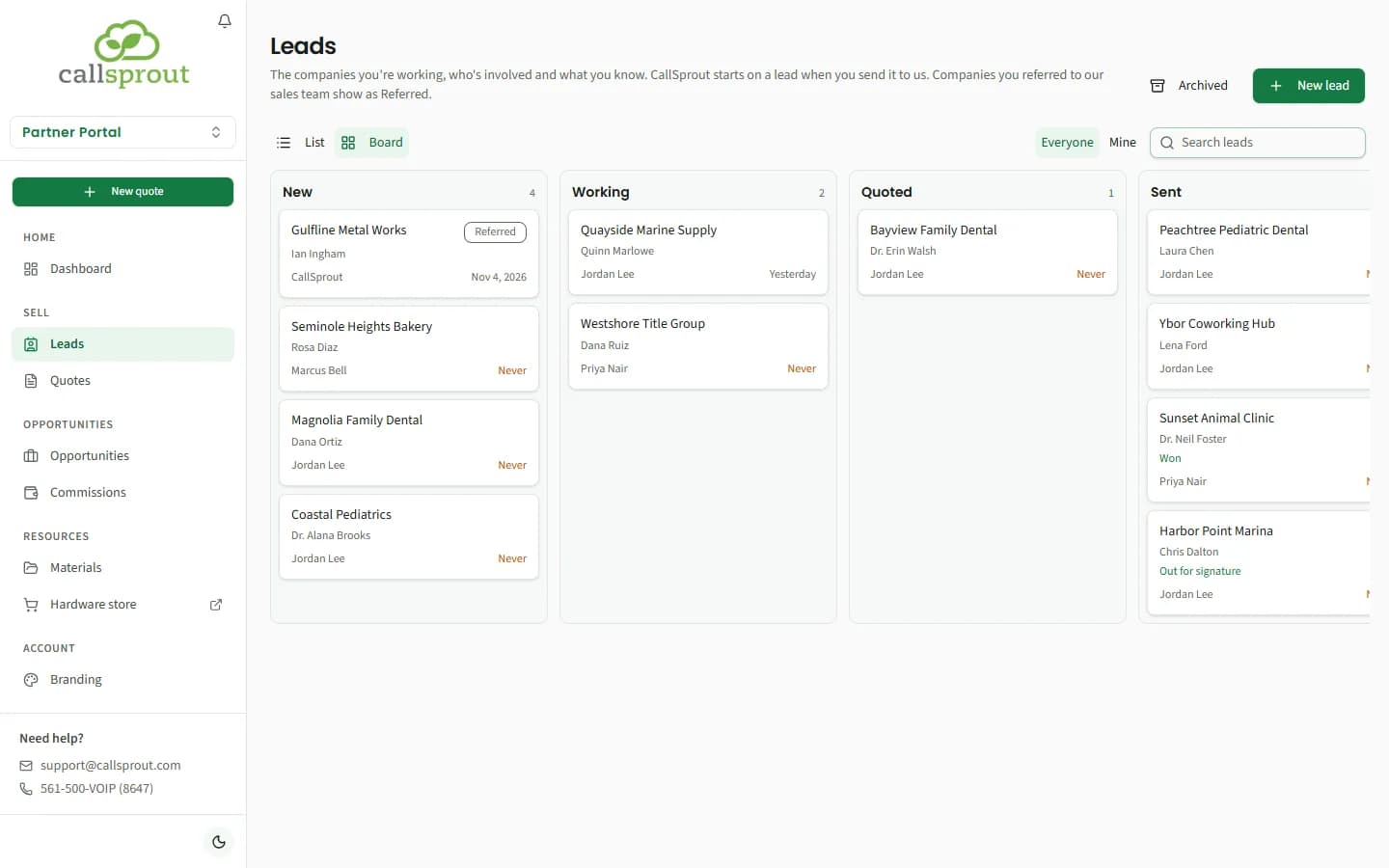
- Each card shows the company (marked Referred when it is one), the primary contact, how far a sent lead got with CallSprout, its owner and its last contact (a Referred card shows when it was last updated instead). Click a card to open the lead.
- Drag a card between New and Working to change its stage. It saves straight away; if it can't, the card goes back and a message says why. Quoted and Sent change only when you quote or send the lead, so a card can't be dropped there, and a Quoted or Sent card stays in its column. A Referred card can't be moved.
- Search and Everyone / Mine still apply. The stage filters are hidden, since the columns already split the leads by stage.
A company marked Referred, with CallSprout as its owner, is one you referred to CallSprout's sales team (for example through a referral link you shared in the past). It doesn't open. Partners see all of these; a rep sees the ones that came in through their own link. One that reads "From your Get a quote link, date" under the company is an older quote request your link brought in. When a company you referred signs with us, or doesn't go ahead, the partner gets a bell and an email saying so. See Companies you referred to our sales team.
Stages
| Stage | How a lead gets there |
|---|---|
| New | You added it |
| Working | You picked Working from the lead's stage |
| Quoted | You started a quote for it. This happens on its own. |
| Sent | You sent it to CallSprout. Its details lock. |
| Lost, Not qualified | You closed it out from the lead's stage (see Closing a lead out, below). It moves to the Archived list. |
Adding a lead
Click New lead.
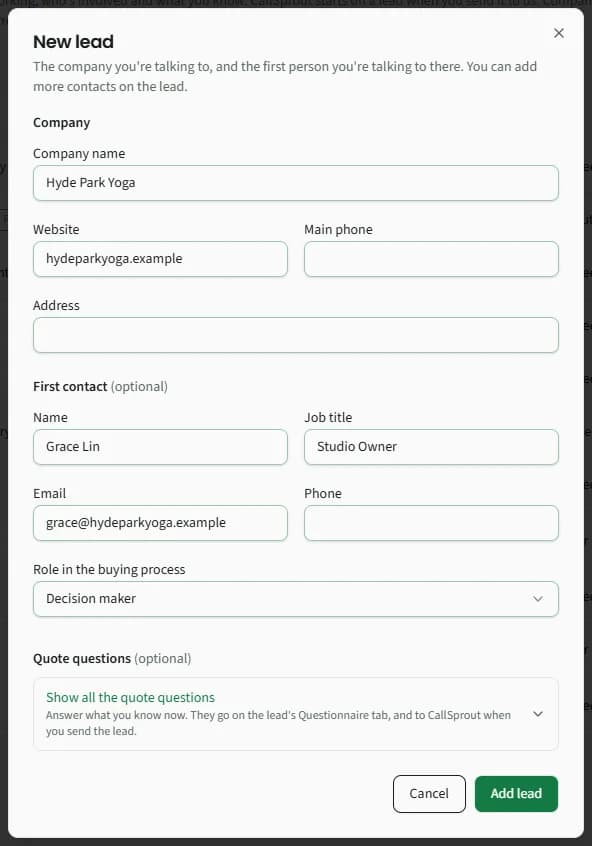
- Company: Company name (required), Website, Main phone, Address.
- First contact (optional): Name, Job title, Email, Phone and Role in the buying process. They become the lead's primary contact.
- Quote questions (optional): click Show all the quote questions to answer what you already know about the client. Under the button: "Answer what you know now. They go on the lead's Questionnaire tab, and to CallSprout when you send the lead." See Quote questions, below.
Click Add lead. The lead opens, owned by you.
Quote questions
Show all the quote questions opens every question CallSprout asks before quoting, section by section: Your company, Where the phones will be, Billing, Your phones, Your phone numbers, Features, Other questions and Your network. Some questions and sections appear only when an earlier answer calls for them. None of them is required, and the website and main phone aren't asked again, since the dialog already has them. The button counts what you've answered (for example "4 answered."), and Hide the quote questions folds them away again without losing your answers.
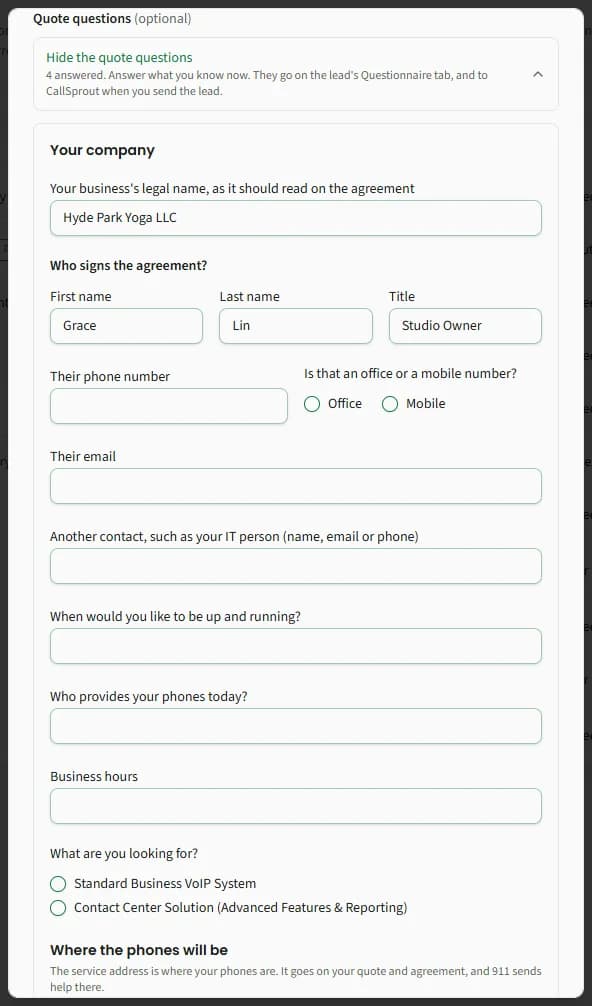
What you answer is saved on the lead's Questionnaire tab (see Questionnaire, below). If you left the lead's address blank, the service address you give fills it, and your answer to "Who provides your phones today?" fills a blank Current provider on the Financial tab. You can change the answers on the Questionnaire tab until you send the lead.
You can also start a quote without adding the lead first: the quote builder makes the lead from the client details. See Quote builder.
A lead's page
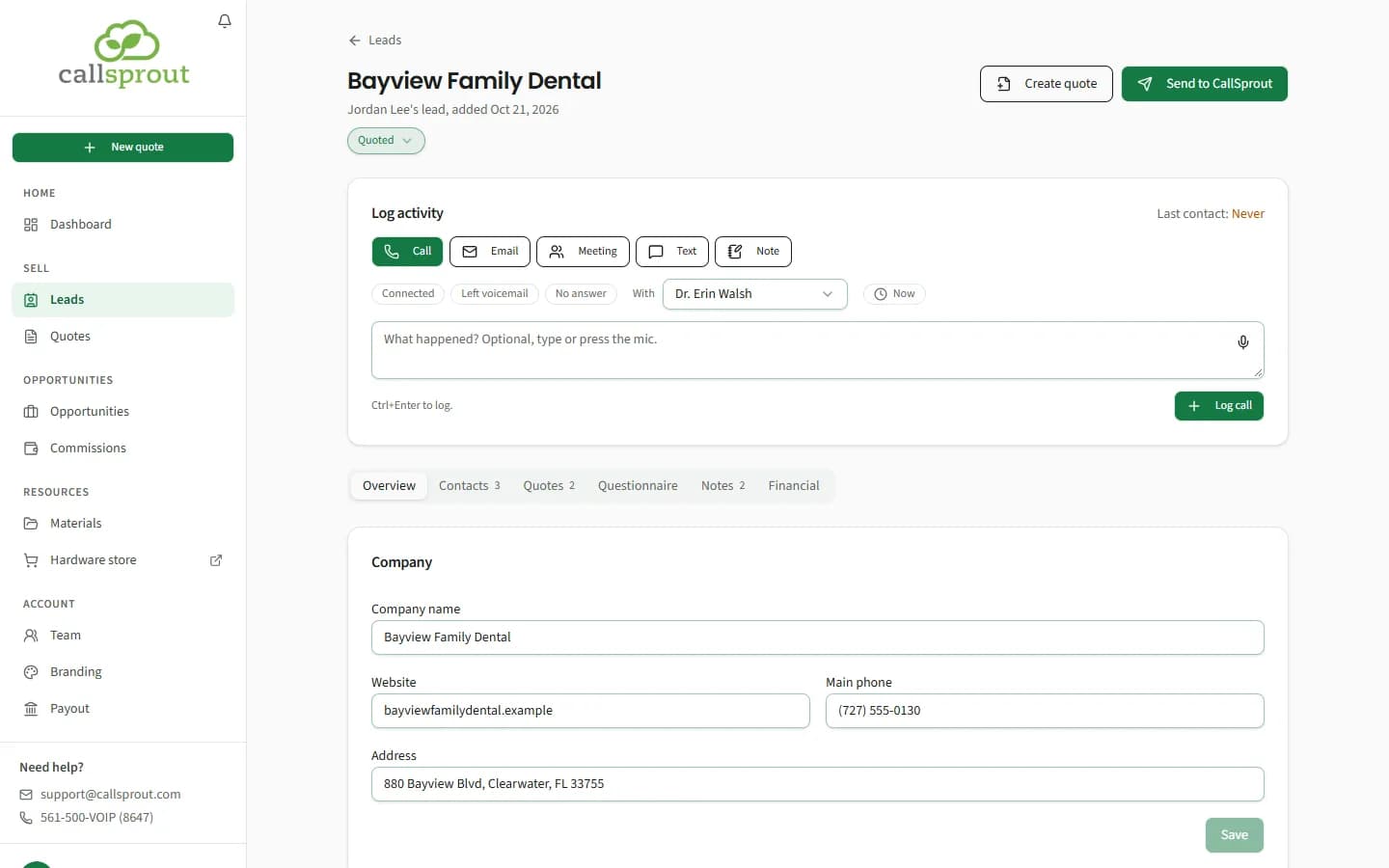
The header shows the company, whose lead it is and when it was added, and the stage under the name. The buttons:
- Create quote: a new quote for this lead, with its company, primary contact and address filled in.
- Send to CallSprout: ask us to quote the client. Your answers on the Questionnaire tab go with it. See Sending a lead to CallSprout.
Changing the stage
The stage under the lead's name is a picker. Click it and pick:
- New or Working: it changes straight away. A Quoted lead can go back to either.
- Lost… or Not qualified…: opens the box for closing the lead out (see Closing a lead out, below). These show only to the lead's owner and your company's main partner login.
Quoted and Sent show in the picker when the lead is there, but you can't pick them: a lead is Quoted once it has a quote, and Sent once you send it to us. A sent lead, or one you closed out, shows its stage without the picker.
Log activity
Under the header, Log activity keeps track of each time you're in touch with the client. Its corner shows the lead's Last contact.
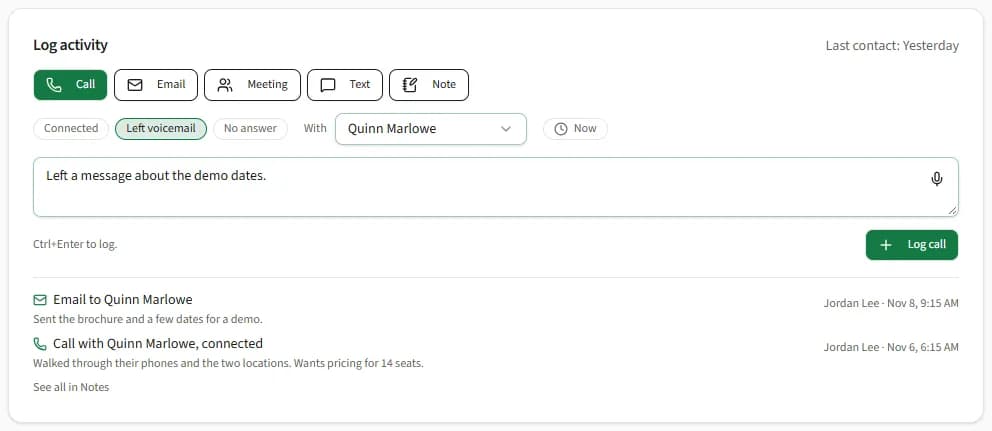
- Pick what it was: Call, Email, Meeting, Text or Note.
- How it went, if you like: for a call Connected, Left voicemail or No answer; for an email or text Sent or Received. A meeting has none.
- With: the contact it was with. It starts on the primary contact; pick No one in particular, someone else, or Add contact to add a new one to the lead (not on a lead you've sent, whose contacts are locked). (For a note it reads About.)
- Now: when it happened. Click it to pick an earlier date and time, for a call you're logging afterwards; click Now again to go back. A time ahead of now says "That's ahead of now." and can't be logged.
- What happened, in a few words (optional, except for a note). In browsers that offer it, the mic button types what you say: click it, speak, and click it again to stop.
- Click Log call (or Log email, Log meeting, Log text, Add note), or press Ctrl+Enter.
It's saved on the lead's Notes tab, with what it was, who with and how it went (for example "Call with Quinn Marlowe, connected"). The last three show under the box, with See all in Notes. A logged call, email, meeting or text sets the lead's Last contact; a note doesn't.
A lead you've sent has no Log activity box. To tell us something about it, write to us in Conversation with CallSprout on its Overview.
Closing a lead out
Click the stage under the lead's name and pick Lost… or Not qualified…. The box opens with that one picked.
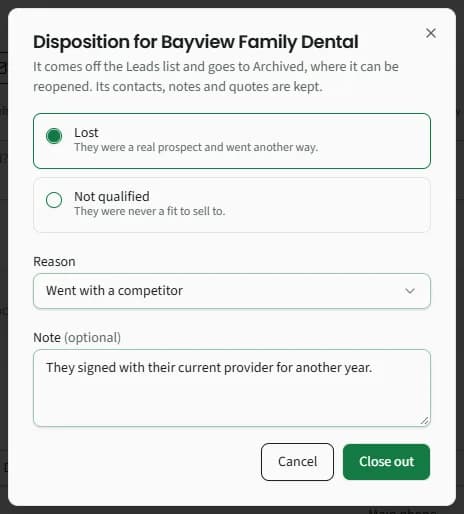
Disposition for {company}: "It comes off the Leads list and goes to Archived, where it can be reopened. Its contacts, notes and quotes are kept." Pick one:
- Lost: they were a real prospect and went another way. Pick a Reason (Price, Went with a competitor, No response, Not a fit or Other).
- Not qualified: they were never a fit to sell to.
Add a Note if you like, and click Close out. The lead moves to the Archived list and opens read only, with a line at the top saying how it was closed out and when (for example "Lost: Price (Nov 6)."), and your note.
Only the lead's owner, or your company's main partner login, can close a lead out. A sent lead can't be closed out.
To bring one back, click Archived at the top of the Leads page (Back to leads returns you). Its filters are All, Lost and Not qualified. Open the lead and click Reopen: it's back on the Leads list as Working. A rep sees their own archived leads; your main partner login sees all of your company's.
A sent lead has none of these buttons, and no Log activity. Instead, its Overview has the Sent to CallSprout card, with Send update (to tell us what changed, with a revised quote if you like) or, if the client didn't go ahead, Send again, and Conversation with CallSprout, where you write to our team. See After you send.
The tabs:
Overview
Company: Company name, Website, Main phone and Address. Change them and click Save. Once the lead is sent, the Overview starts with the Sent to CallSprout card and Conversation with CallSprout, and the company details can't be changed.
Contacts
"Everyone involved in the decision, and the part they play."
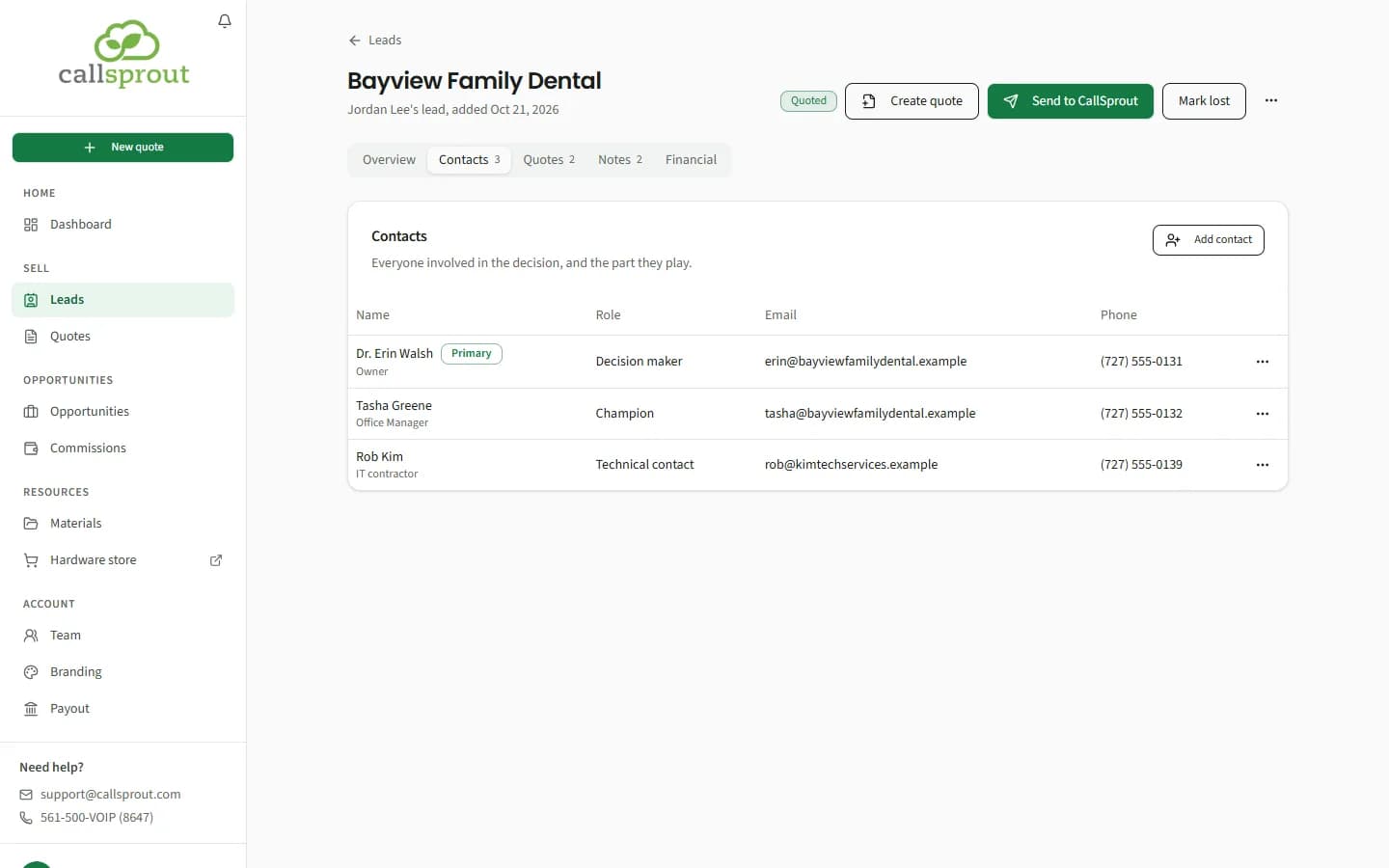
- Add contact: Name, Job title, Email, Phone, Role in the buying process and Primary contact. Click Add contact (or Save contact when editing).
- Roles: Decision maker, Influencer, Evaluator, Champion, Billing contact, Technical contact, Other.
- The Primary contact is the one CallSprout talks to and sends the agreement to. A lead always has one: the first contact you add is primary, and you can Make primary someone else from the contact's ... menu.
- Edit and Remove are in the same menu. Removing the primary contact makes the next one primary.
- Your quotes keep the lead's contacts up to date: when you change the client contact on one of the lead's quotes, the matching contact here changes too (or is added, if the lead doesn't have them). A blank address on the lead is filled from the quote. This stops once the lead is sent.
Quotes
Every quote made for this lead, newest first, with its status and monthly total.
- New quote opens the quote builder for this lead.
- Click a quote to open it.
- The copy button makes a new version of the quote for the same lead (products no longer offered aren't copied).
- To delete a quote you never sent to CallSprout, use Delete on Sell › Quotes (see Quote builder).
Adding a quote to a New or Working lead moves it to Quoted.
Questionnaire
The quote questions for this client, and the answers you've given. Every lead has this tab, even with nothing answered yet.
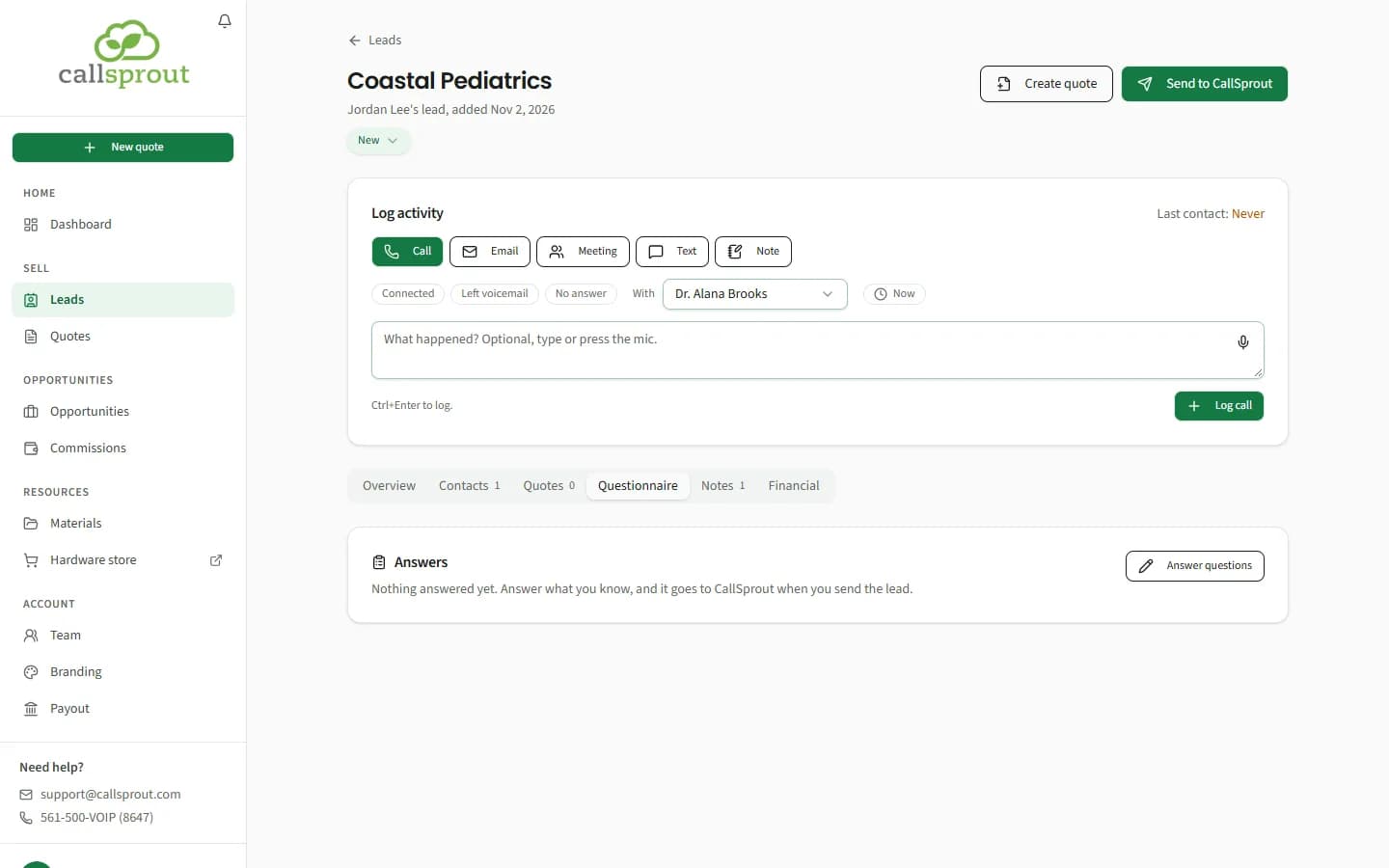
- The Answers card lists what's answered, section by section. With nothing answered it reads "Nothing answered yet. Answer what you know, and it goes to CallSprout when you send the lead."
- Answer questions (or Edit answers, once something is answered) opens Quote questions: "Answer what you know about {company}. They go to CallSprout when you send the lead." It has the same sections as the New lead dialog, plus the main phone number and website, filled in with the answers the lead already has. Change what you like and click Save answers. Emptying an answer clears it.
- Saving also fills any of the lead's company details that are still blank (address, main phone, website and current provider) from your answers. It never changes details the lead already has.
- When you send the lead, the answers go with it. If you send it with no quote, What we get reads "The lead and your questionnaire answers."
- Once the lead is sent, the answers stay as they were sent, and Answer questions and Edit answers are gone. A lead on the Archived list shows its answers read only too.
Notes
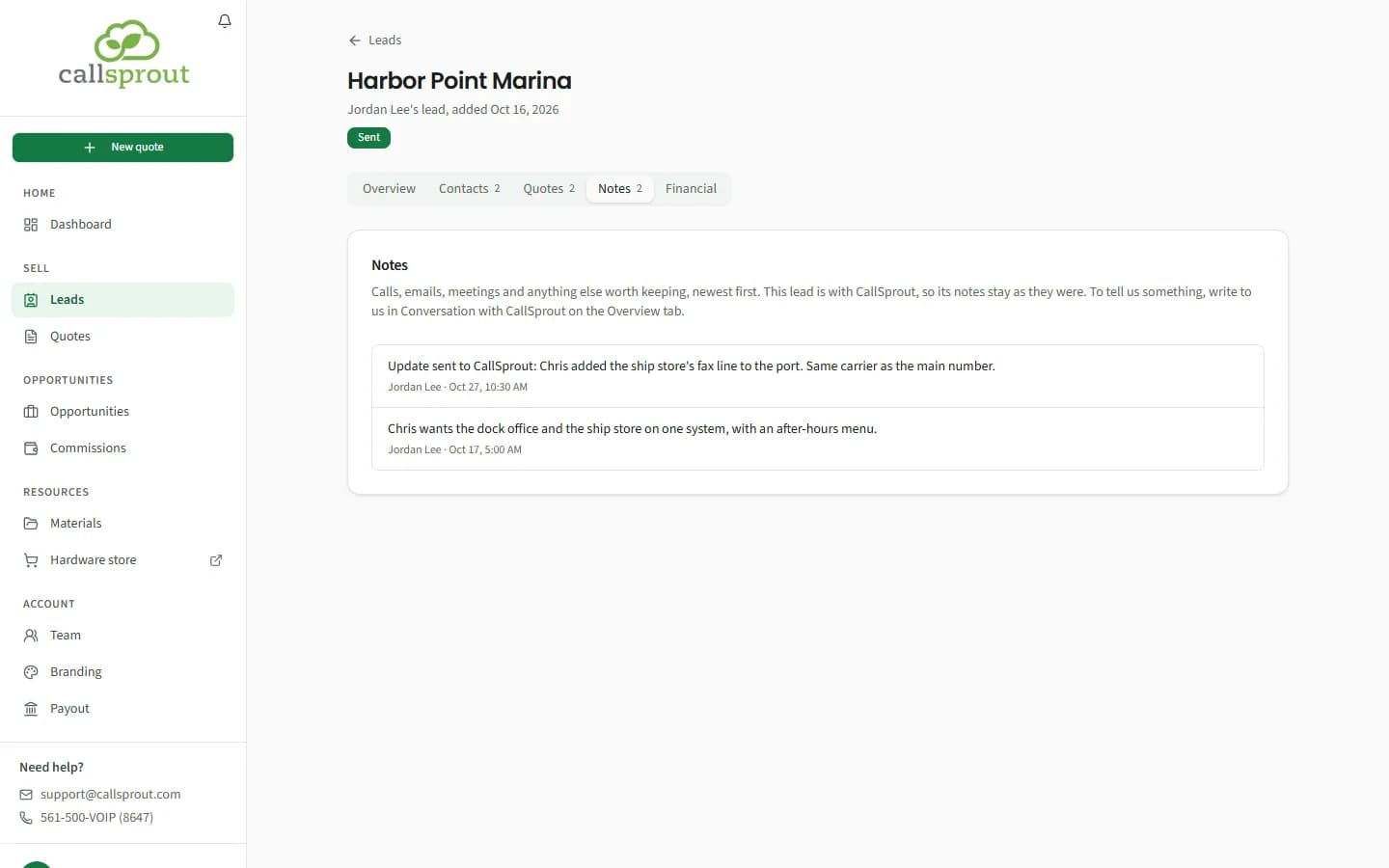
"Calls, emails, meetings and anything else worth keeping, newest first." Type a note and click Add note. Each note shows who wrote it and when, and a call, email, meeting or text logged from Log activity shows what it was, who with and how it went. Removing a logged call, email, meeting or text sets Last contact back to the one before. You can remove your own notes; partners can remove any note in the company.
On a lead you've sent, the tab is read only. It adds "This lead is with CallSprout, so its notes stay as they were. To tell us something, write to us in Conversation with CallSprout on the Overview tab." The notes written before are kept, but there's no box for a new one and no way to remove one. An update you send with Send update goes into the conversation; it's saved here only when writing to us there isn't available for your account. The same goes for Financial notes.
Financial
"What they have today and what they can spend."
- Current provider, Current monthly spend ($), Contract ends and Budget, and a Financial summary. Click Save.
- Financial notes: dated notes on budget, pricing and contracts, newest first.
Messages you might see
| Message | Meaning |
|---|---|
| This lead isn't there. It may have been archived, or it's someone else's. | The lead was archived, or it belongs to another rep |
| This lead is sent to CallSprout, so its details stay as they were sent. Write to us in the conversation on its Overview tab instead. | A sent lead's details and contacts are locked |
| This lead is with CallSprout, so it takes no new notes. Write to us in the conversation on its Overview tab instead. | A sent lead takes no new notes or logged activity. Use Conversation with CallSprout on its Overview. |
| Pick why the lead was lost. | Choose a Reason before closing it out as Lost |
| A lead needs a primary contact. Make someone else primary instead. | Make another contact primary first |
Related articles
Still stuck? Contact support
Our team in West Palm Beach can walk you through it. Tell us your name, your company and what you were trying to do.